This article explains how you can set up a CSV export of Invoices from farmerswife to import into Xero. This article is designed for those that already have a Xero environment set up.
Heads up! The direct Xero Online integration is coming soon in 2026! Contact us if you are interested to learn more!
TABLE OF CONTENTS
Setting Up the Financial Report in farmerswife
Download the Template
Attached to this article, there is a Financial Report template called: Financial_Report_invoice_ Xero CSV Invoice Export, which can be used to set up the required report in farmerswife.
Importing the Template into farmerswife
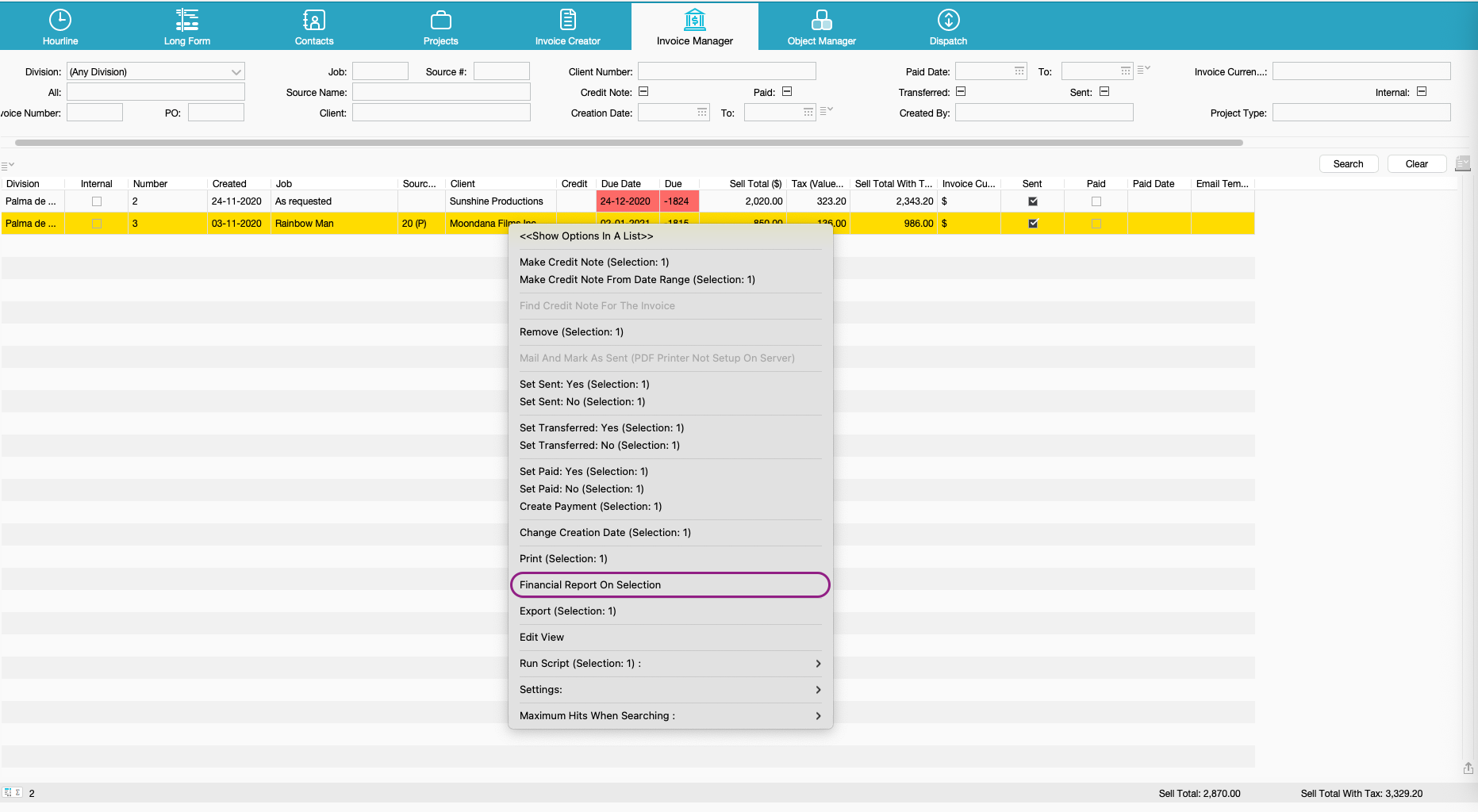
Go to the Invoice Manager and search for any invoice. Select it, and right-click to bring up the menu, then select Financial Report On Selection to bring up the Financial Report window.
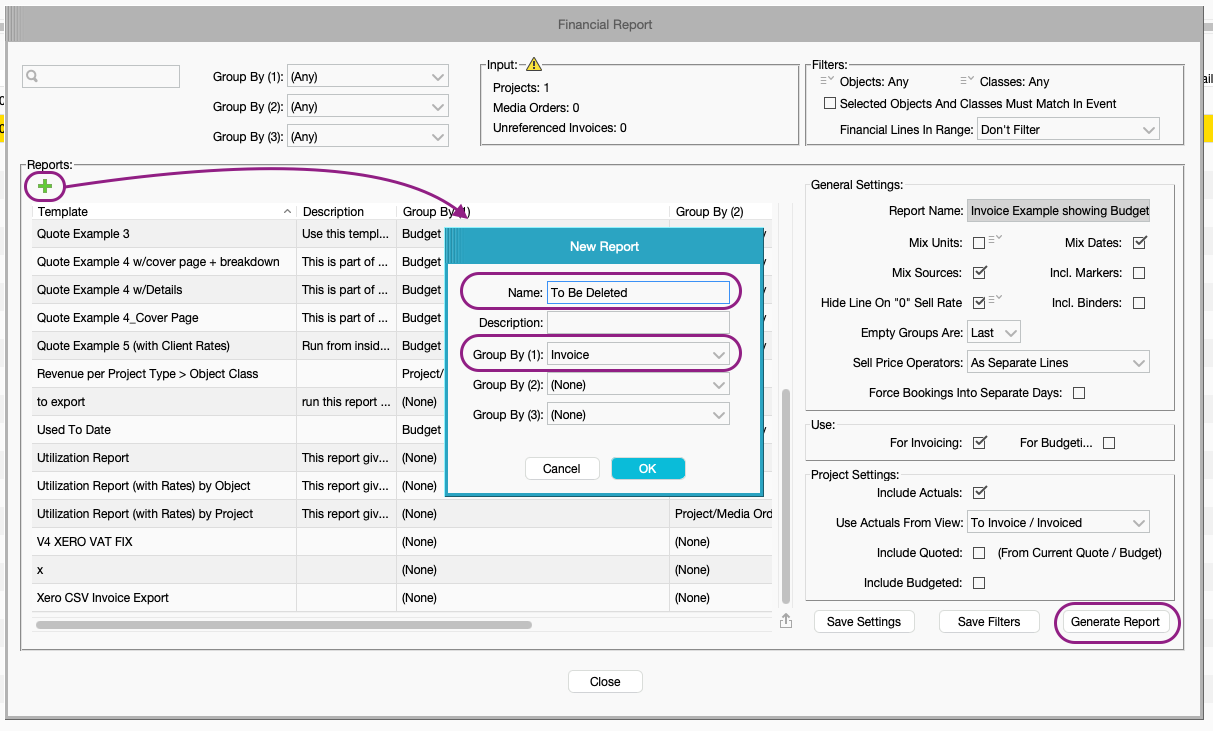
Click the green plus to create a new report, and select "Invoice" in Group 1. Name this report: To Be Deleted, as this report will be removed later. Then click Generate Report.
This will open the Print Designer window, with a blank page.
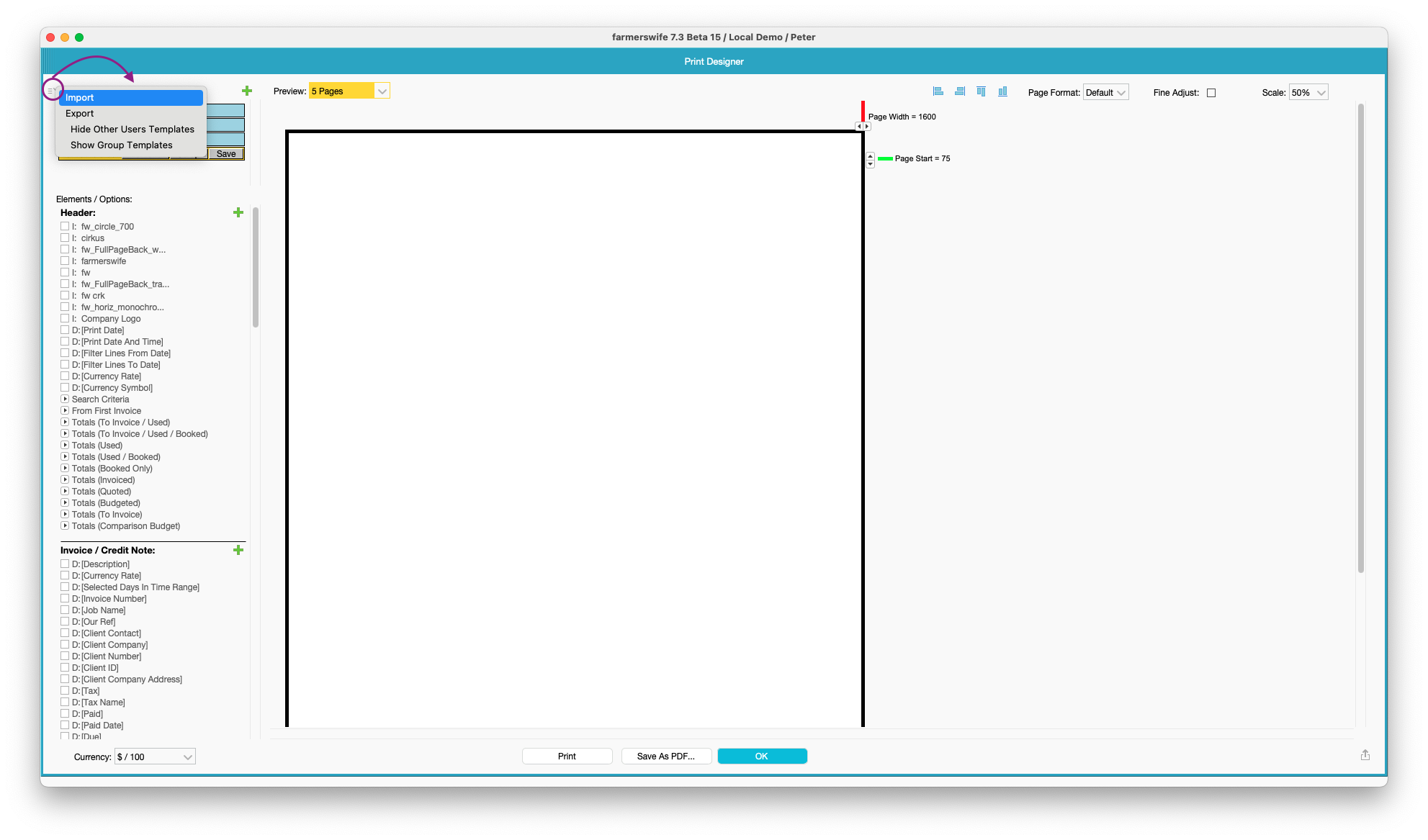
At the top left of the window, click the menu button, and select Import. Navigate to the report template you've downloaded from the step above, and import. This will import the template, and re-open the Print Designer displaying the report from the new template.
In the top left of the Print Designer, the Templates section will now have at least two reports:
- a report called: To Be Deleted
- a report called: Xero CSV Invoice Export
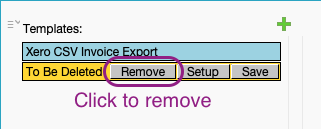
Select the report called: To Be Deleted. Click the Remove button that now appears on the template in the Templates section. This will remove the dummy template, leaving your imported report in place.
Running the Financial Report to Generate a CSV
In the Invoice Manager, identify the invoices you wish to export to CSV, and import into Xero. Then select them and right-click to bring up the Menu. Select Financial Report On Selection, to open the Financial Report window, then select the report Xero CSV Invoice Export. Click Generate Report to run the report and open the Print Designer.
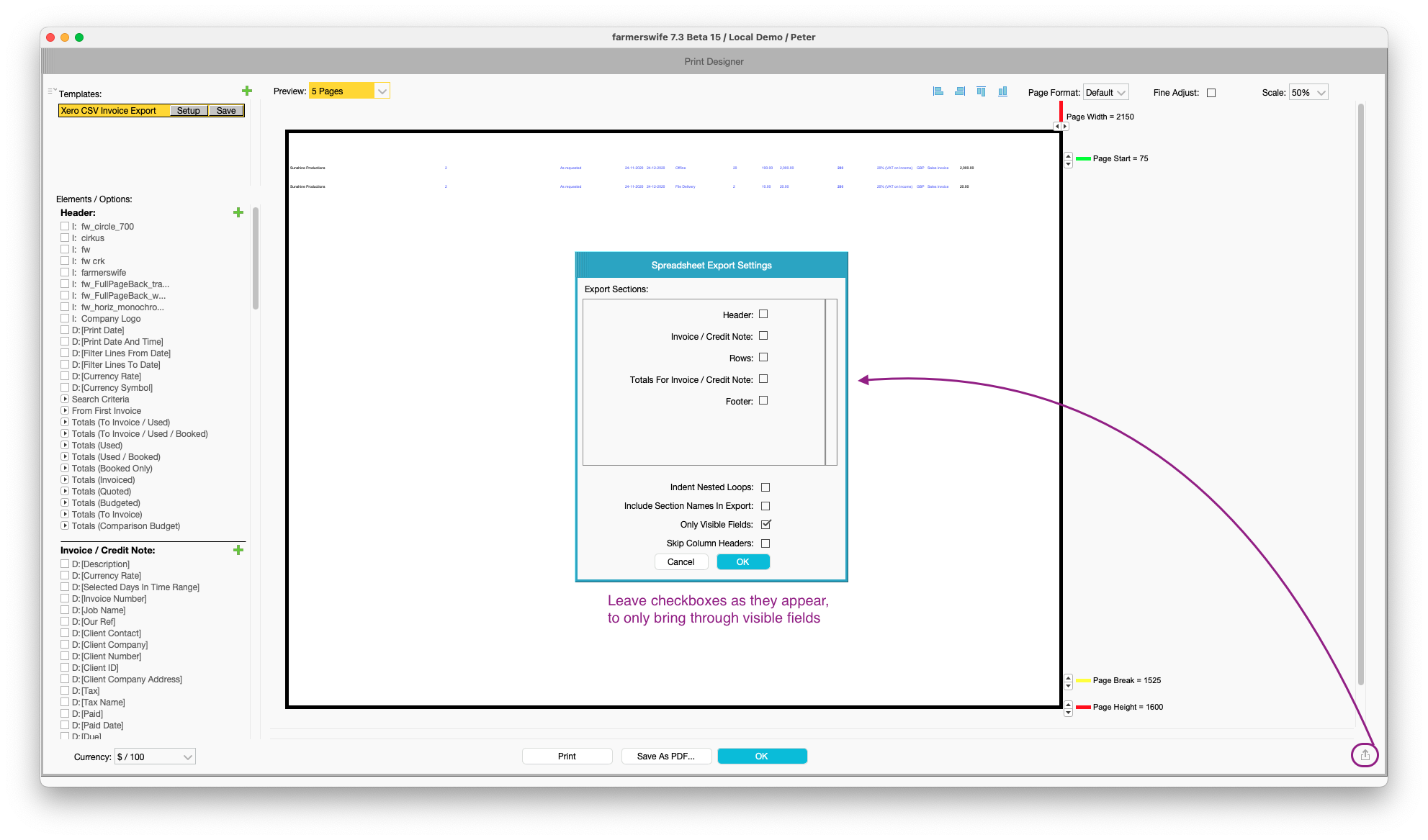
In the bottom right of the Print Designer window, click the Share button. This will bring up a prompt window, where you can leave the checkboxes as displayed. Clicking OK will bring the next prompt where you can click Save As... to save your export as a CSV file.
Importing the CSV Into Xero
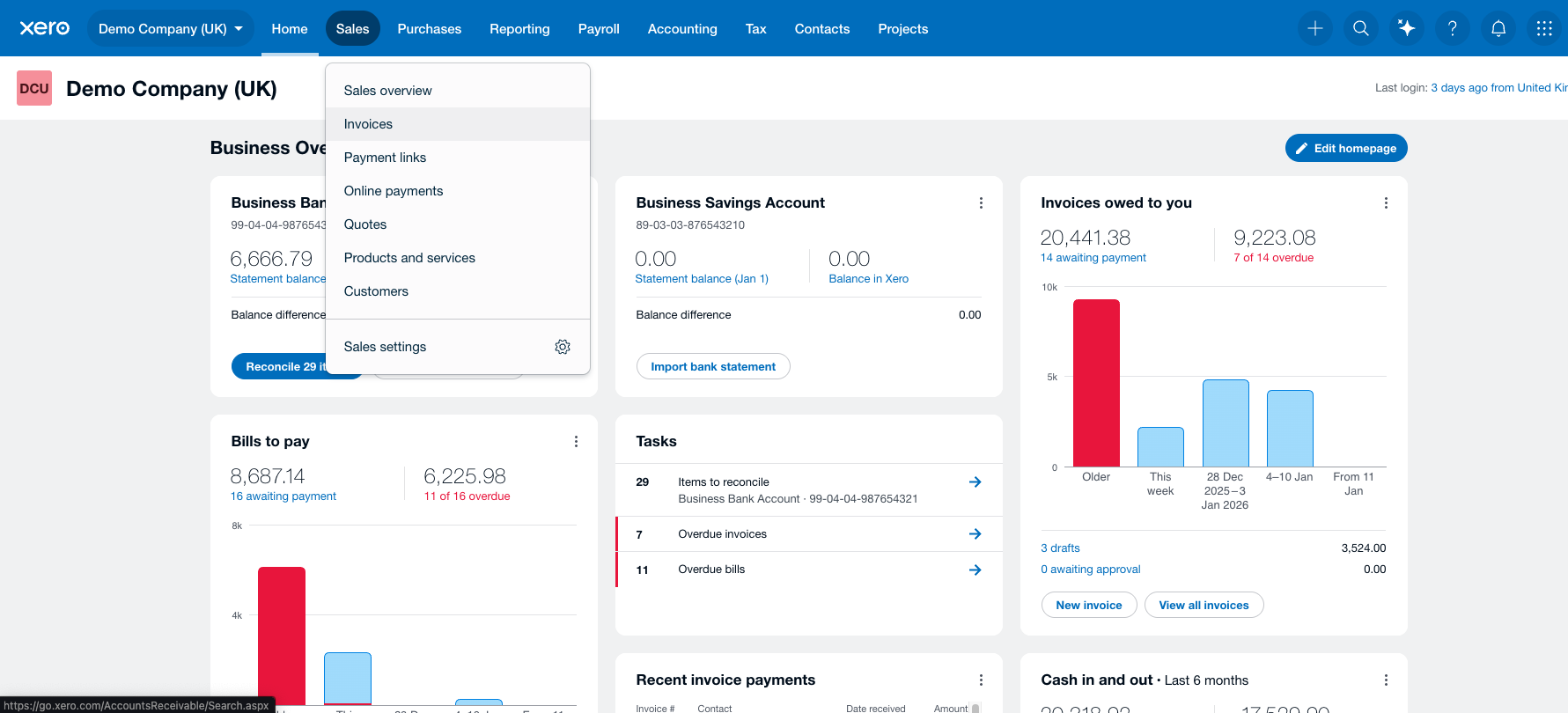
In Xero go to the Sales tab, and then select Invoices from the menu.
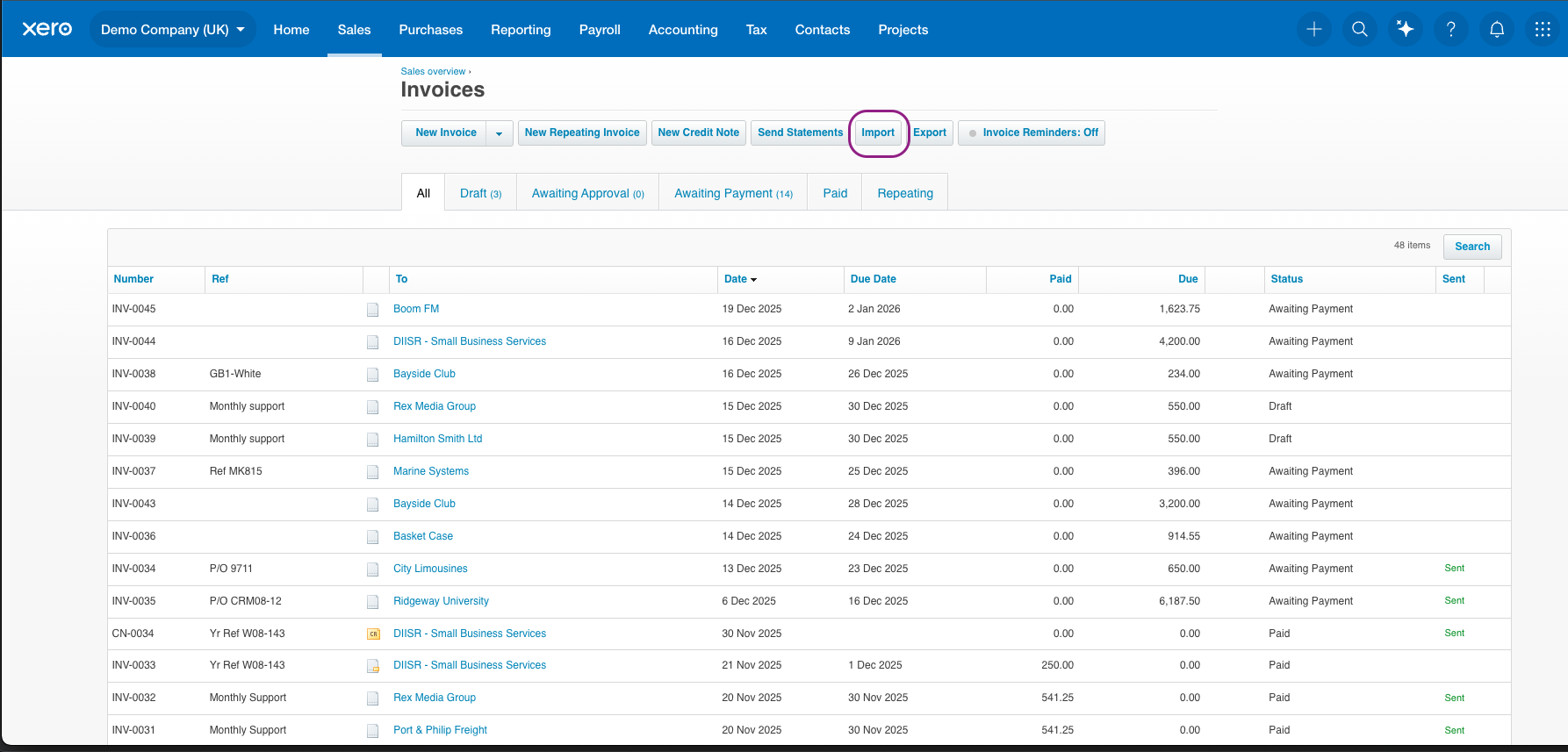
In the Invoices window click on the Import button, which will take you to a new page to look at importing your exported CSV.
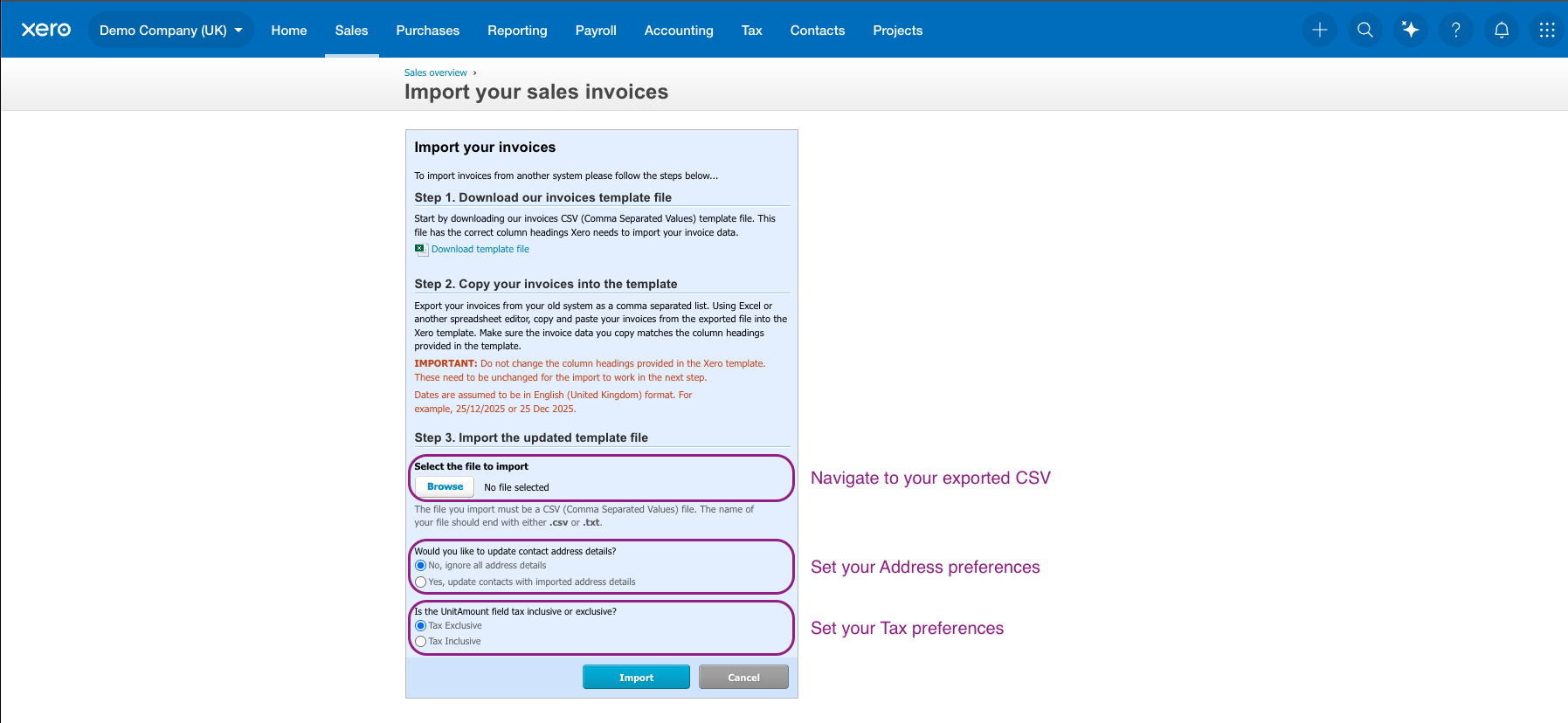
Using the Browse button, navigate to your CSV file, and then select the relevant Tax & Address settings before importing.
The import will confirm if there are any issues with file that you are importing.
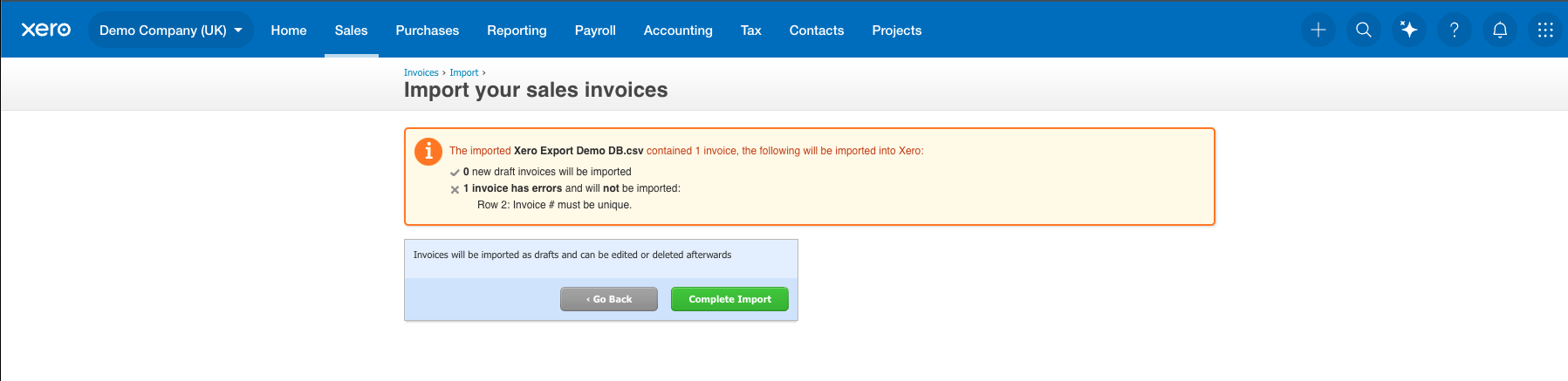
If all is correct, clicking Complete Import will take you to a screen displaying your list of invoices.
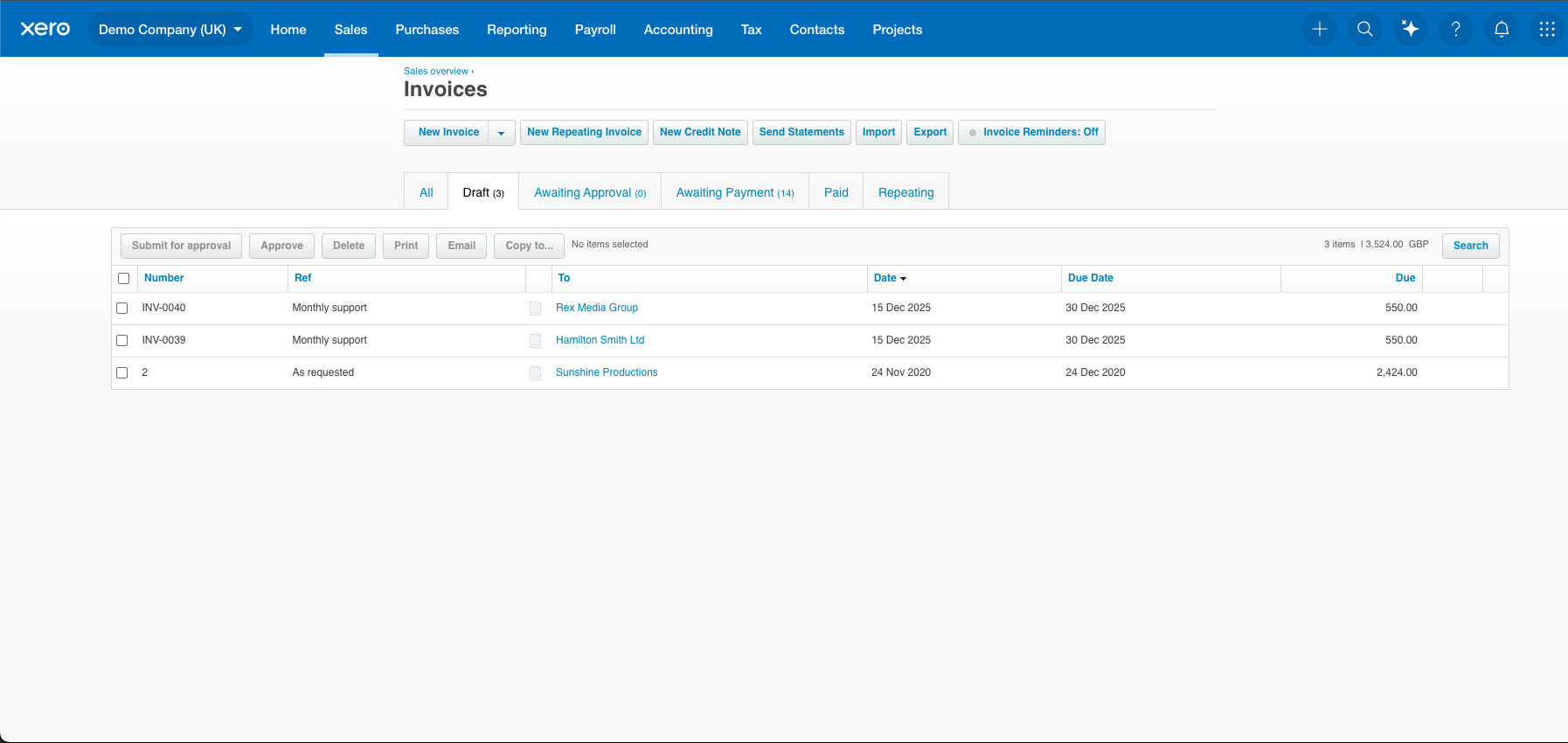
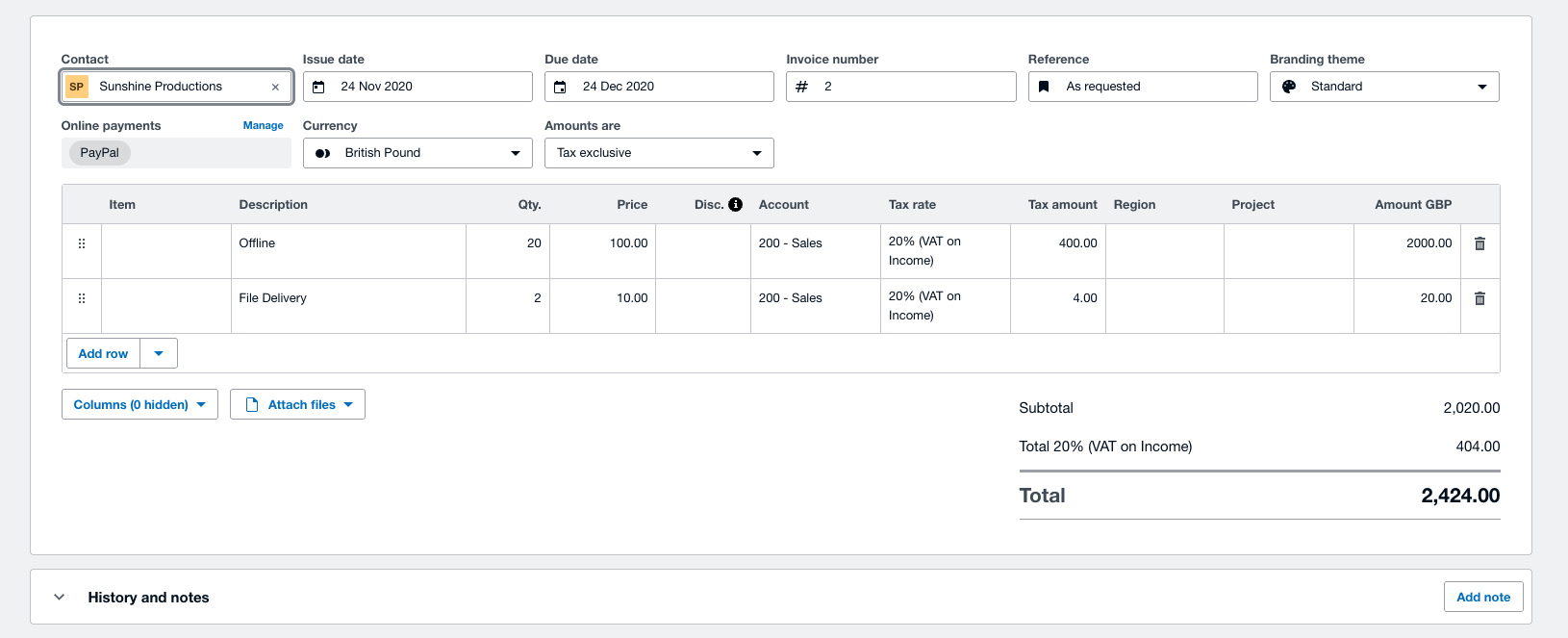
You can select the invoices to inspect them individually and edit them if required.
Was this article helpful?
That’s Great!
Thank you for your feedback
Sorry! We couldn't be helpful
Thank you for your feedback
Feedback sent
We appreciate your effort and will try to fix the article