How to setup and use the QuickBooks Online Integration
farmerswife integrates with QuickBooks Online so you can send your invoices directly from farmerswife to QuickBooks in one click, keep your customers and services in sync, and let QuickBooks notify farmerswife when an invoice has been paid.
This article covers what you need to get started, how the setup works, how to send invoices, and how to use the new Custom Fields mapping feature (currently in development) to push extra information from farmerswife into QuickBooks Online.
The QuickBooks integration is a separate licensed feature. Please contact sales@farmerswife.com for pricing information.
TABLE OF CONTENTS
- How to setup and use the QuickBooks Online Integration
Before you begin
- A farmerswife server running version 7.3 or later.
- You need to have a farmerswife license with QuickBooks enabled.
- You need a Developer Intuit Account for QuickBooks Online (used to create the application that connects farmerswife to your QuickBooks company).
What this integration does
- Sends invoices created in farmerswife to your QuickBooks Online company.
- Resolves QuickBooks customers and products/services automatically using simple matching rules.
- Maps farmerswife payment terms to your QuickBooks payment terms.
- Stores the QuickBooks invoice number on the farmerswife invoice so you can later open it directly in QuickBooks.
- Receives payment notifications from QuickBooks and marks the invoice as Paid in farmerswife automatically.
- Lets you map QuickBooks Online custom fields to farmerswife invoice custom fields, so additional information flows through to QuickBooks every time you send an invoice (In development).
Step-by-step instructions
Step 1: Configure the Toolbox Settings
- In farmerswife Desktop Client as an Admin with access to Server Setup, go to Toolbox > Settings > Server Setup > Financial > Enable QuickBooks Online
- Click at Setup, this is a simple window where administrators enters: Client ID, Client Secret and OAuth2 redirect URI, toggle sandbox mode, enable API logging and control whether the invoice DocNumber is sent.
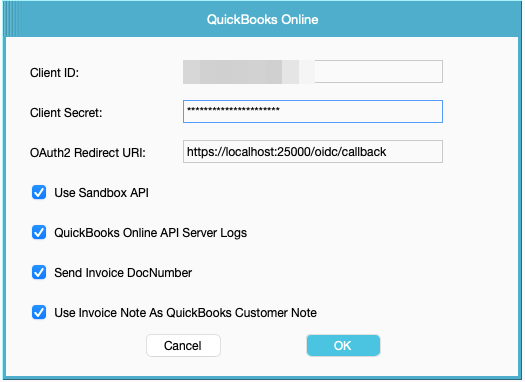
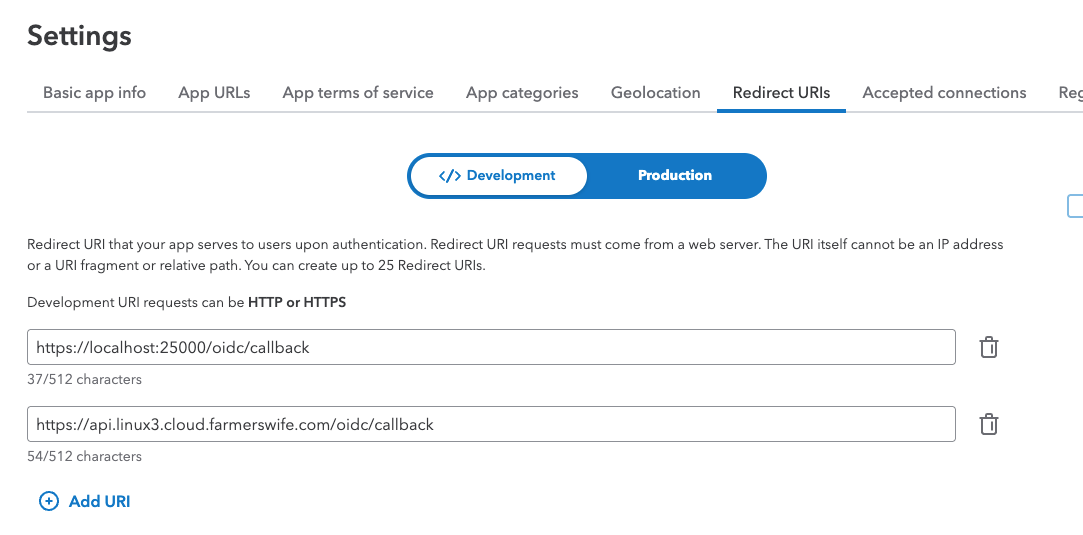
Field Description Client ID The client id from your Intuit Developer app. Client Secret The client secret from your Intuit Developer app. OAuth2 Redirect Url The redirect URI you registered in your Intuit Developer app. Webhook Verifier Token The verifier token from your Intuit Developer app (used to receive paid-status updates). Use Sandbox API Turn ON only if you are testing against a QuickBooks sandbox company. QuickBooks Online API Server Logs Turn ON only if you need to provide diagnostic logs to support. Send Invoice DocNumber Controls whether farmerswife sends the invoice number to QuickBooks. See note below. Use Invoice Note as QuickBooks Customer Note When OFF (default), the farmerswife Invoice Note is sent as a Private Note in QuickBooks. When ON, it is
sent as a customer-visible Customer Note.
The “Send Invoice DocNumber” setting controls whether farmerswife sends the invoice document number to QuickBooks Online when an invoice is created.This setting is especially important when using custom transaction numbers in QuickBooks.

When Custom Transaction Numbers is ON, QuickBooks expects the invoice number to be provided by the user or by an external system, this case, farmerswife.

When Custom Transaction Numbers is OFF, QuickBooks automatically generates the invoice number.
Step 2: Add Invoice Custom fields to farmerswife
Add minimum the following fields to the Invoice Custom fields:
- QuickBooks Id (This will be the unique id returned by QuickBooks for the invoice)
- QuickBooks Number (The invoice number assigned to users in QuickBooks)
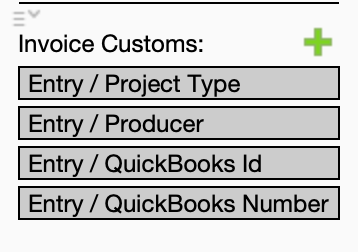
☁ ☞ farmerswife Support will do this for you if you are a cloud hosted customer.
Step 3: Configure QuickBooks Services mapping
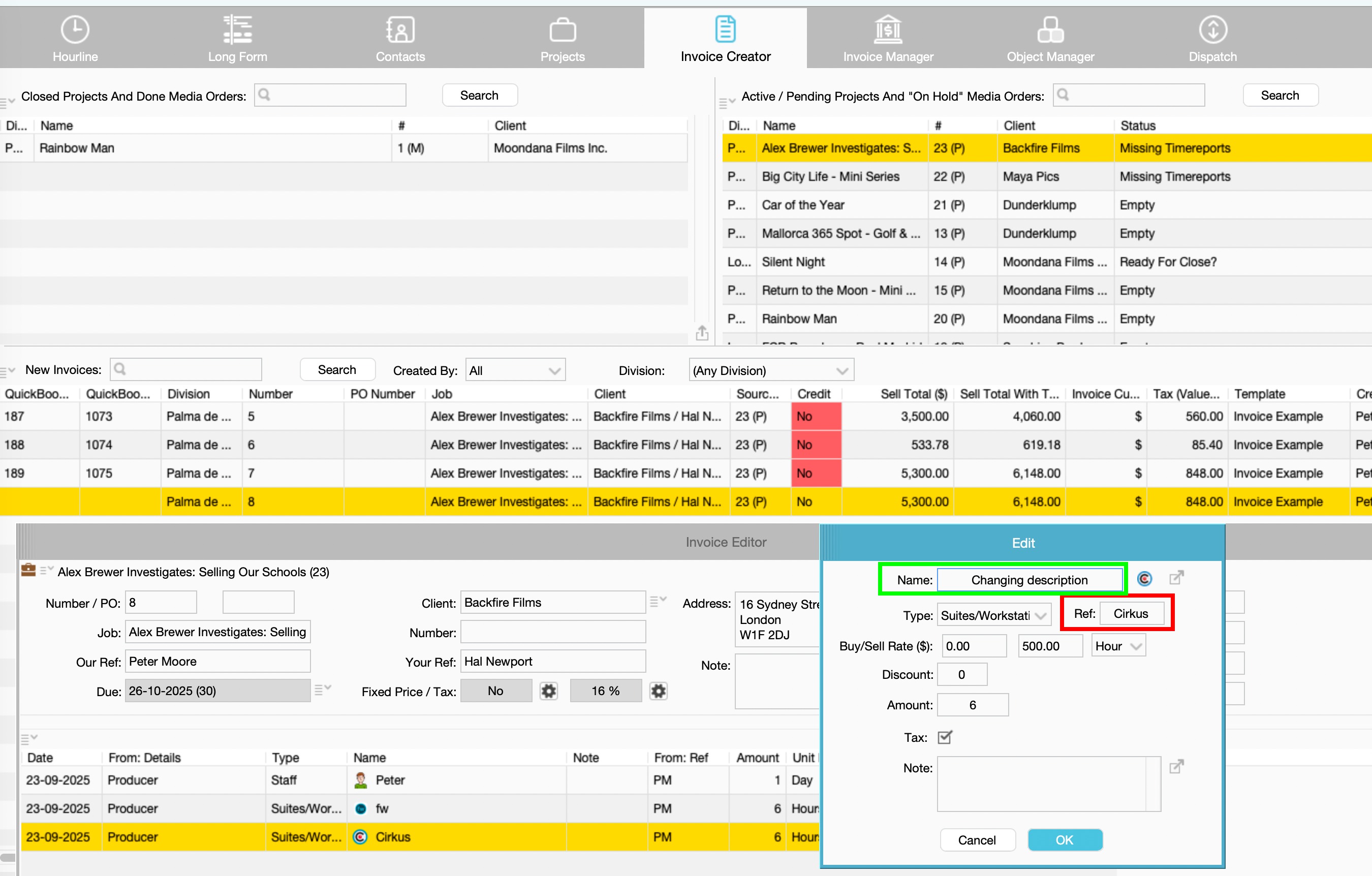
Every invoice line in farmerswife must point to a QuickBooks Product / Service. The matching is done automatically using:
- The Ref value on the farmerswife invoice item, and
- The SKU of the QuickBooks Product / Service.
Both must be identical.
Example:
Name: “cirkus” / FW Ref: “cirkus” / QuickBooks SKU: “cirkus”
Name: “fw” / FW Ref: “fw” / QuickBooks SKU: “fw”
Any mismatches will trigger a validation message upon clicking "Send To QuickBooks."
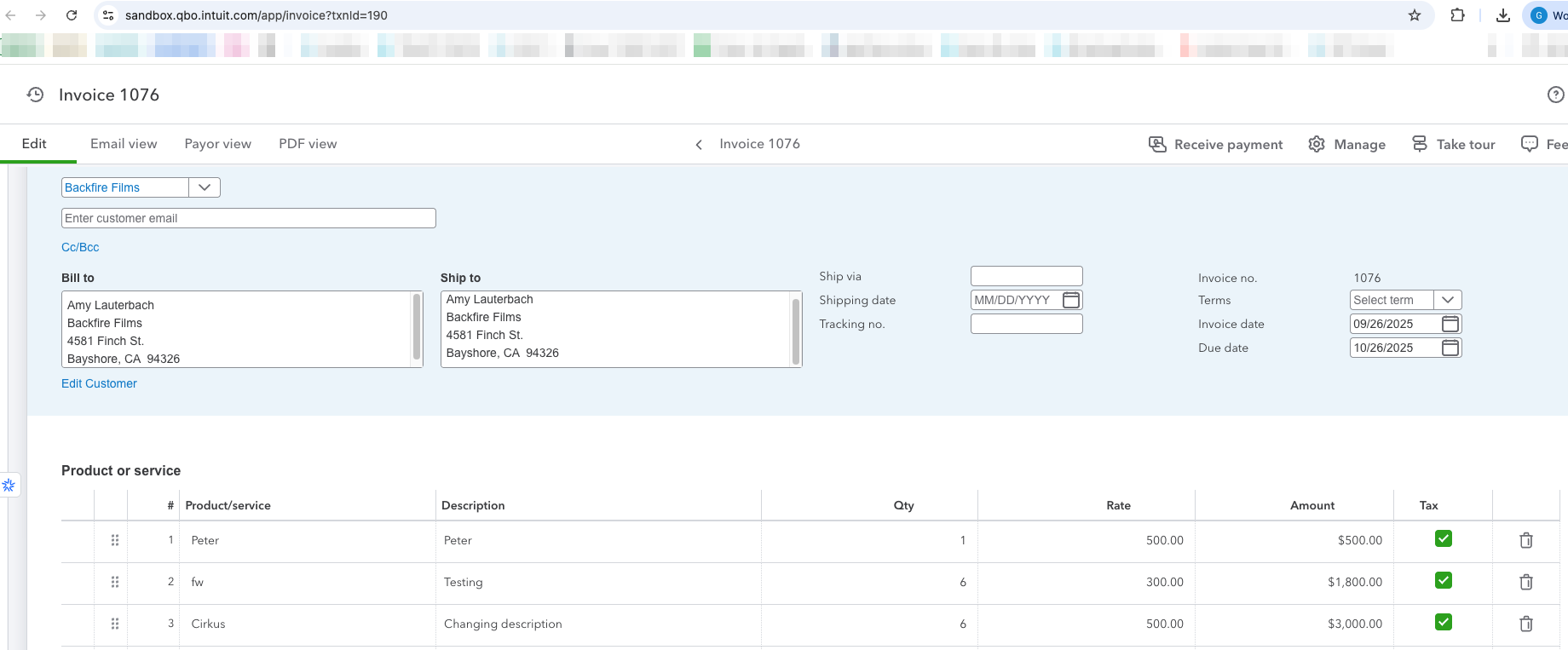
You may freely change the description of an invoice line, only the Ref / SKU is used for matching, so the description can read whatever you need it to.
You can Export the Services from farmerswife Object Manager and use the Batch action in QuickBooksfarmerswife Object Manager:
QuickBooks Products & Services:

Step 4: Customer mapping
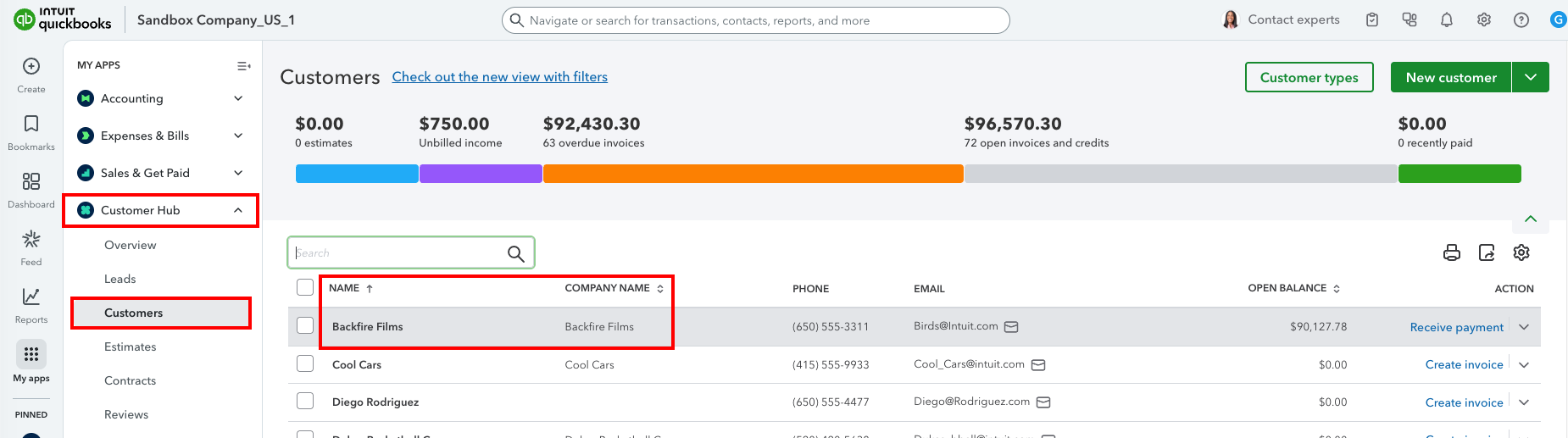
QuickBooks customers are matched by exact name between:
- The Client / Company name in farmerswife, and
- The Customer name in QuickBooks.
If the names do not match (including extra spaces or different capitalisation), farmerswife will block the send and tell you which customer is missing.
When a customer matches, QuickBooks will use the contact details, address and notes already stored under that customer in your QuickBooks Customer Hub.
To access the customer Hub: Go to QuickBooks Online > Customer Hub > Customers > Edit
Payment Terms: farmerswife will automatically pick a matching QuickBooks payment term based on the farmerswife payment term (e.g. “30 Days Net” in farmerswife maps to “Net 30” in QuickBooks). If no match is found, Due on receipt is used.Sending Invoices to QuickBooks Online
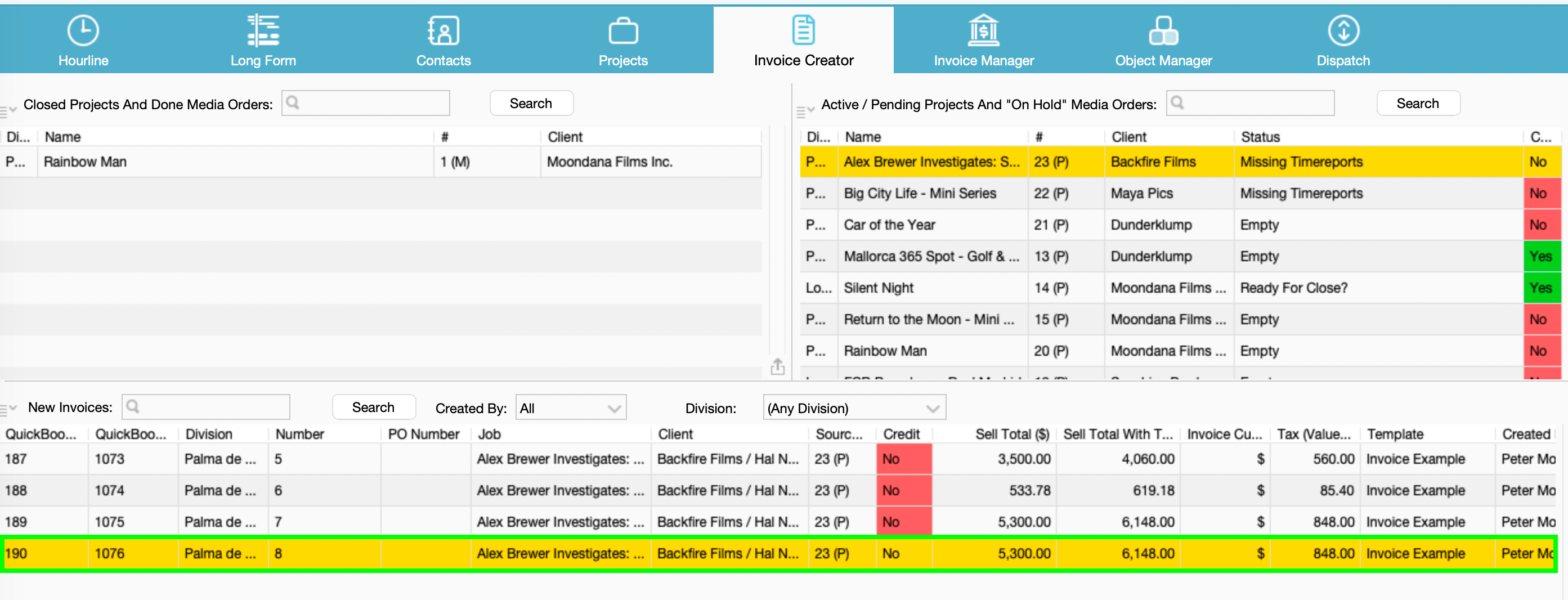
- In Invoice Creator/Manager select one or multiple invoices.
- Editing the description of the items, the REF number used for mapping will not change.
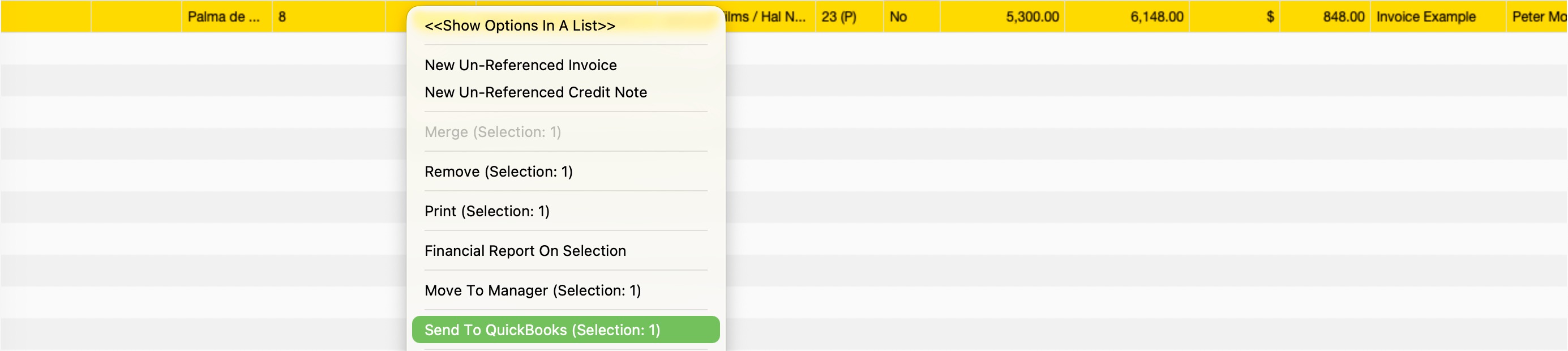
- Right click or click menu.
- Choose "Send to QuickBooks" for selected invoices to transfer the invoices to QuickBooks.
Next, farmerswife:
- Validates that "QuickBooks Id" and "QuickBooks Number" custom fields exist before exporting
- Prompts for OAuth2 authorization if needed,
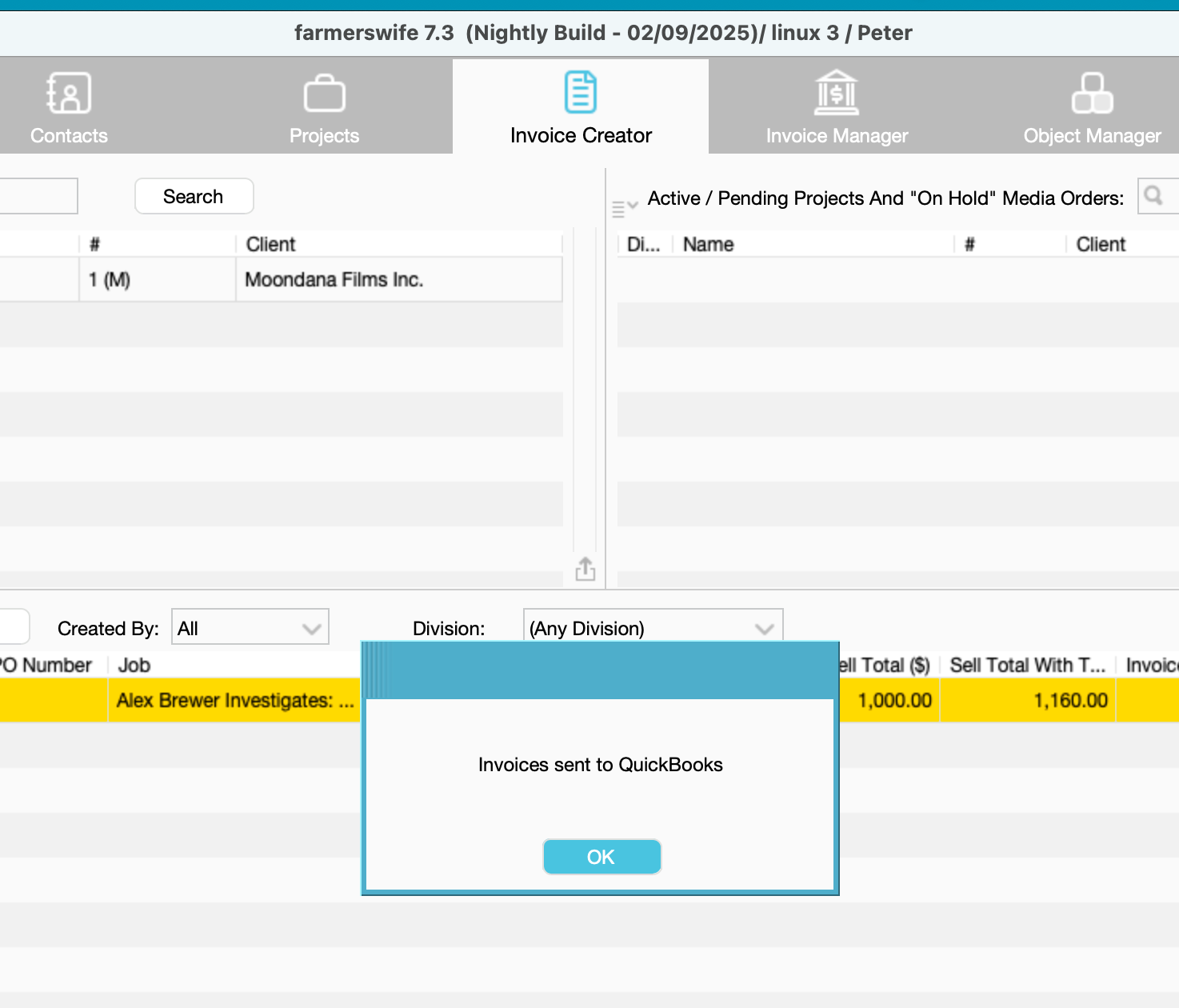
- Then posts each invoice to QuickBooks and writes back the returned identifiers.
- Updates the transferred status of the invoices
- A new Invoice custom field “QuickBooks Number” is Auto-filled when creating the QBO invoice, but can be used to link existing invoices.
Working with transferred Invoices
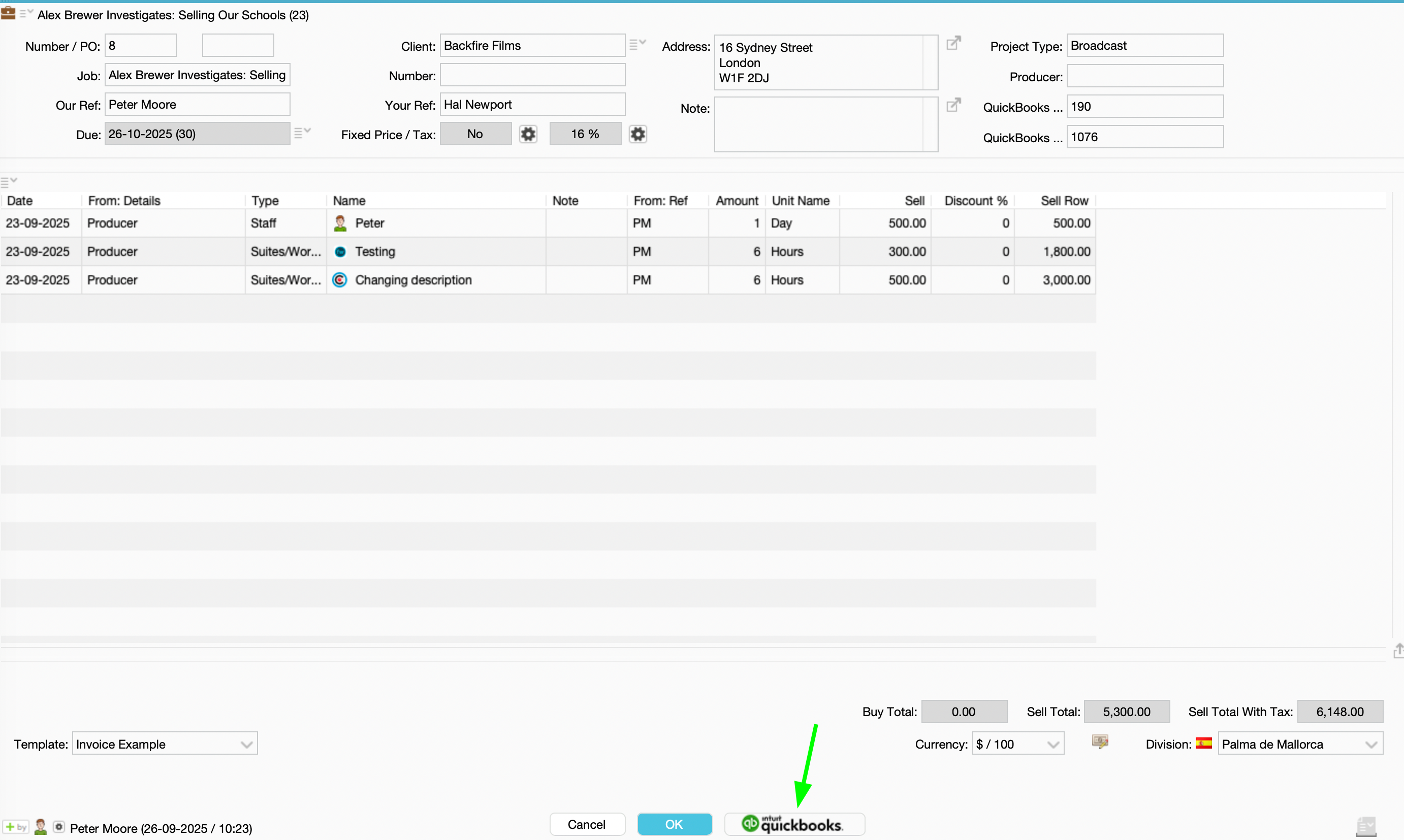
1. Open QuickBooks Invoice
Invoice Edit Window: When an invoice already has a QuickBooks Id, the editor shows a QuickBooks button that launches the corresponding invoice in QuickBooks Online, using sandbox or production URLs as configured.
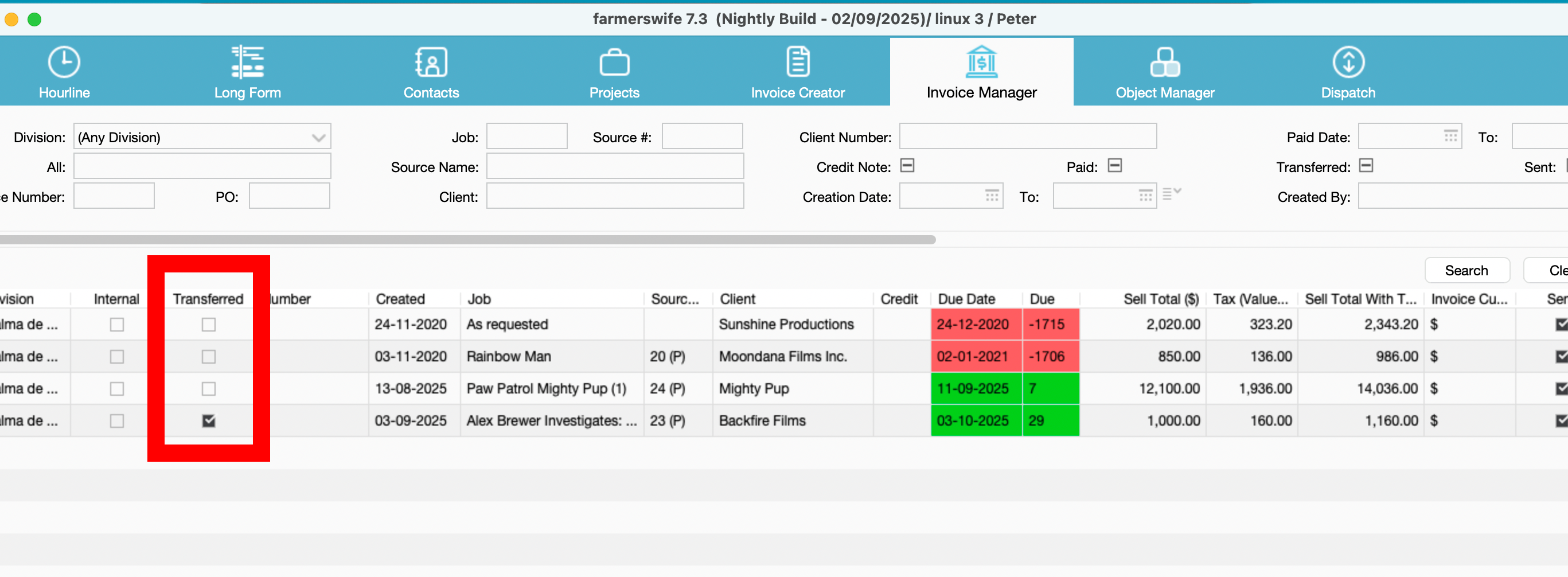
2. Display and filter transferred Invoices
In Invoice Manager, Search results > click the Menu icon > Edit View to add the "Transferred" column
3. Orientative Data Mapping
Data in farmerswife QBO /invoice API Location
Clients and Items mapping: If a Customer or Item referenced in the invoice does not exist in
QBO by matching the name, farmerswife will validate this and show a validation message to the user after clicking “Send To Quickbooks”
Invoice > Number DocNumber
Invoice > Date TxnDate
Client > Company CustomerRef.value (Name matching)
Invoice > Currency CurrencyRef.value
Invoice Line > Description Line[].Description (Name matching)
Line > Qty Line[].SalesItemLineDetail.Qty
Line > Unit Price Line[].SalesItemLineDetail.UnitPrice
Line > Net Line[].Amount
Tax > Amount TxnTaxDetail.TotalTax
Service > Code Line[].SalesItemLineDetail.ItemRef.value
Payment status updates (Development)
QuickBooks notifies farmerswife when an invoice is paid. farmerswife receives those notifications, identifies the corresponding invoice using the QuickBooks Id custom field, and marks it as Paid automatically.
You don't need to do anything for this to work, beyond providing the Webhook Verifier Token in Step 1.
Custom Fields synchronisation (Development)
QuickBooks Online lets you add up to 3 custom fields to your invoice template. farmerswife can now read those fields from your QuickBooks company and let you map each of them to a farmerswife invoice custom field, so the value is sent automatically every time you send the invoice.
This feature is currently in development and being prepared for release.
How to set it up
- Open Toolbox › Settings › Server Setup › Financial › QuickBooks Online.
- Scroll down to the Custom Field Mappings section.
- Click Get QuickBooks Custom Fields.
- farmerswife will read your QuickBooks Online preferences and list the custom fields that are enabled on your invoice form, using the labels you have defined in QuickBooks.
- For each QuickBooks custom field, pick the farmerswife invoice custom field whose value you want to send. Leave it blank if you don't want anything sent for that field.
- Click OK to save.
From now on, every invoice you send will include the values from the mapped fields.
Where are the QuickBooks custom fields defined? In QuickBooks Online, go to Settings › Custom Fields (or Custom Form Styles › Content › Activity Table). Up to 3 custom fields can be enabled on the invoice form. Only enabled fields appear in the farmerswife mapping list.
Troubleshooting
| Message you see | What it means | What to do |
|---|---|---|
| “Customer ‘X’ Is Not Mapped To QuickBooks.” | The customer name does not match exactly. | Adjust the Client/Company name in farmerswife to match the QuickBooks customer name (mind capitalisation and trailing spaces). |
| “Invoice item ‘X’ Is Missing An Item Reference.” | The invoice line has no Ref. | Add a Ref on the farmerswife item that matches a QuickBooks SKU. |
| “Invoice item ‘X’ With Reference ‘Y’ Is Not Mapped To A QuickBooks Product/Service.” | No QuickBooks product has SKU Y. | Either add the SKU in QuickBooks or correct the Ref in farmerswife. |
| Invoice is created in QuickBooks but the number is empty | Custom Transaction Numbers is ON in QuickBooks while Send Invoice DocNumber is OFF in farmerswife. | Turn one of them ON so they agree. |
| Custom field list is empty in the setup window | Either the QuickBooks connection has not been authorised yet, or no custom fields are enabled in your QuickBooks invoice form. | Authorise the connection (send any invoice once) and check Settings › Custom Fields in QuickBooks. |
| Invoices are not being marked as Paid | The Webhook Verifier Token in farmerswife and in your Intuit Developer app do not match. | Re-copy the verifier token from the Intuit Developer app into the farmerswife setup window. |
Frequently asked questions
Can I edit a QuickBooks invoice in farmerswife after it has been sent? You can keep editing the farmerswife invoice for your own records, but those changes do not automatically update the QuickBooks invoice. To re-send an updated invoice, clear the QuickBooks Id custom field on the farmerswife invoice and send again.
What happens if I change the description of an invoice line? The description in QuickBooks will reflect what you type in farmerswife. Item matching is done by Ref / SKU, so the description does not affect which QuickBooks product is selected.
Does the integration sync customers from QuickBooks back to farmerswife? No. Customer information stays in QuickBooks. farmerswife only needs the customer name to match for the integration to work.
Can I send the same invoice twice? Not while the QuickBooks Id field is filled in, the system will offer Open in QuickBooks instead. To re-send, clear the QuickBooks Id custom field on the farmerswife invoice.
How are paid invoices kept in sync? QuickBooks notifies farmerswife as soon as a payment is recorded. The matching invoice is then marked as Paid in farmerswife automatically.
Related articles
Was this article helpful?
That’s Great!
Thank you for your feedback
Sorry! We couldn't be helpful
Thank you for your feedback
Feedback sent
We appreciate your effort and will try to fix the article