This article gives IT administrators a basic overview of how an on-premise (self-hosted) farmerswife (fw) Server communicates with its clients and with external services: which ports to open, which direction traffic flows, and what is encrypted by default.
Using farmerswife Clouded Services ? See farmerswife Cloud: Ports and Connectivity instead. For a more detailed technical description, see farmerswife Architecture and data flow.
TABLE OF CONTENTS
- Components
- Default ports
- How data flows
- Encryption
- Firewall checklist
- Related articles
1. Components
All data lives on your fw Server. Every client connects to the server; clients never connect directly to each other.
- fw Server app – holds the database and project files, and serves all clients.
- Desktop Client (Windows / Mac) – connects directly to the fw Server over SSL, using one port for the client connection and one for file transfers.
- iOS app – connects directly to the fw Server's HTTPS interface on port 25000.
- Jetty web server – runs alongside the fw Server on the same machine and serves the Web Client, the Mobile Web Client and the REST API (
/api/*). It passes requests on to the fw Server's HTTPS interface (port 25000) locally. - REST API – available only with an additional licence.
- WebCal – publishes user calendars for subscription in calendar apps (Outlook, Google Calendar, Apple Calendar, etc.).
2. Default ports
All ports are configurable in the fw Server Setup. The values below are the defaults.
| Service | Used by | Default port | Direction | Encryption (default) |
|---|---|---|---|---|
| Desktop Client port | Desktop Clients | 22000 / TCP | Inbound | TCP + TLS with the farmerswife self-signed certificate |
| File transfer port | Desktop Clients (client upgrades, file uploads) | 24000 / TCP | Inbound | TCP + TLS with the farmerswife self-signed certificate |
| fw Server HTTPS interface | iOS app (and Jetty, locally) | 25000 / TCP | Inbound | HTTPS (TLS 1.2) with the farmerswife self-signed certificate |
| Web Client port (Jetty) | Web Client, Mobile Web Client, REST API | 26000 / TCP | Inbound | Not encrypted (see section 4) |
| WebCal port | Calendar apps | 27000 / TCP | Inbound | Not encrypted (see section 4) |
| Jetty control port | fw Server → Jetty | 22005 / TCP | Same machine only | Local only – do not open in the firewall |
| Outgoing email | fw Server sending email via SMTP, Microsoft Graph or Gmail API | SMTP: as set by your mail provider (commonly 587 or 465) Microsoft Graph / Gmail API: 443 | Outbound | Depends on your mail service |
3. How data flows
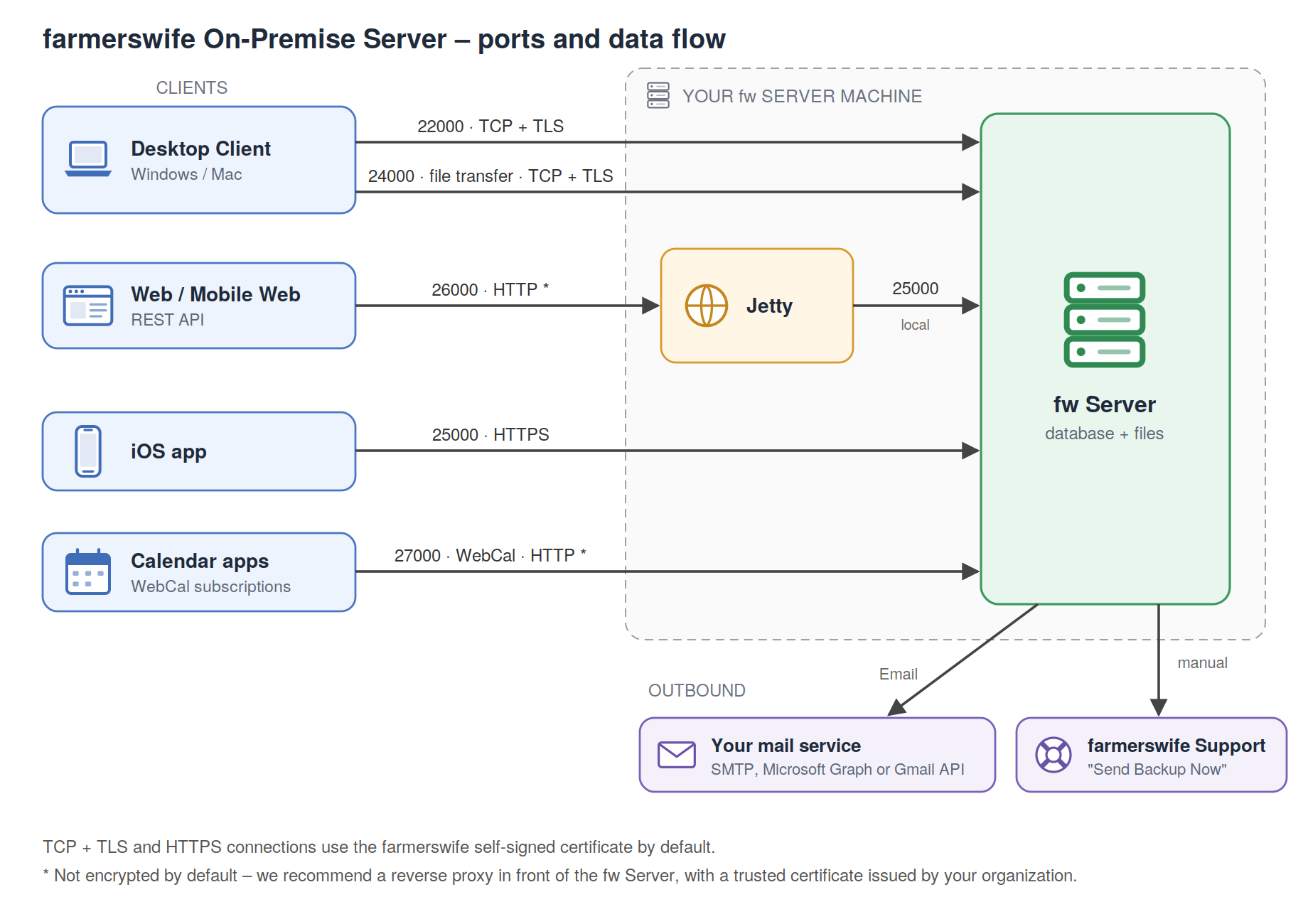
- Logging in from the Desktop Client: the client opens an SSL connection on port 22000 and the user is authenticated by the fw Server.
- Automatic client upgrade/downgrade: after login, if the client version does not match the server, the client downloads the required files from the server over port 24000. No internet connection is needed for this.
- Uploading files: Desktop Clients upload media and files to project folders over port 24000.
- iOS app: connects directly to the fw Server on port 25000 over HTTPS.
- Web, Mobile Web and REST API: requests arrive at Jetty on port 26000. Jetty forwards them to the fw Server on port 25000 on the same machine and returns the result.
- Calendar sync: calendar applications poll the WebCal URL on port 27000 to fetch updated user calendars.
- Email: the fw Server sends notifications, reports and invoices through your mail service, connected via SMTP, Microsoft Graph (Microsoft 365) or the Gmail API (Google Workspace). See Outgoing Mail Configuration.
- Data sent to farmerswife: the only process that sends data to farmerswife is Send Backup Now, which is triggered manually to share a database copy with Support for troubleshooting. farmerswife staff have no access to your fw Server unless you create a user account for them.
4. Encryption
Desktop Client (22000, 24000) and iOS app (25000) connections are encrypted by default with the farmerswife self-signed certificate.
The Web Client (26000) and WebCal (27000) ports are not encrypted by default, because the self-signed certificate would cause security warnings in all major browsers.
For a better TLS/HTTPS certificate management/offloading experience, we recommend to deploy a reverse proxy component in front of the farmerswife server (running on the same machine or separately)
That allows setting up a valid/trusted certificate issued by your organization, instead of relying on the default (self-signed) one.
5. Firewall checklist
Allow inbound connections to the fw Server on:
- 22000 and 24000 – Desktop Clients. Both are required; without 24000, client upgrades and file uploads will fail.
- 25000 – iOS app.
- 26000 – Web Client, Mobile Web Client and REST API.
- 27000 – WebCal calendar subscriptions.
If you have added HTTPS in front of the Web Client or WebCal ports, open the ports your HTTPS solution listens on instead.
Also:
- Allow outbound email traffic from the fw Server: to your mail server on its SMTP port, or on 443 to Microsoft or Google if you use Microsoft Graph or the Gmail API.
- Do not open 22005; it is used only on the server machine itself, but make sure no other software on the server uses it.
- Only expose ports to the internet for services that are actually used outside your network.
6. Related articles
Was this article helpful?
That’s Great!
Thank you for your feedback
Sorry! We couldn't be helpful
Thank you for your feedback
Feedback sent
We appreciate your effort and will try to fix the article