To easily share project booking information with your team or external people right from farmerswife, this feature allows you to send a PDF project report and/or a customized email containing the booking/project information directly from the Booking window.
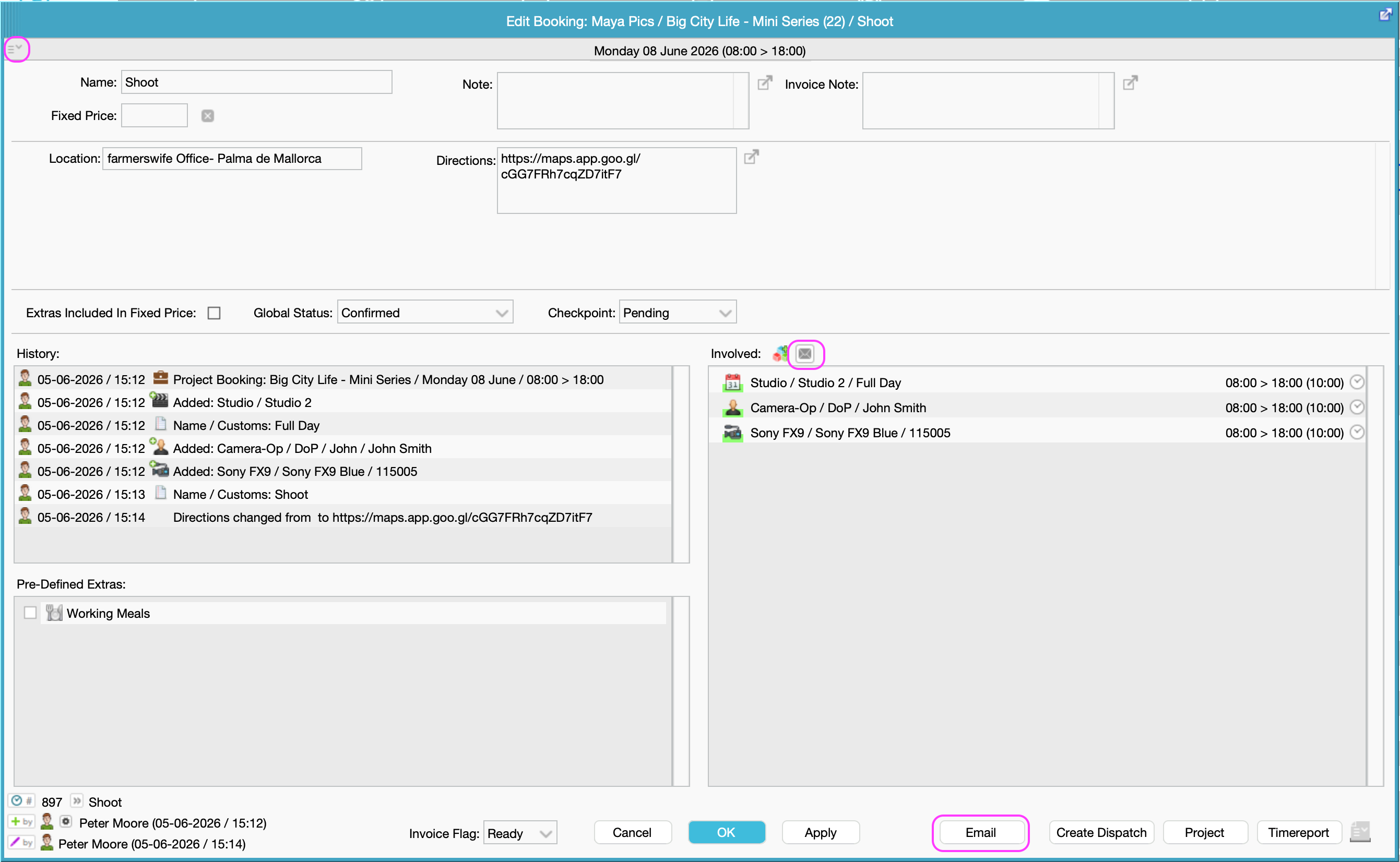
How to open the Email Project Booking Report window
Simply open your Booking and click either:
The Envelope icon ✉️ next to Involved.
The Email button at the very bottom.
The drop-down menu icon at the top left corner → Other → Email Project Booking Report.
1. New window layout
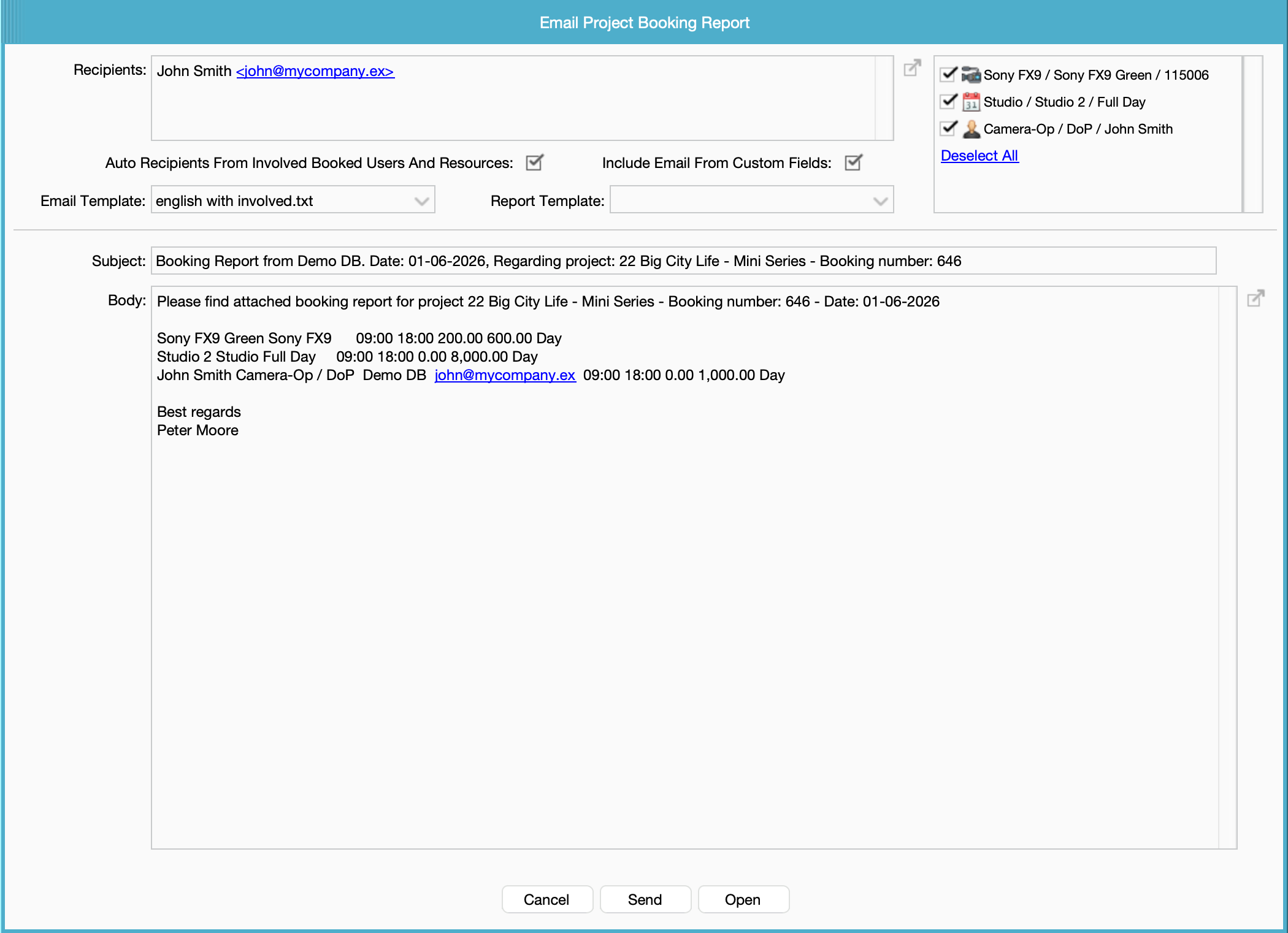
The window is larger and split into two top areas:
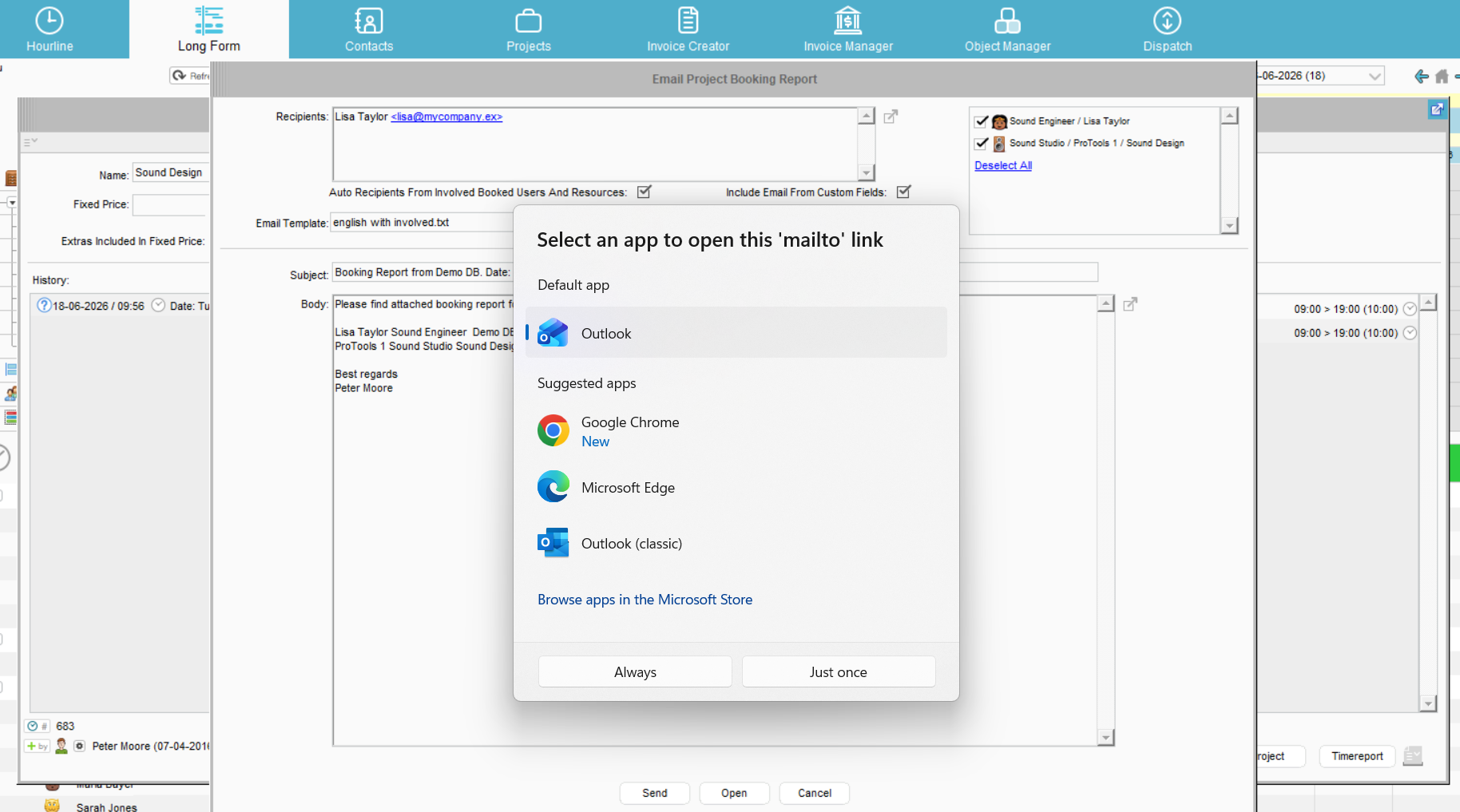
- Left side: Where you enter your recipient list and choose your email and report templates.
- Right side (new): A panel that shows the booked people, equipment, etc
2. Managing your recipients (faster & smarter)
You no longer have to manually type out every single email address or struggle with a cramped text box.
- Recipients: The recipient area is now a large, multi-line box so you can easily see everyone you are emailing. (Just use a semicolon
;to separate multiple addresses). - Manually Add All Involved: The existing green plus + button still adds all involved users/resources and booking owner (person who made the booking) to the recipient list in one click. This icon is only visible if the "Auto Recipients From Involved Booked Users and Resources" option is disabled (see below).

- Auto Recipients From Involved Booked Users And Resources: When enabled:
- The Recipients field is filled automatically from the "Involved" list checked in the right-side panel.
- The Recipient field becomes read-only (driven by the selection).
- Toggling rows on/off in the involved panel updates the recipient list live.
This setting is remembered per user.
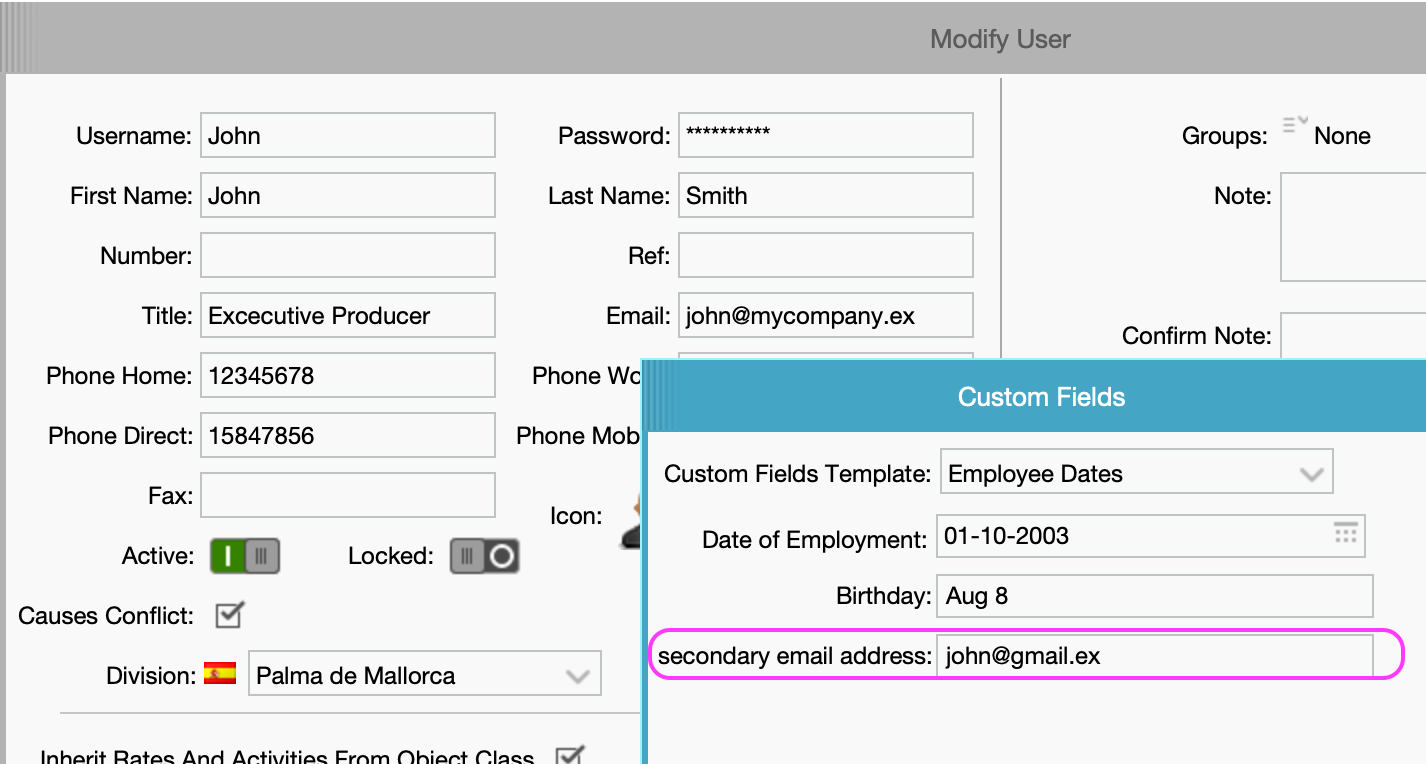
- Include Emails From Custom Fields: This second checkbox appears only when the setting above is enabled. When enabled, farmerswife also collects any email addresses found in custom fields of the involved contacts (any custom-field value matching an email pattern is added). It can be either contact custom fields or object custom fields applied to the users and resources.
This setting is remembered per user.

3. The new Involved Panel
The right-side panel lists every person, equipment, room, etc assigned to this specific booking.
You can easily check or uncheck the box next to any item to include or exclude it, or use the Select All / Deselect All shortcut at the bottom.
What does checking these boxes do? It automatically controls two things:
- If you have Auto Recipients turned on, the email list updates instantly based on who is checked here.
- The email body will only include the specific team members or resources you leave selected - see section 7.
4. Email Template selector (now with built-in management)
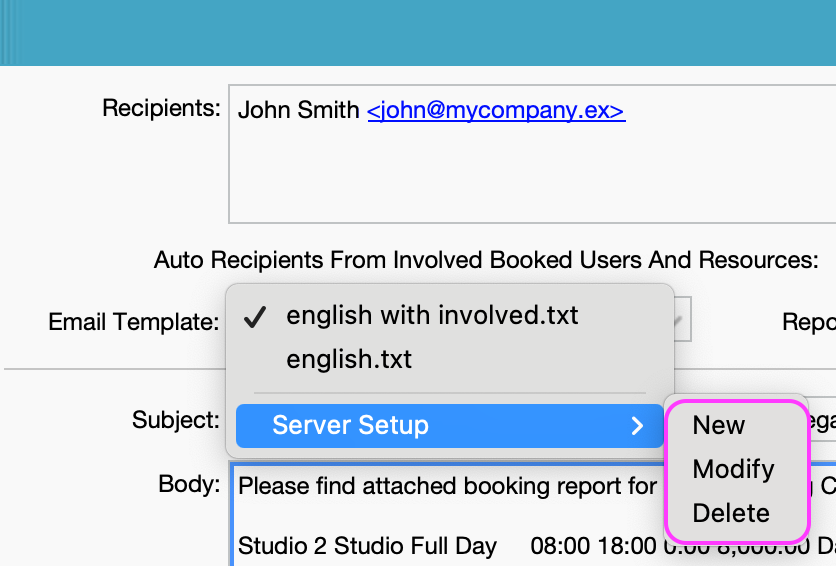
You no longer need to dig into backend server files to manage your email layouts. The Email Template dropdown now includes a Server Setup sub-menu (visible only to users with Server Setup access permission):
- New: Clones your currently selected template under a new name so you can create a variation without losing the original. If you give it the same name, you are asked to confirm overwrite.
- Modify: Opens the current template in a full-screen text editor. Make your tweaks, hit save, and it updates the server instantly.
- Delete: Removes the currently selected template (disabled if you only have one template left).
The currently selected template is now remembered as the user's default for next time the window is opened.
5. Attaching a PDF Report
The Report Template dropdown allows you to attach a PDF document to your email.
This dropdown displays a list of all your custom print layouts created in the Project Print Designer.
To attach a report: Simply select the specific print template you want to use from the list. farmerswife will automatically generate the PDF and attach it to the email when you send it.
To send text only: Choose "None" if you just want to send the email without any PDF attachments.
6. Choose how to send the email - action buttons
The bottom row now gives you three clear ways to finish up:
Cancel: Closes the window without sending anything or saving changes.
Send: Sends the email immediately through the farmerswife outgoing mail server. This works exactly like the old "OK" button and automatically attaches the PDF report (if a report template is selected).
Open (New): Launches the email as a draft inside your local email app (like Outlook, Apple Mail, Thuderbird, etc.). This is perfect if you want to add a quick personal sign-off or review the text before sending it from your personal work email.
Important Note: Due to standard email app limitations, the PDF report cannot be attached automatically when using "Open". If you need to include the PDF, always use the Send button instead.
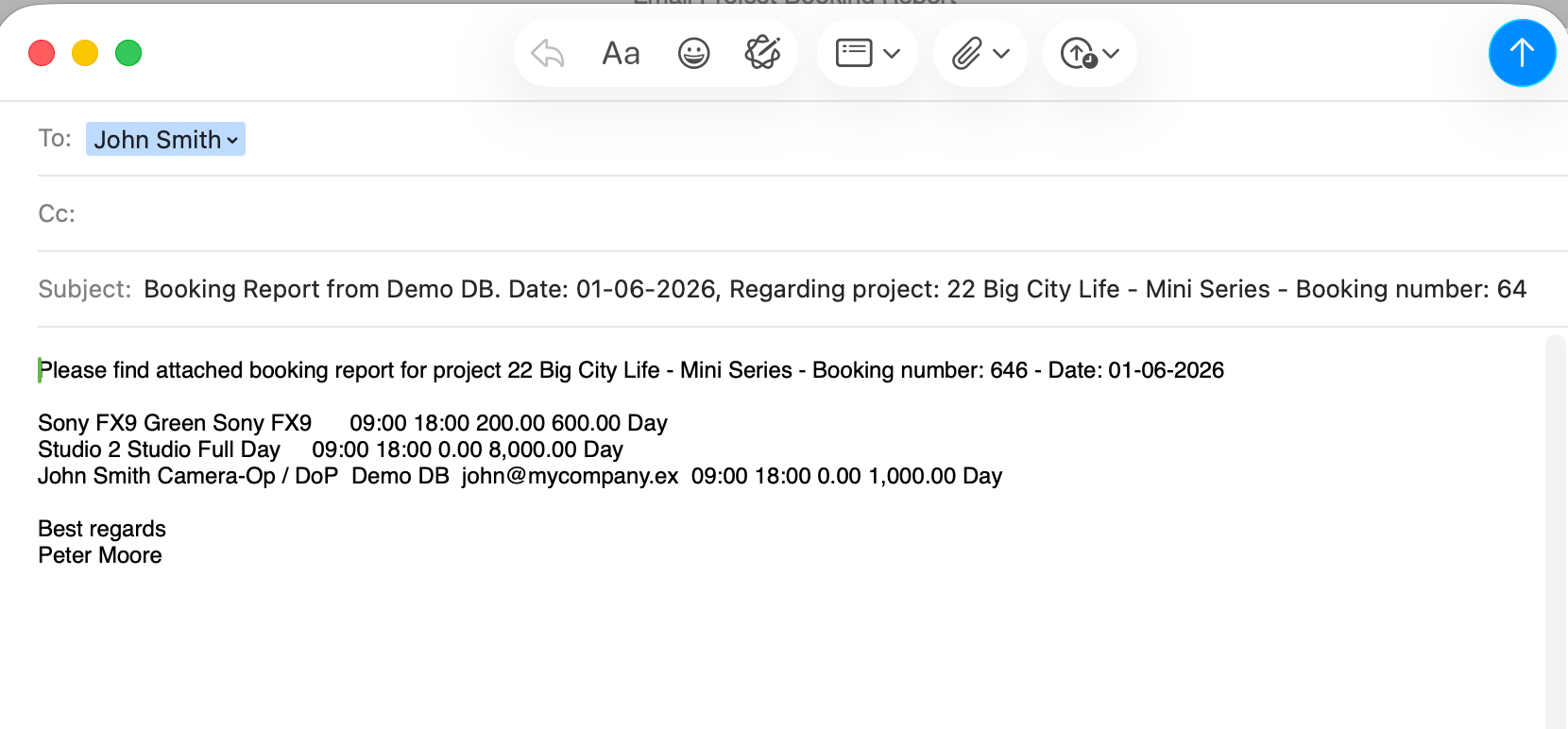
7. New Template variables: smart dynamic lists
You can now use a special placeholder tag called <Start Involved>, to customize your email templates.
In the Body panel, instead of manually typing out a summary of who is working on a project, this tag tells farmerswife to automatically build a clean list for you. It will create one line of text for every person or resource you checked in the right-hand panel.
Available Data Tags
You can place any of these dynamic tags right after <Start Involved> to automatically pull details into your email:
| Key | Meaning |
|---|---|
<INVOLVED_OBJECT_NAME> | Involved object's name (user or resource) |
<INVOLVED_CLASS_NAME> | Involved object's booked class |
<INVOLVED_ACTIVITY_NAME> | Involved object's booked activity |
<INVOLVED_OBJECT_COMPANY_NAME> | Involved object's company name (for contact-style objects) |
<INVOLVED_OBJECT_MOBILE_NUMBER> | Involved object's mobile number |
<INVOLVED_OBJECT_EMAIL> | Involved object's email address |
<INVOLVED_NOTE> | Involved object's booking note (new lines collapsed to ". ") |
<INVOLVED_TIME_IN> | Involved object's booked in-time |
<INVOLVED_TIME_OUT> | Involved object's booked out-time |
<INVOLVED_BUY_RATE> | Involved object's buy rate |
<INVOLVED_SELL_RATE> | Involved object's sell rate |
<INVOLVED_RATE_UNIT> | Involved object's rate unit (e.g., Hour or Day) |
<INVOLVED_CUSTOM_FIELD:my custom field name> | Involved object's custom field value (found by typing your custom field name) |
Ready to use example
We’ve included a new sample template named english with involved.txt in your server's booking_report_email folder.
Here is a look at how it uses these tags to create a perfect summary behind the scenes:
<Start Subject - DONT EDIT THIS LINE>Booking Report from <SENDER_COMPANY_NAME>. Date: <BOOKING_DATE>, Regarding project: <PROJECT_NUMBER> <PROJECT_NAME> - Booking number: <BOOKING_NUMBER><Start Body - DONT EDIT THIS LINE>Please find attached booking report for project <PROJECT_NUMBER> <PROJECT_NAME> - Booking number: <BOOKING_NUMBER> - Date: <BOOKING_DATE><Start Involved><INVOLVED_OBJECT_NAME> <INVOLVED_CLASS_NAME> <INVOLVED_ACTIVITY_NAME> <INVOLVED_OBJECT_COMPANY_NAME> <INVOLVED_OBJECT_MOBILE_NUMBER> <INVOLVED_OBJECT_EMAIL> <INVOLVED_NOTE> <INVOLVED_TIME_IN> <INVOLVED_TIME_OUT> <INVOLVED_BUY_RATE> <INVOLVED_SELL_RATE> <INVOLVED_RATE_UNIT>Best regards<SENDER><VAR_EMAIL_FOOTER>Remember: only the people you actually check in the right-hand panel will show up in the final email!
8. Additional improvements
We’ve also polished a few details in the background to make the email experience seamless:
- Automatic signatures: Your system’s standard email footer and signature (
<VAR_EMAIL_FOOTER>) are now automatically added to the bottom of your message, matching all other emails sent from farmerswife. - Smarter contact matching: If a person is listed as both a User and a Resource, the system now intelligently pulls their contact info from their Resource profile. This ensures external contacts correctly display their proper company name and company email.
- Saved Preferences: farmerswife now remembers your personal settings for next time. The system automatically saves your preferred Email Template, whether you like Auto Recipients turned on, and if you prefer to Include Emails from Custom Fields.
How to open the email in Outlook on the web
This section only applies if you prefer to use Outlook on the web instead of the Outlook desktop app. Users who already have Outlook desktop set as their default email program can skip this section.
When you click Open in the Email Booking Report, farmerswife uses your operating system's default email link handler. If that handler hasn't been told to use Outlook on the web, you may see a blank browser tab instead of a pre-filled email. The one-time setup below fixes this for any application on your computer that opens email links, not just farmerswife.
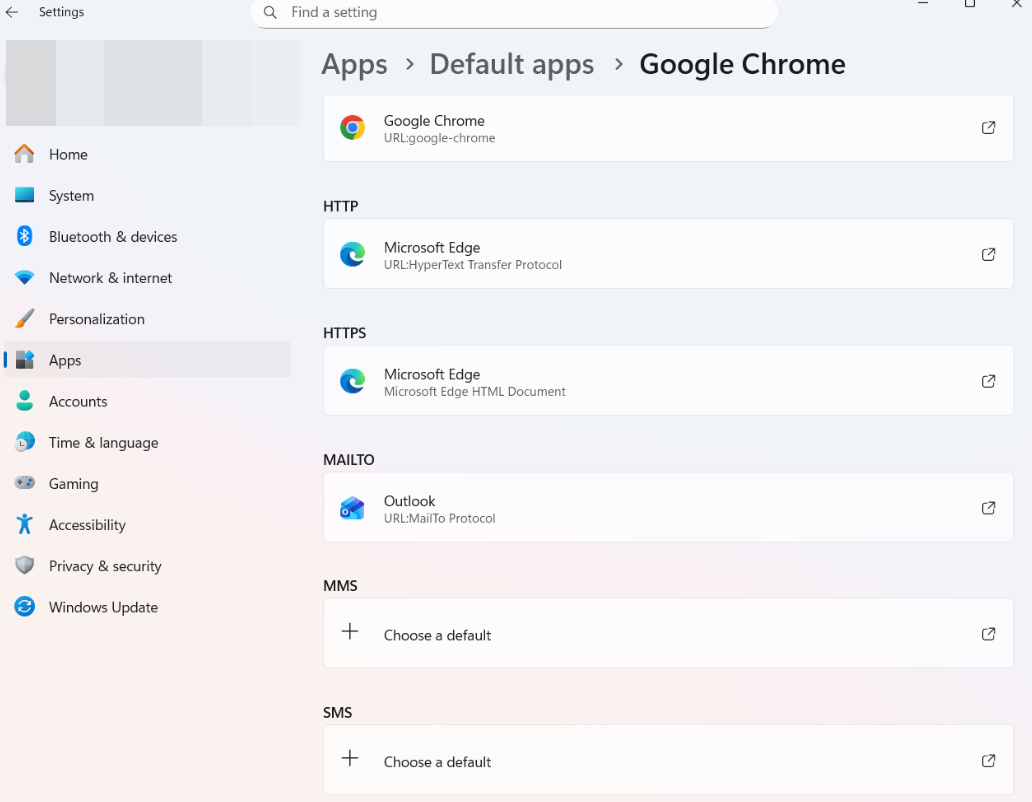
Step 1: Set your browser as the default email app in Windows
Open Windows Settings → Apps → Default apps → Email and select Microsoft Edge (or Chrome).
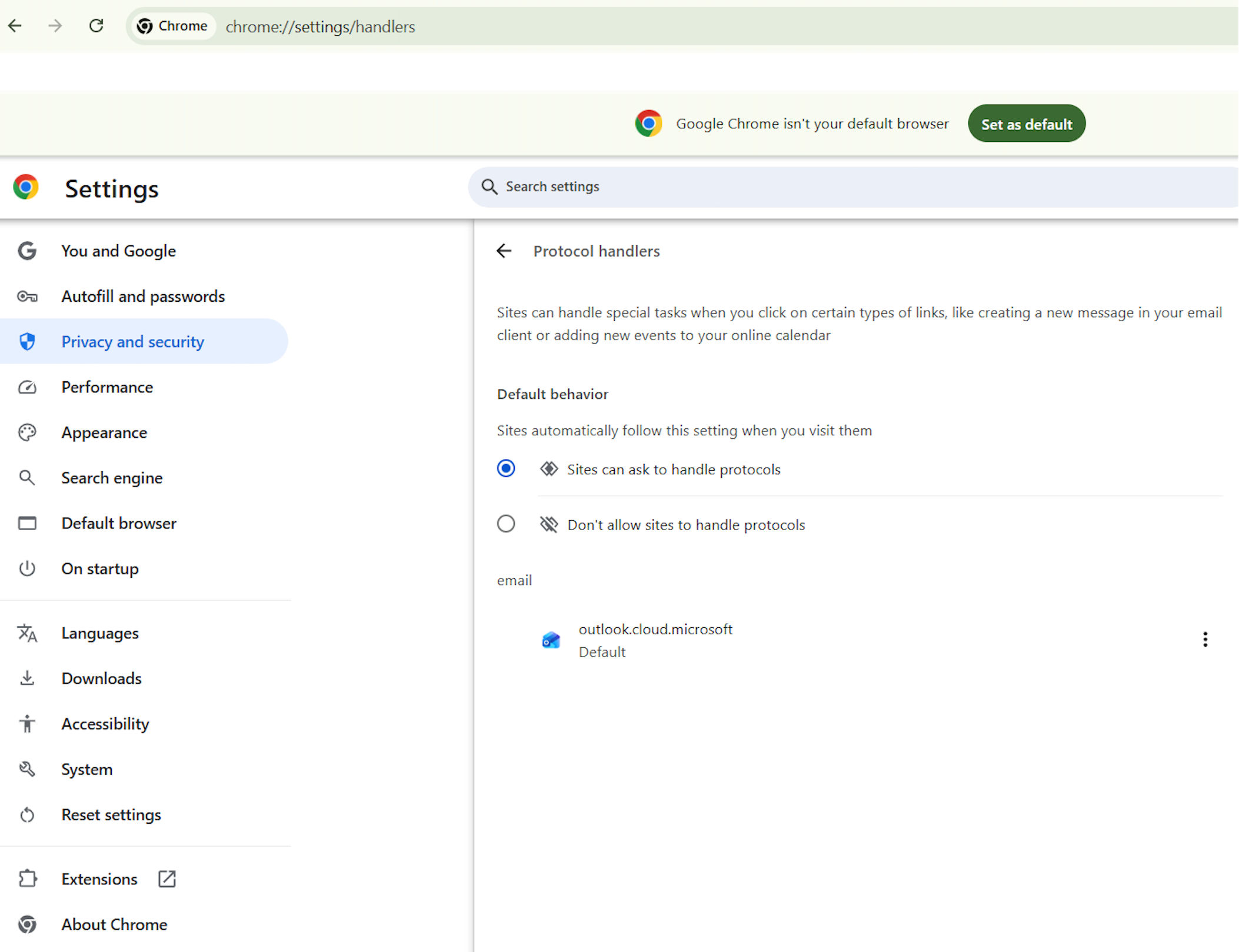
Step 2: Open your browser's protocol handler settings
Open your browser and paste this in the address bar: <browser>://settings/handlers
- Chrome:
chrome://settings/handlers - Edge:
edge://settings/content/handlers
Step 3: Make sure "Sites can ask to handle protocols" is enabled
The toggle should be ON (blue).
Step 4: IF present, Remove outlook.office.com from the blocked list.
If you previously dismissed the registration prompt, the site may appear in the "Not allowed" section. Click the × next to it so the prompt can appear again.
Step 5: Visit outlook.office.com and click the protocol handler icon
Sign in. Once Outlook on the web loads, look for a small icon at the right side of the address bar (two overlapping diamonds). Click it.

Step 6 — Select "Allow" and click "Done"
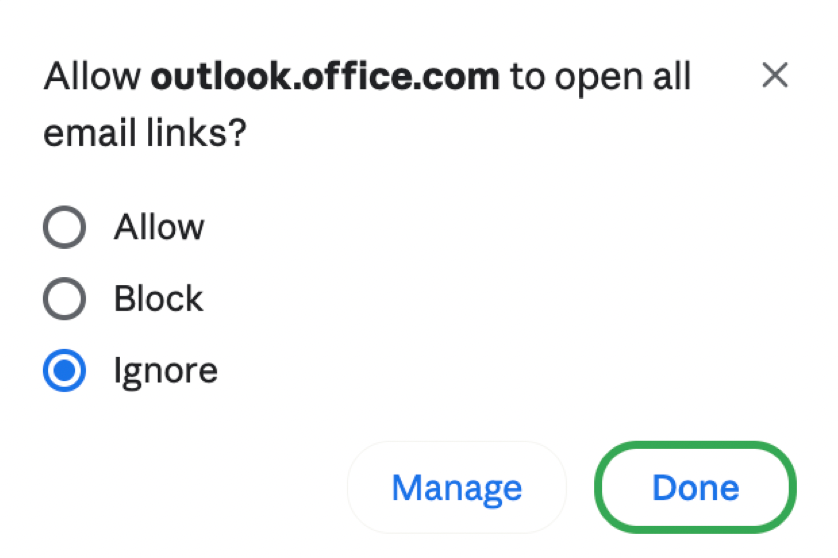
 Verifying the setup
Open a new browser tab, paste mailto:test@example.com?subject=test&body=hello and press Enter. If Outlook on the web opens with those fields filled in, the setup is complete. From now on, clicking Open in farmerswife's Email Booking Report will draft your message in Outlook on the web — the same way it does in the Outlook desktop app for users who have it installed.
Was this article helpful?
That’s Great!
Thank you for your feedback
Sorry! We couldn't be helpful
Thank you for your feedback
Feedback sent
We appreciate your effort and will try to fix the article