The View Port in the upper right corner is used to define the Long Form time frame. Click on the bar to show the various options for selecting the time frame. Below the various options will be explained.
6. Zoom and View Port Navigation.
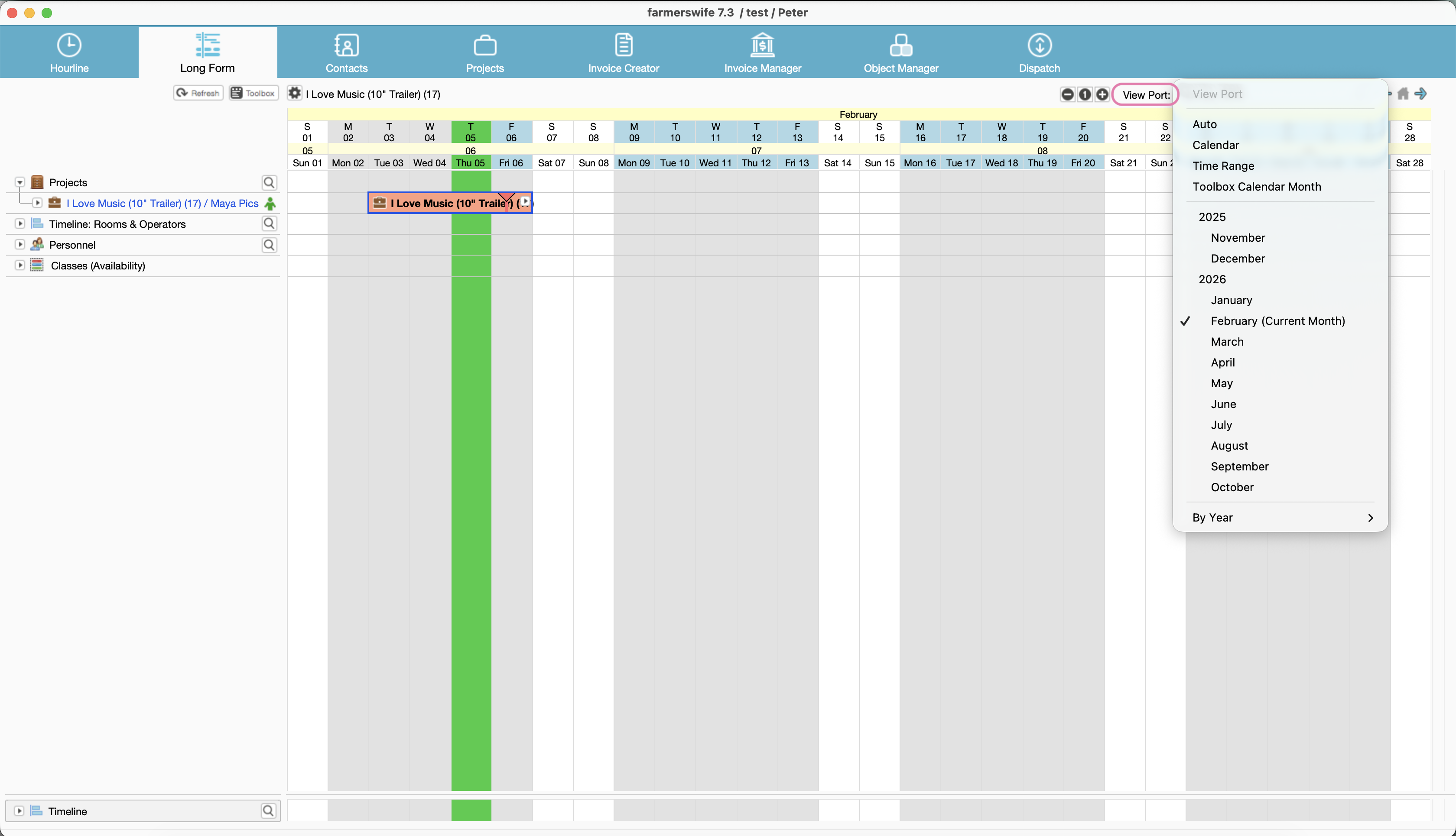
1. Auto
If Auto is selected the time frame will automatically adjust to the Projects that have been added to the Projects Tree. A specified number of days will be padded on each side of the Projects displayed. To set the number of padded days open the Toolbox > Settings > Display “Day Padding Before” and “Day Padding After”. If “Day Padding” for both before and after is 7 days the Long Form view will show 7 days before the Project start date and 7 days after the Project end date.
If NO Projects are featured in the Projects Tree farmerswife will select the current day and pad the selected number of days on each side as the displayed Time Frame.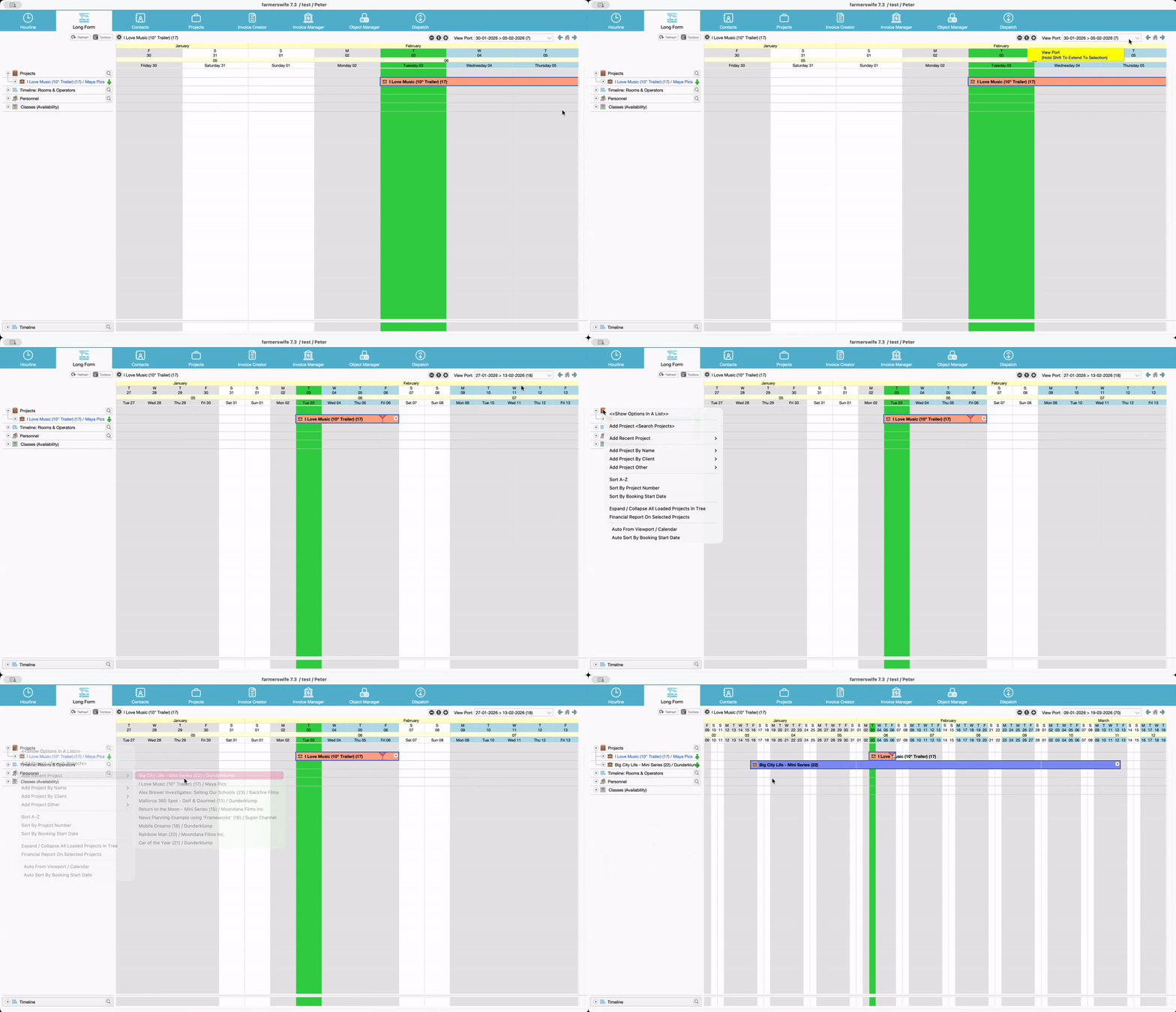
2. Calendar
This option brings up the calendar where a From and To date can be selected as the displayed Time Frame.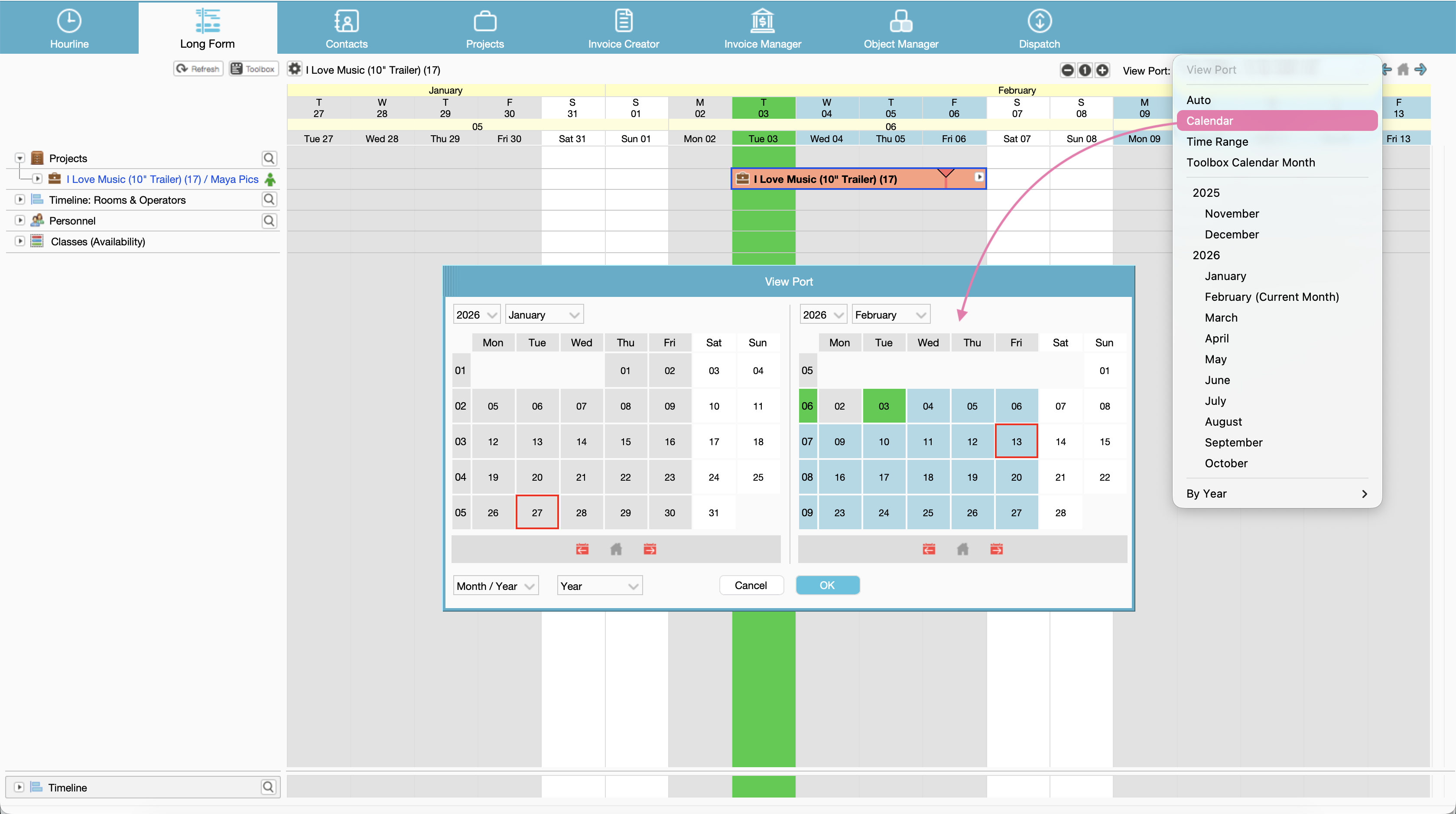
3. Time Range
Time Range refers to dates that are highlighted by placing the cursor on the start date and drag to the last date to be displayed. When selecting Time Range in View Port the ONLY the highlighted days will be displayed.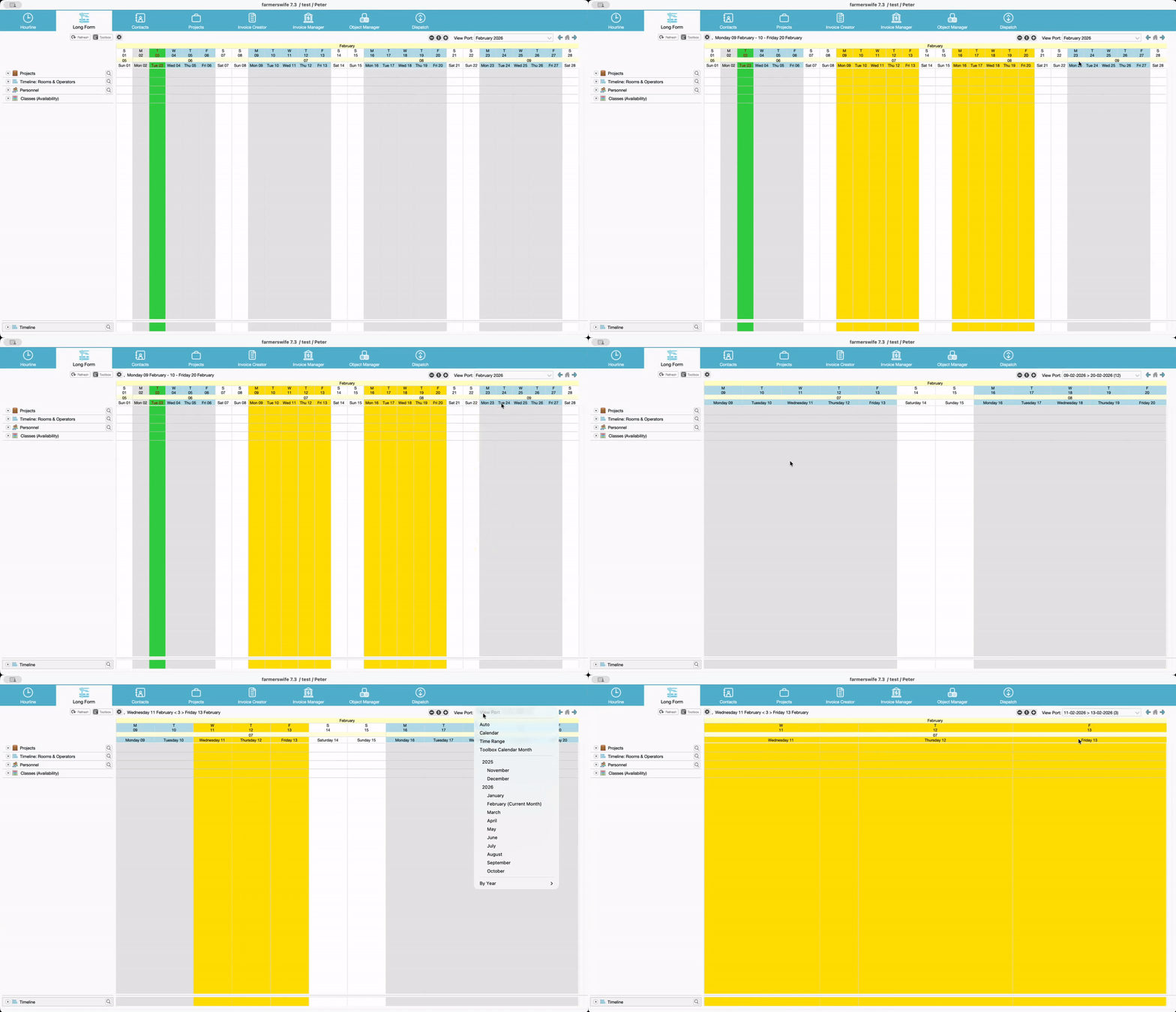
4. Toolbox Calendar Month
Displays the month that has been selected in the Toolbox Calendar.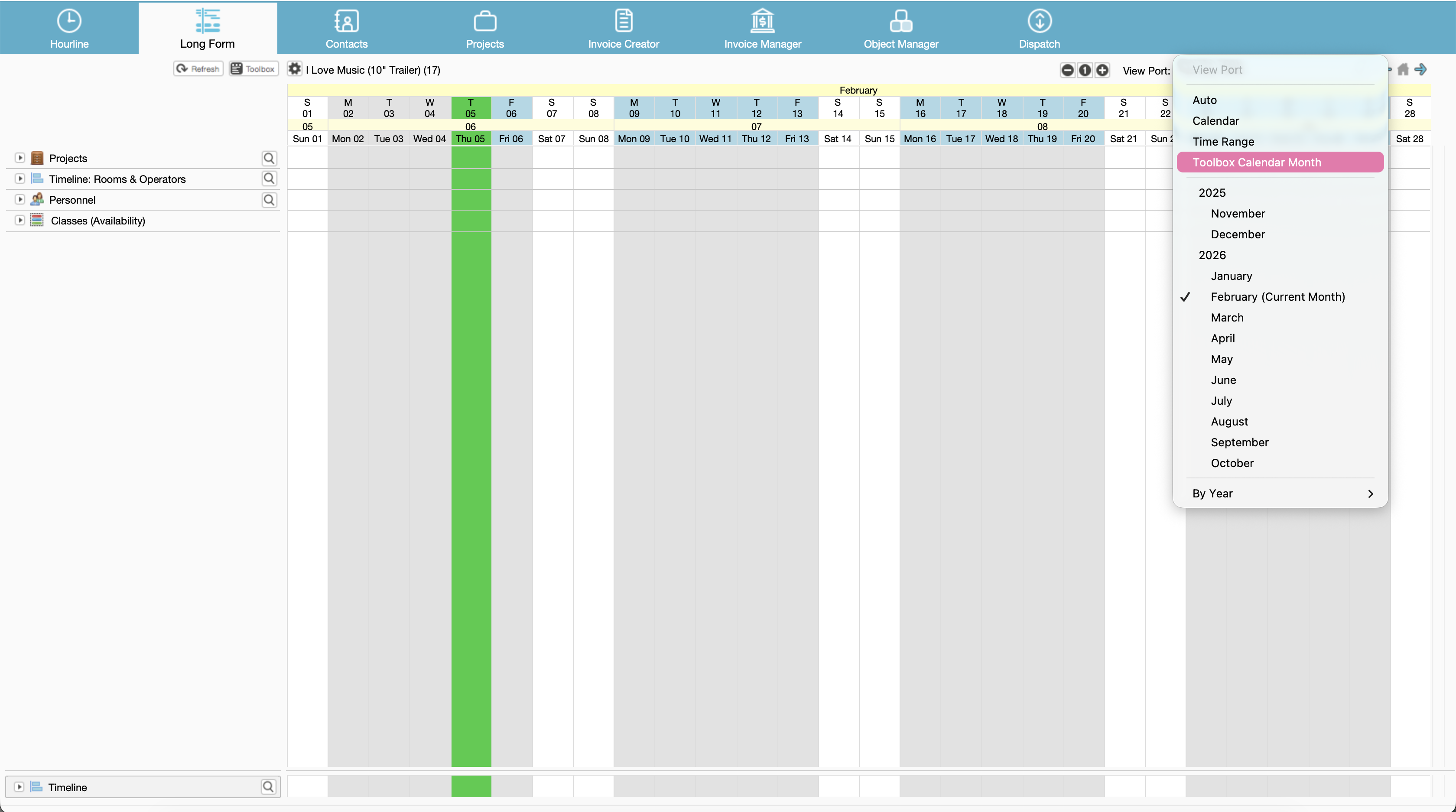
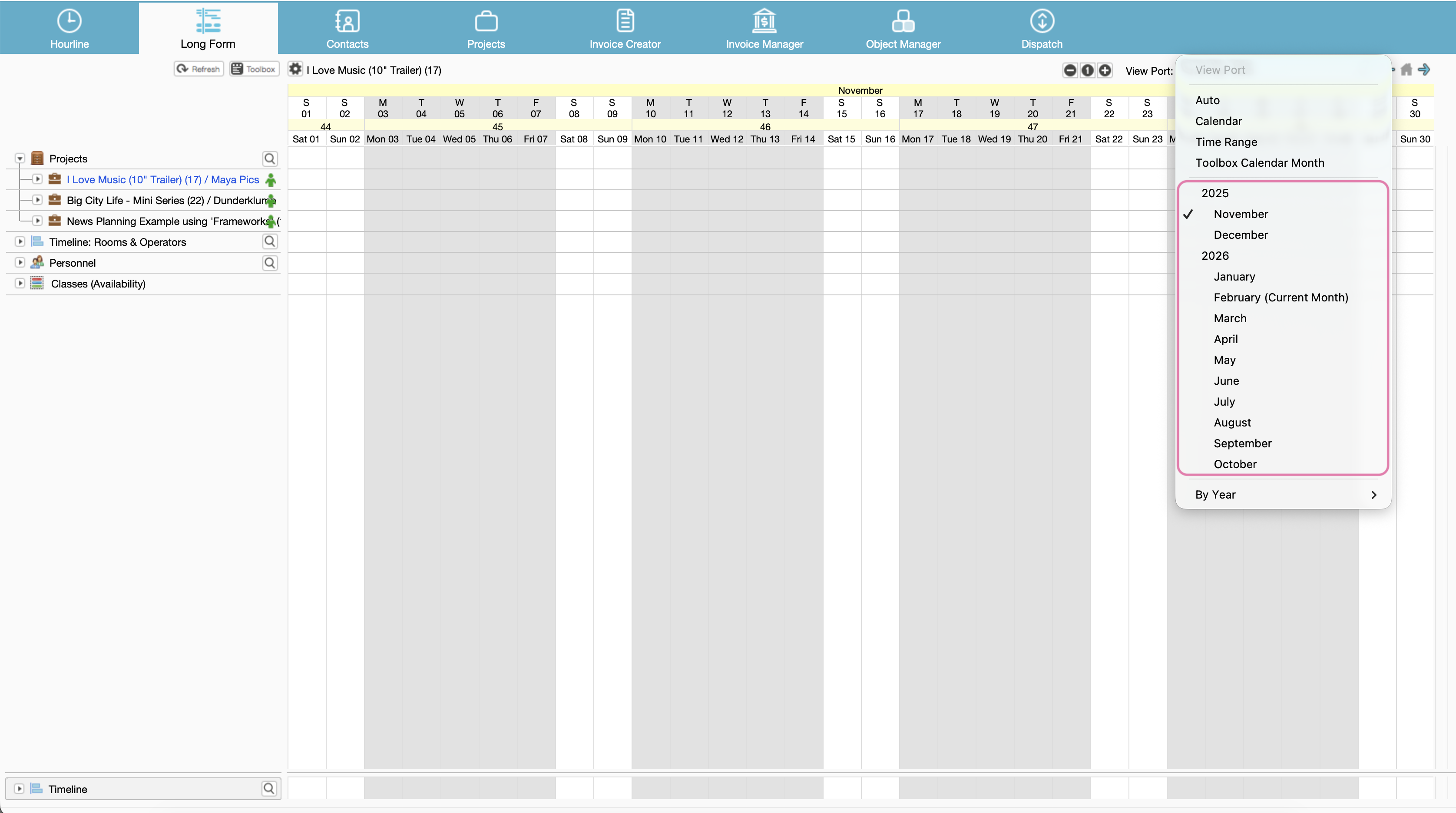
5. Calendar Month
Select the specific Calendar Month. First section shows 12 Months by name . Next section is used to select month By Year, here it is also possible to select the whole year:
Viewing Multiple Months in the View Port
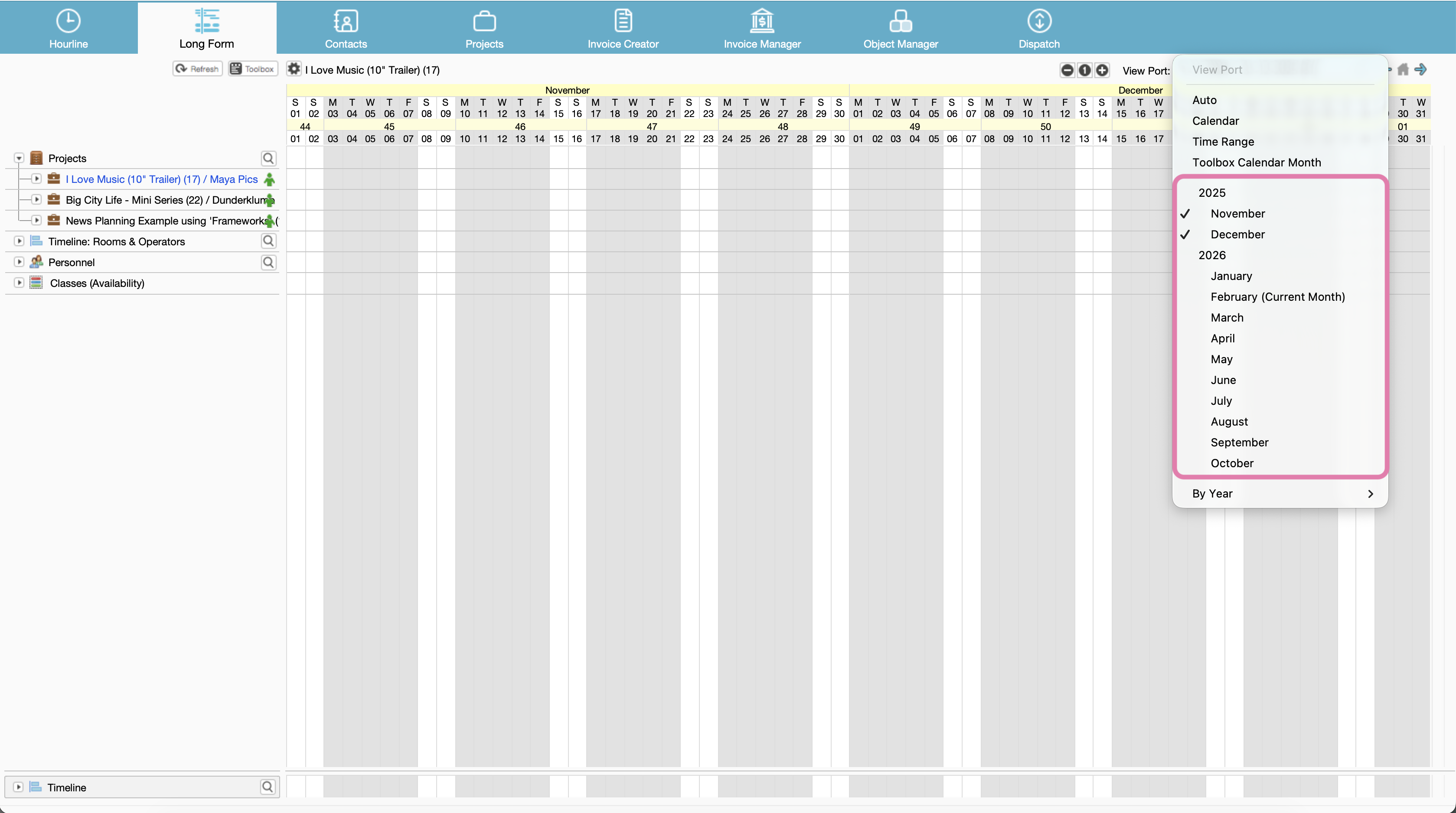
You can now display multiple months at the same time in the View Port, making it easier to plan and review longer time ranges.How to combine multiple months
- Press and hold the
Shiftkeyon your keyboard.⚠️ Important: The
Shiftkey must be held before opening the month selector. - While still holding
Shift, click on the View Port option-selector (month selector pop-up). - From the month list, click one or more months to select them.
- Release the
Shiftkey once your selection is complete.
The View Port will now display all selected months together.
Notes
- If
Shiftis not held before opening the option-selector, only a single month can be selected. - This feature is useful for long-term scheduling, resource planning, and cross-month overviews.
6. Zoom and View Port Navigation.
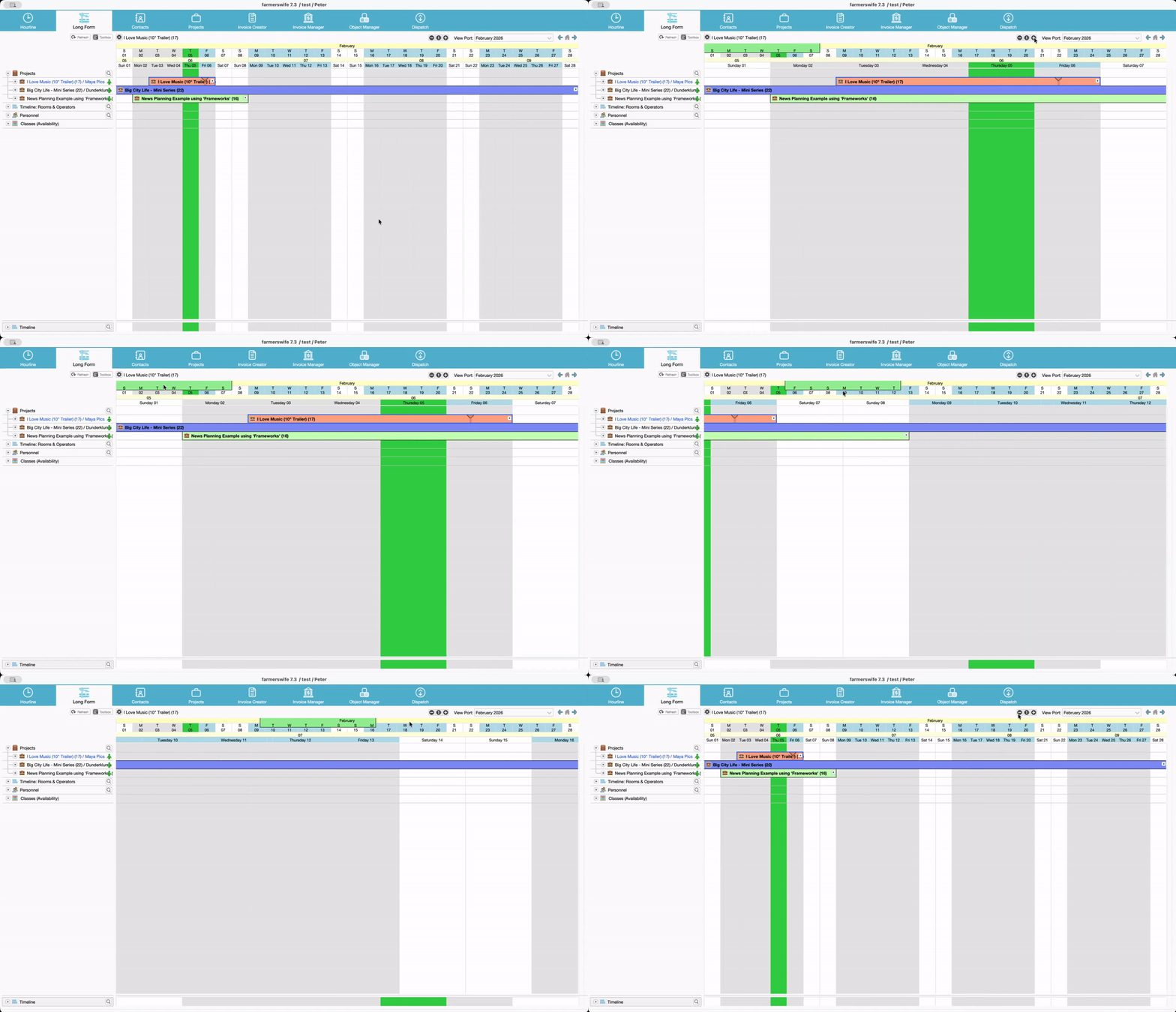
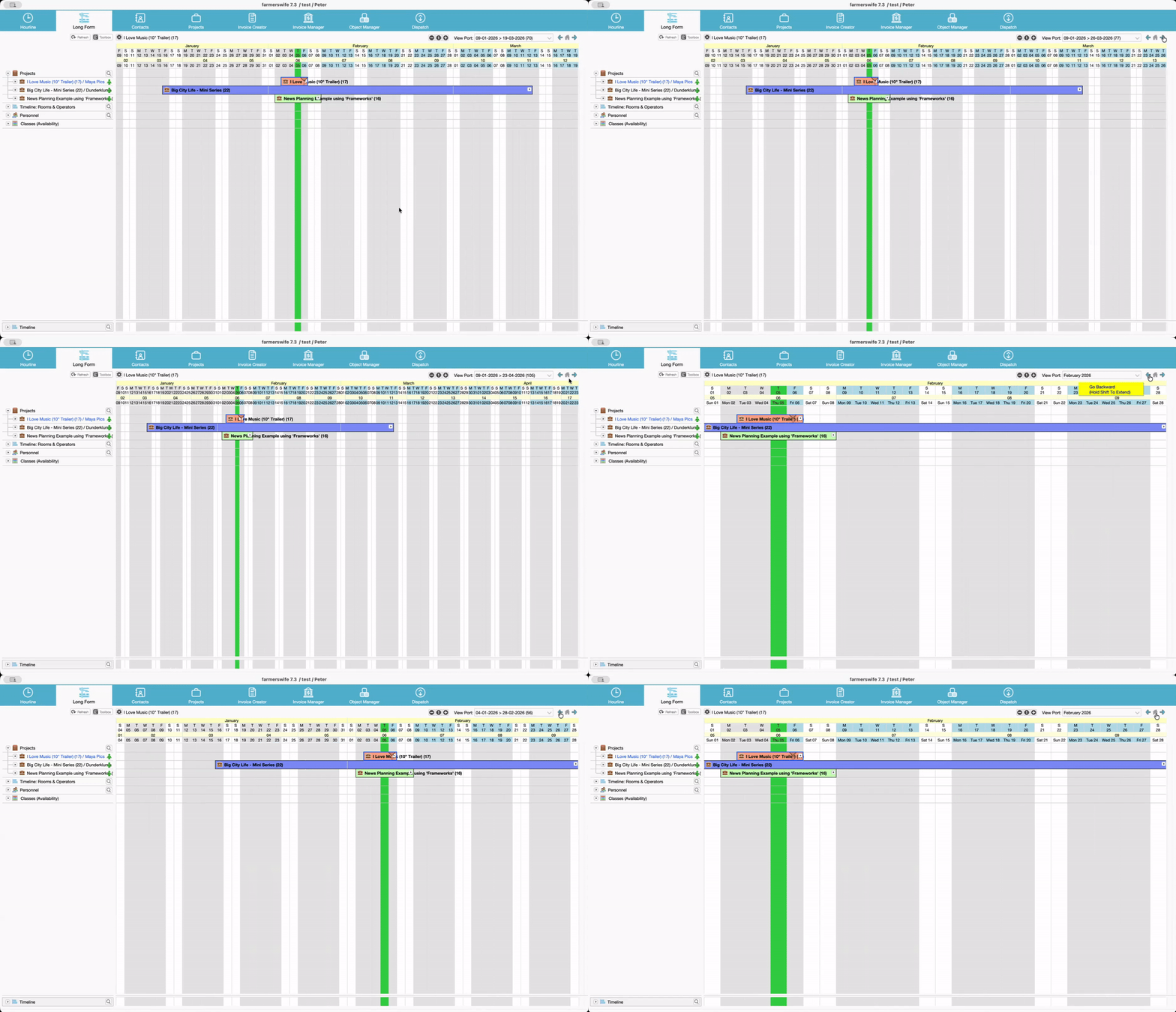
The Long Form timeline offers multiple ways to control the visible date range, allowing both precise zooming and smooth navigation across time.
Zooming
Use the
+and–icons at the top of the timeline to zoom in or out.Click
1to return to the default calendar view.The green bar shows the currently zoomed date range.
Drag it left or right to move across dates.
View Port navigation
In the top-right corner of the Long Form View Port, you’ll find:
Left / Right blue arrow buttons
Home button
Use them as follows:
Click the blue arrows to move the visible time range left or right.
Hold
Shift+ click the blue arrows to extend the visible date range by one week per click.Click Home to jump to the current month or reset the View Port.
Hold
Shift+ click Home to automatically center the view on all items currently loaded in the Long Form.
Navigation between full-month views is now smoother and more accurate.
7. Navigate with Arrow Keys
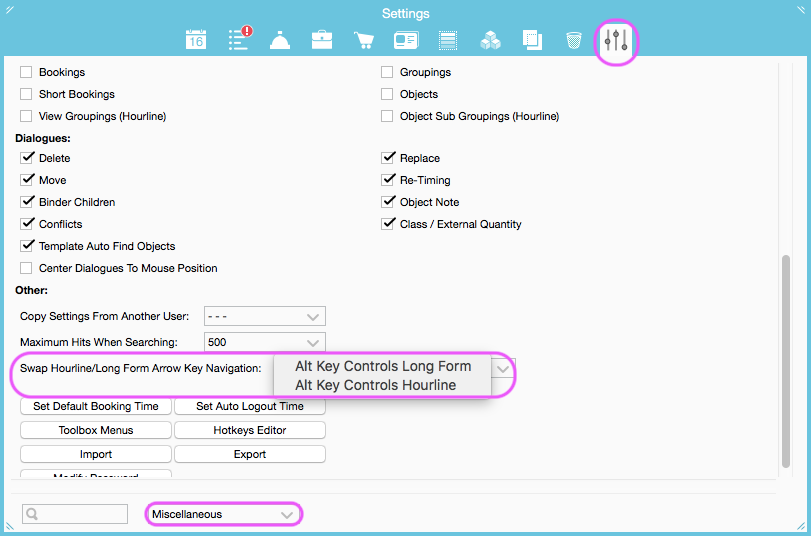
You can also move through the Long Form timeline using the keyboard. The default setting for the Long Form is to use the Alt key and the Arrow Keys and the Default for Hourline is to move only with the Arrow Keys.
To swap this behaviour go to Toolbox > Settings > Miscellaneous > find "Swap Hourline/ Long Form Arrow Key Navigation". Select the preferred setting:
- Alt Key Controls Long Form.
- Alt Key Controls Hourline.
Navigation behavior
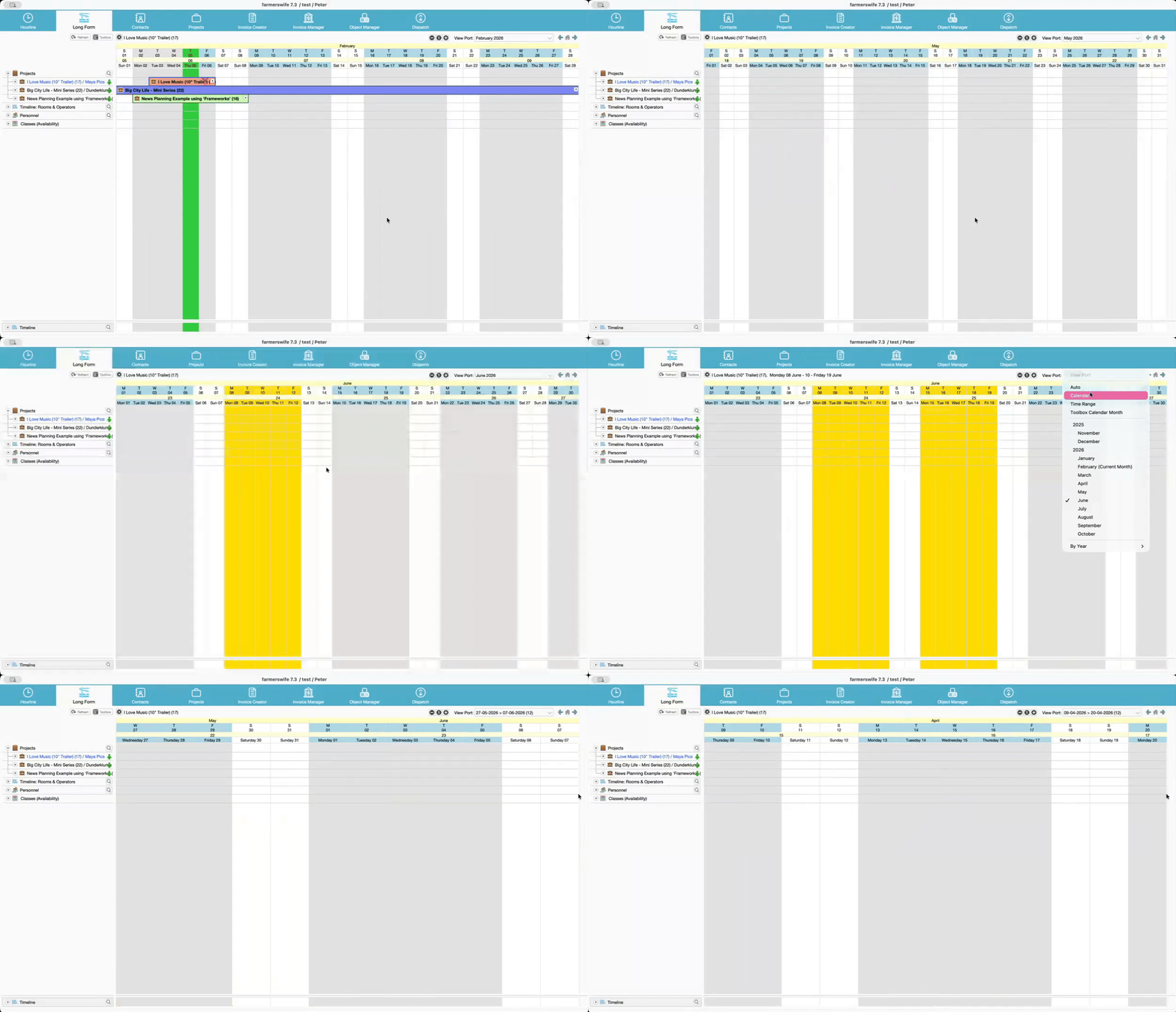
When viewing a full month, arrow keys move one month at a time.
When a custom time range is selected, arrow keys move by that selected range.
Was this article helpful?
That’s Great!
Thank you for your feedback
Sorry! We couldn't be helpful
Thank you for your feedback
Feedback sent
We appreciate your effort and will try to fix the article