TABLE OF CONTENTS
- How it works
- Video with flow
- Pre-requisites
- Step 1: Registering farmerswife as a Web App In Xero
- Step 2: Setting Up of Required URLs in Xero Developer Account
- Step 3: Configuring the farmerswife Server
- Step 4: Configuring the Connection to Xero in farmerswife
- Step 5: Configuring Xero Products and Services Mapping
- Step 6: Match your customers.
- Step 7: Sending Invoices to Xero from farmerswife
- Working with Transferred Invoices
- Display and filter transferred Invoices
- Questions & Answers (FAQ)
- How to Create a Xero Developer Account
This article will walk you through the configuration and use of the Xero Online Integration in farmerswife available from v7.3.
The Xero integration is a separate licensed feature, so please contact support@farmerswife.com if you would like to add this to your license.
Once it's set up, you can create your invoices in farmerswife and send them straight into Xero with a click, no re-typing, no exporting and importing files. Optionally, when an invoice is marked as Paid in Xero, farmerswife can update itself automatically to show it as paid too.
How it works
farmerswife connects to Xero using a standard, secure method called OAuth 2.0. You've already used this many times without knowing the name, it's the same idea as the "Sign in with Google" or "Allow this app to access your account" screens you see on the web.
Here's the whole idea in five plain steps:
1. In farmerswife, you click Connect to Xero.
2. A Xero web page opens and asks you to log in to Xero and pick which company (organisation) you want to connect.
3. Xero shows you a list of permissions farmerswife is asking for (for example: "view and manage your invoices"). You click Allow.
4. Xero gives farmerswife a secure digital "pass" (called a token). farmerswife uses this pass to send invoices and read paid status. Your Xero password is never given to farmerswife that's the whole point of OAuth.
5. You stay in control. You can remove farmerswife's access at any time from inside Xero.
Pre-requisites
- A farmerswife server running version 7.3 or later.
- A farmerswife license with Xero enabled (contact support if unsure).
- You should have a Xero Online Developer Account. (See quick steps to set up this free account at the end of this article, if you do not already have one).
(we show you how to get one at the bottom of this article).
- Two values you'll copy from Xero: your Client ID and your Client Secret (don't worry about what they are, they're just two codes you'll paste into farmerswife).
- Optional: a Webhooks Key, only if you want Xero to tell farmerswife when an invoice is marked Paid.
Step 1: Registering farmerswife as a Web App In Xero
Xero requires every outside program that talks to it to be registered first. You're just creating an entry that says "farmerswife is allowed to connect." This takes a couple of minutes.
- Register the application at https://developer.xero.com/app/manage
- Proceed by adding a New App
- Choose Web App.
- Enter the Company or app URL you will use.
- e.g. https://www.yourdomain.com
- and the Redirect URL (copy the correct one from Step 2 below)
- The client ID is automatically created after the app is created and you need to generate the client secret from the 'Configuration' option inside your application on the developer portal.
Keep your Client ID and Client Secret somewhere safe. You'll paste them into farmerswife in Step 4. Treat the Client Secret like a password, don't share it.
Step 2: Setting Up of Required URLs in Xero Developer Account
Redirect URL (required)
These are fixed addresses that tell Xero where to send farmerswife. You just copy the right one and paste it into Xero.
In Xero, go to your Apps and navigate to Configuration settings. Here you will need to enter a Redirect URL. This should follow the below formats:
Redirect URL:

For self-hosted customers:
https://[yourdomain]:[ApiPort]/oidc/callback

-

For Clouded customers:
https://api.[yourdomain].cloud.farmerswife.com/oidc/callback
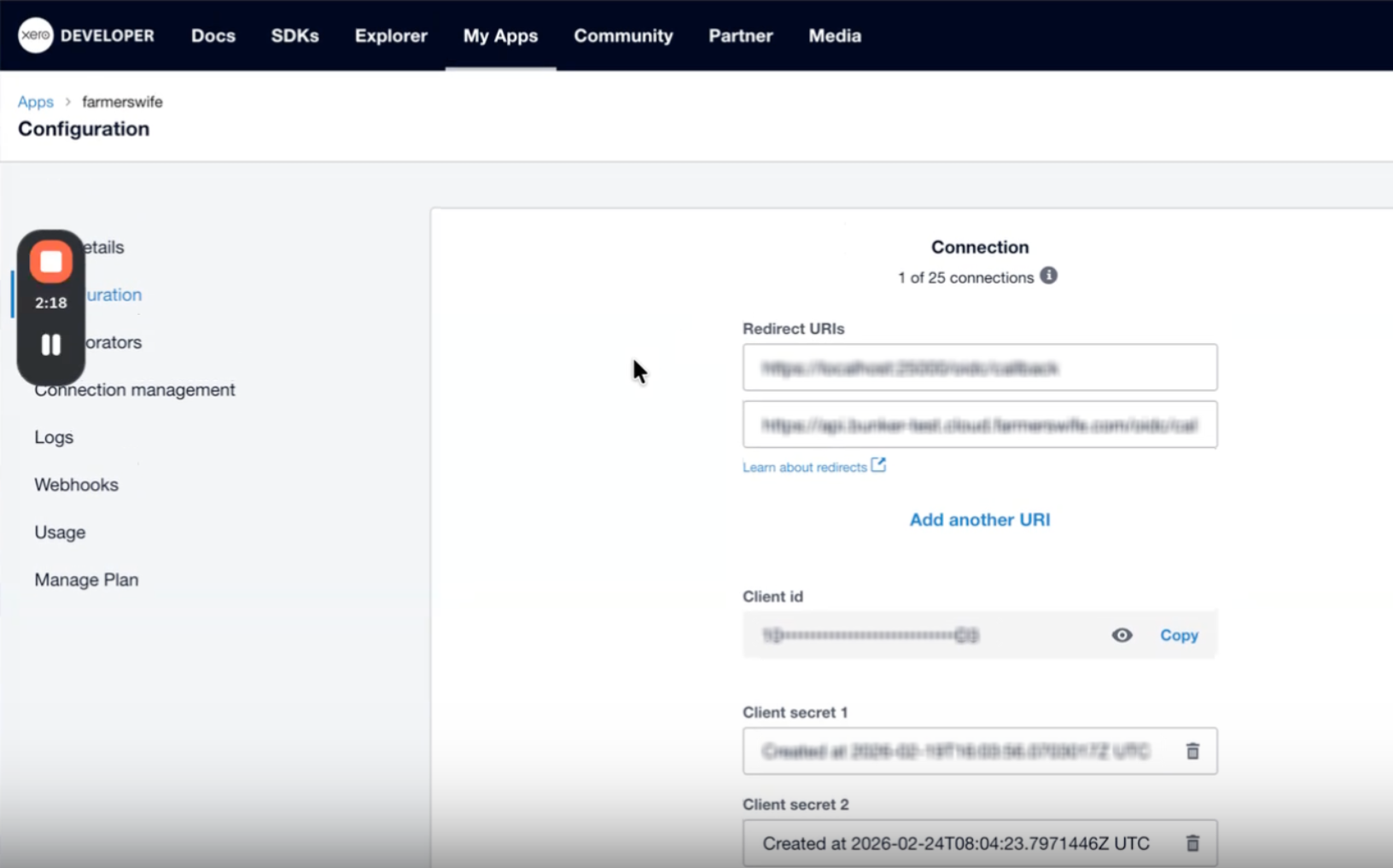
Replace `[yourdomain]` and `[ApiPort]` with your own values. If you're not sure what to put, email support@farmerswife.com, we'll give you the exact line to paste.
Syncing Invoice Paid Status with fw (Optional)
If you wish to sync the "Paid" status of your invoice from Xero to farmerswife, you should then navigate to the Webhooks settings. This is an optional configuration. Here you will need to enter a Delivery URL. This should follow the below formats:
Delivery URL:

For self-hosted customers:
https://[yourdomain]:[ApiPort]/api/v1/webhook/xero

-

For Clouded customers:
https://api.[yourDomain].cloud.farmerswife.com/api/v1/webhook/xero
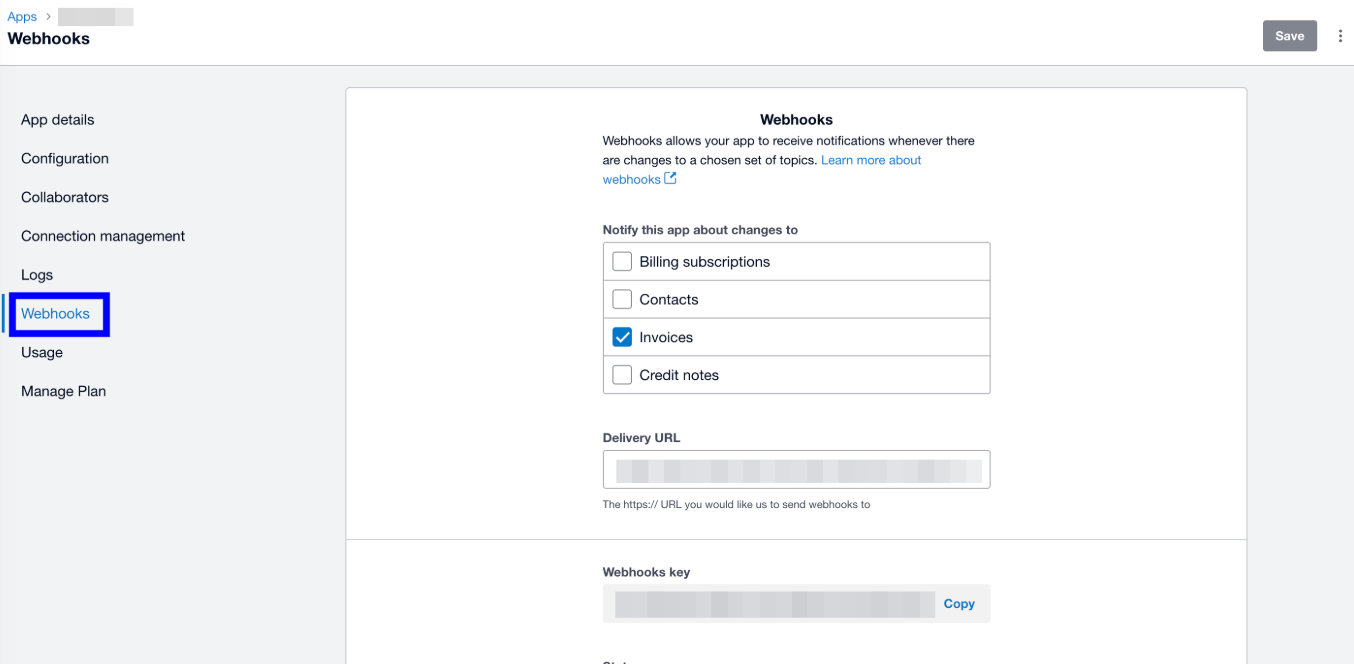
Then set Invoices as the event type that triggers notifications. Xero will also give you a Webhooks Key here. copy it for Step 4.
Step 3: Configuring the farmerswife Server
Please Note: If you are a clouded customer, this will be configured by farmerswife Support.
On the farmerswife Server application, navigate to the Financial tab, and locate the Invoice Customs section. Here you should add at least the following two fields (these will be used for mapping later):
- Xero Id (an Entry field used as the internal Xero unique identifier for the invoice)
- Xero Number (an Entry field which is displayed to users as the invoice number in Xero)
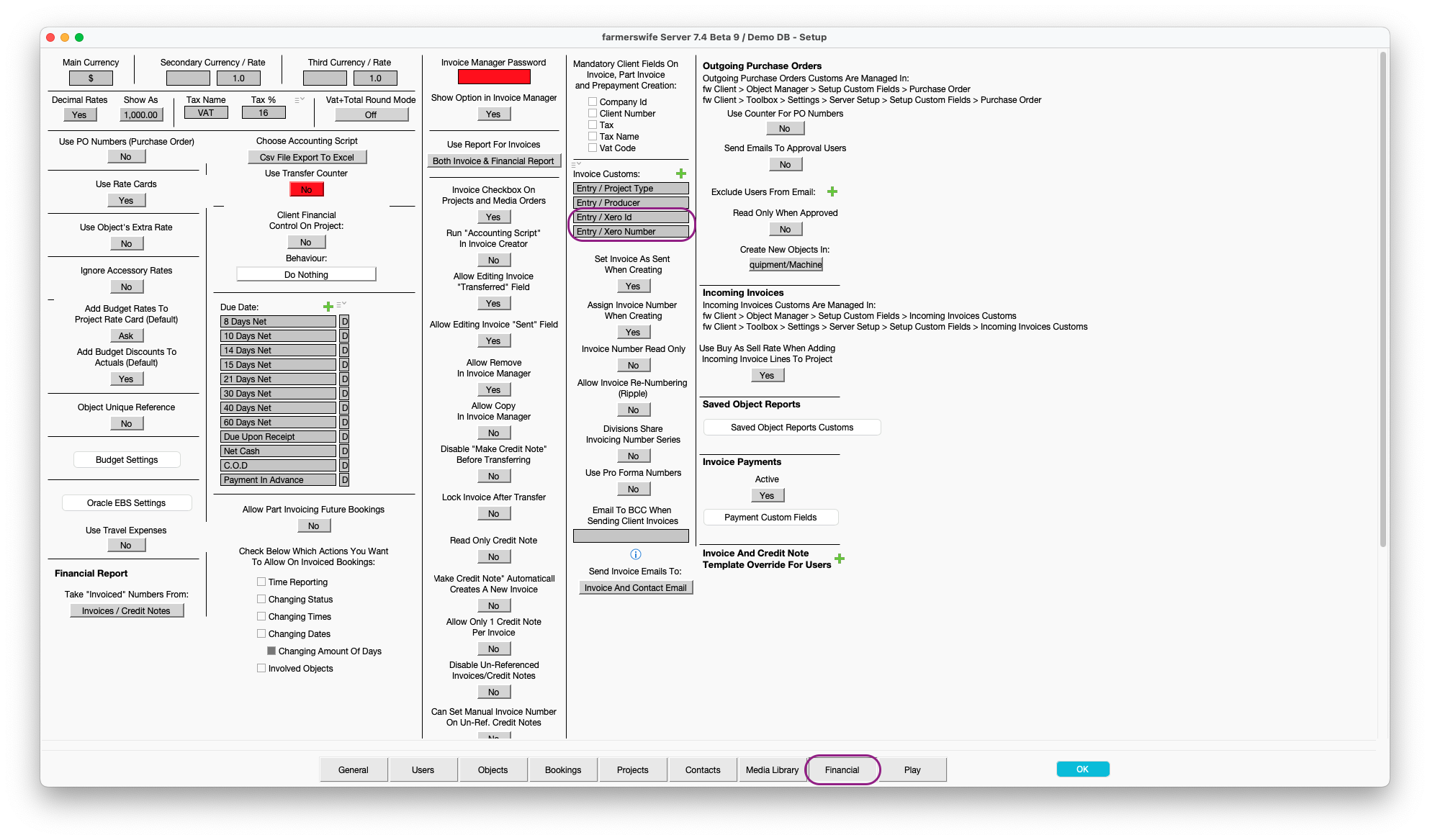
Once the fields have been added, click OK to restart the farmerswife Server.
Please Note: the Custom field for the Xero Id must have have a lower case d on Id. If this is set up with the name Xero ID, the connection on the field will not be recognised, and the push to Xero will fail.
Step 4: Configuring the Connection to Xero in farmerswife
- In farmerswife Desktop Client as an Admin with access to Server Setup, navigate to Toolbox > Settings > Server Setup > Financial > Enable Xero Online
- Click Setup, which will open a simple window where admins should enter:
- Client ID (From step 1)
- Client Secret (From step 1)
- OAuth2 Redirect URL (From step 2)
- Webhook Key (only if you set up the optional paid-status sync)
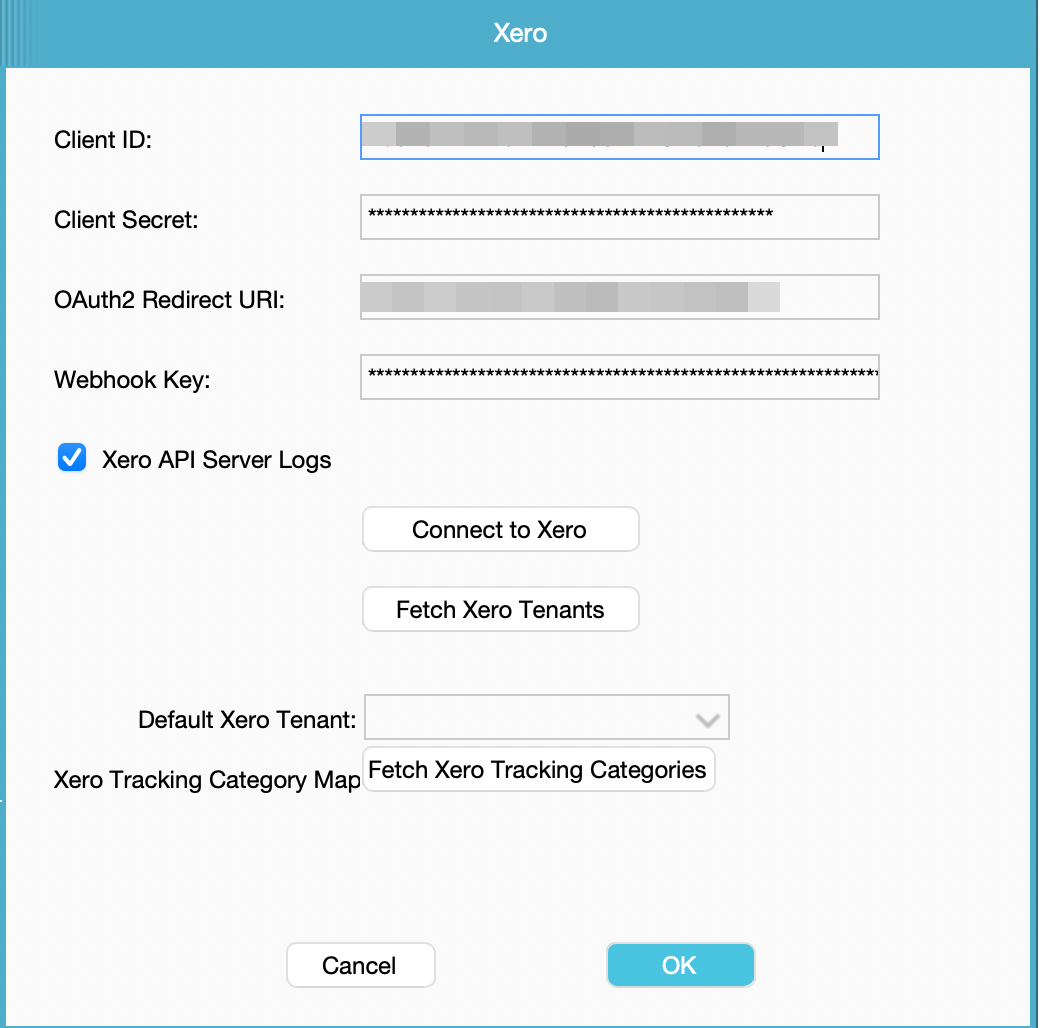
- After filling in this information click Connect to Xero. A browser window will open requesting access to your organisation's data and user account information.
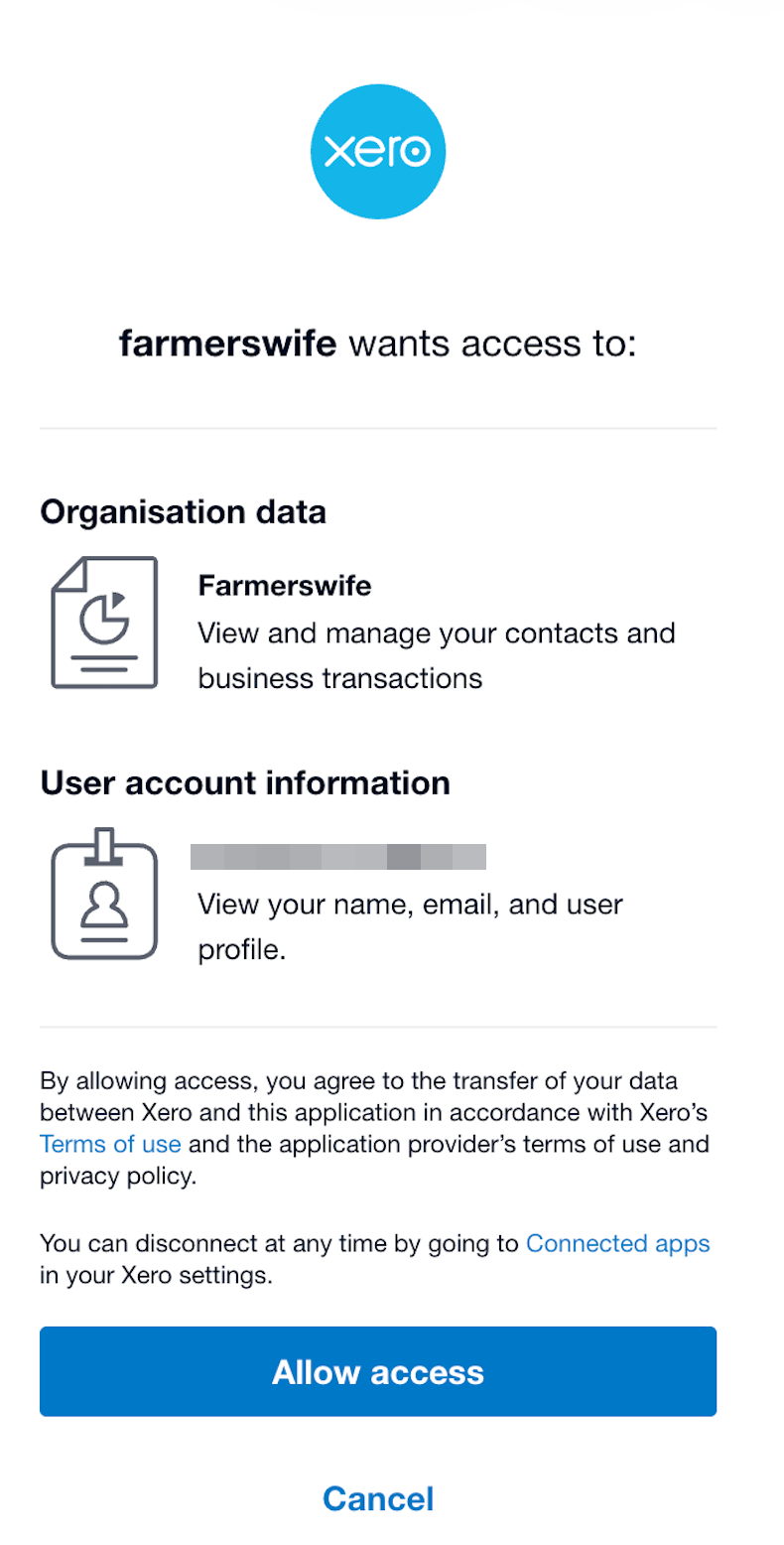
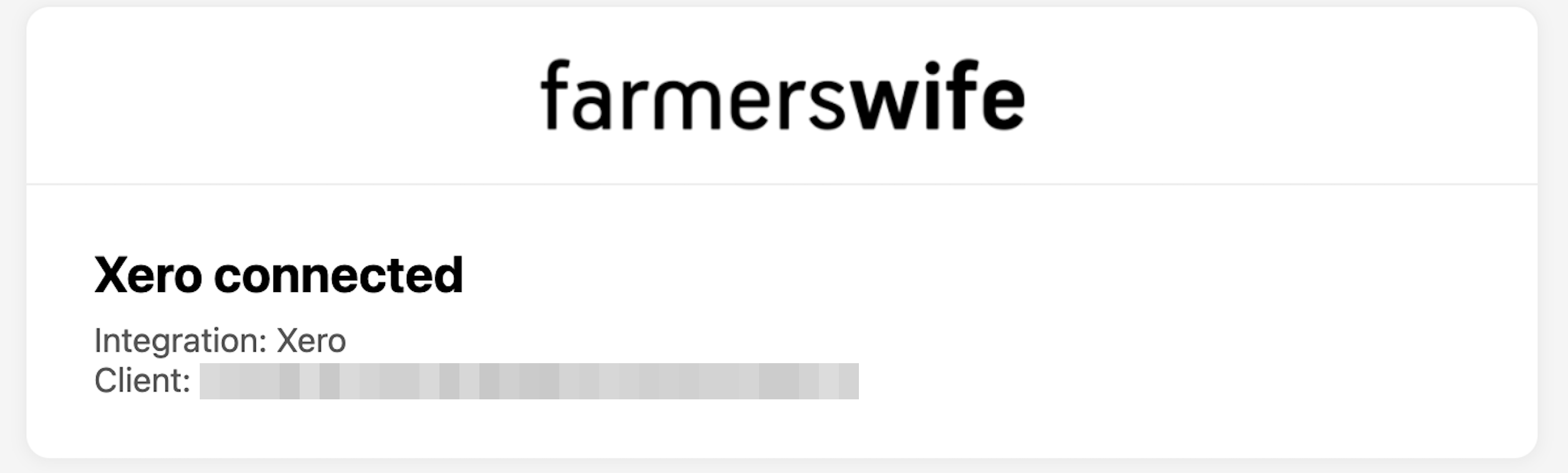
- Once access is granted, Xero is connected to farmerswife.
- In the farmerswife Toolbox, click the Fetch Xero Tenants button. Select as default the tenant from your organisation.
Step 5: Configuring Xero Products and Services Mapping
For invoices to transfer cleanly, the items in farmerswife need to be matched to the matching products/services in Xero. You match them using a short code.
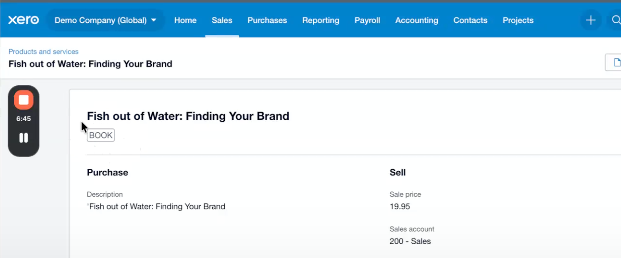
In Xero: go to Sales > Products and services. In the Code field, enter a short code for the item (letters, numbers, or both, e.g. `edit`).
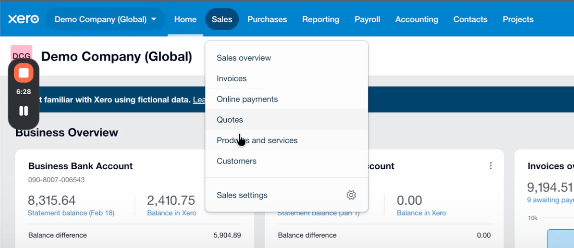
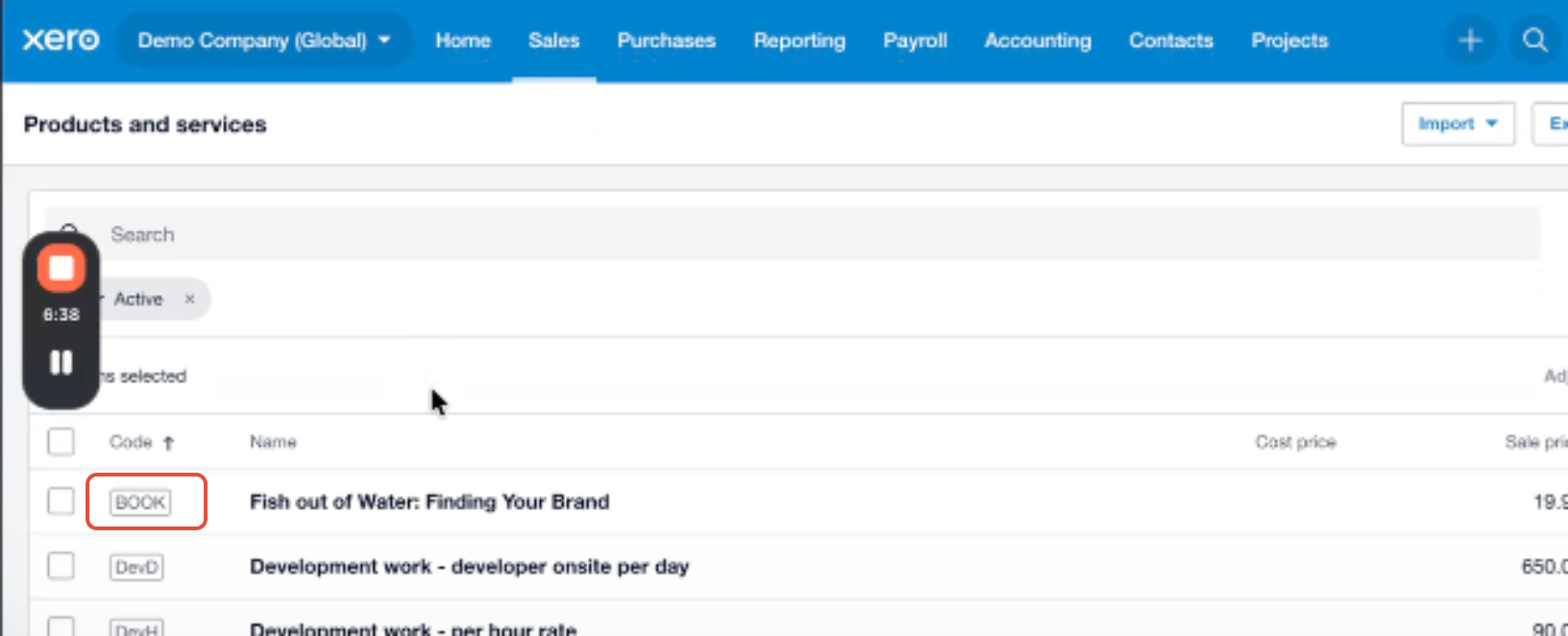
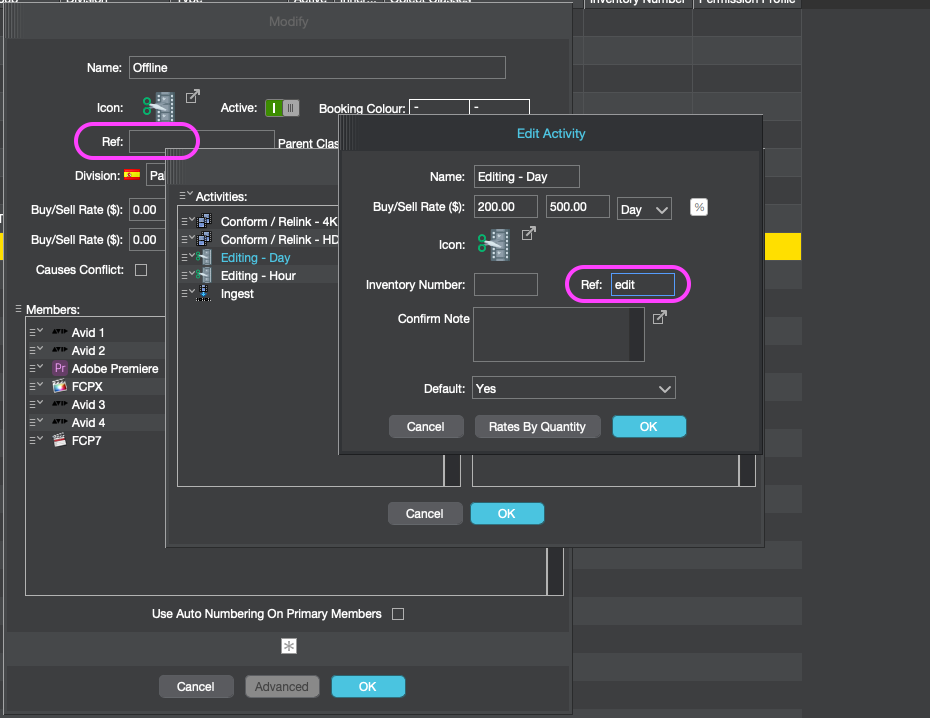
In farmerswife: go to Object Manager, open the item you want to match, and put that same code into the Ref: field.
If a code doesn't match, farmerswife will warn you when you click Send to Xero, so nothing slips through silently.
If you rename an invoice line in farmerswife, that new text appears in Xero's Description column, while the underlying product/service stays matched by the code.
- Name of Service in Invoice: “Editing - Day” / FW Ref: “edit” / Xero Code: “edit”
- Name of Service: “File Delivery” / FW Ref: “file” / Xero Code: “file”
Step 6: Match your customers.
The Customer name in Xero must be exactly the same as the Client/Company name in farmerswife.
When you send an invoice, the customer details shown in Xero come straight from your Xero Customer Hub.
To edit a customer in Xero: Sales > Customers > Edit.
Step 7: Sending Invoices to Xero from farmerswife
- In Invoice Creator/Manager select one or multiple invoices.
- Editing the description of the items will not change the REF number used for mapping.
- Right click or click menu.
- Choose "Send to Xero" for selected invoices to transfer the selected invoices to Xero.
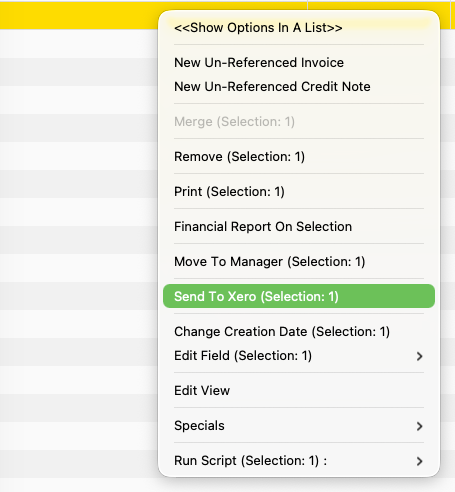
Next, farmerswife will:
- Validate that "Xero Id" and "Xero Number" custom fields, Customer and Products and Services exist before exporting.
- Asks you to authorise with Xero again only if needed.
- Post each invoice to Xero and writes back the returned identifiers.
- Updates the transferred status of the invoices.
- A new Invoice custom field “Xero Number” and "Xero Id" are auto-filled when creating the Xero invoice, but can be used to link existing invoices.
Editing an item's description on an invoice does not change the code used for matching.
Working with Transferred Invoices
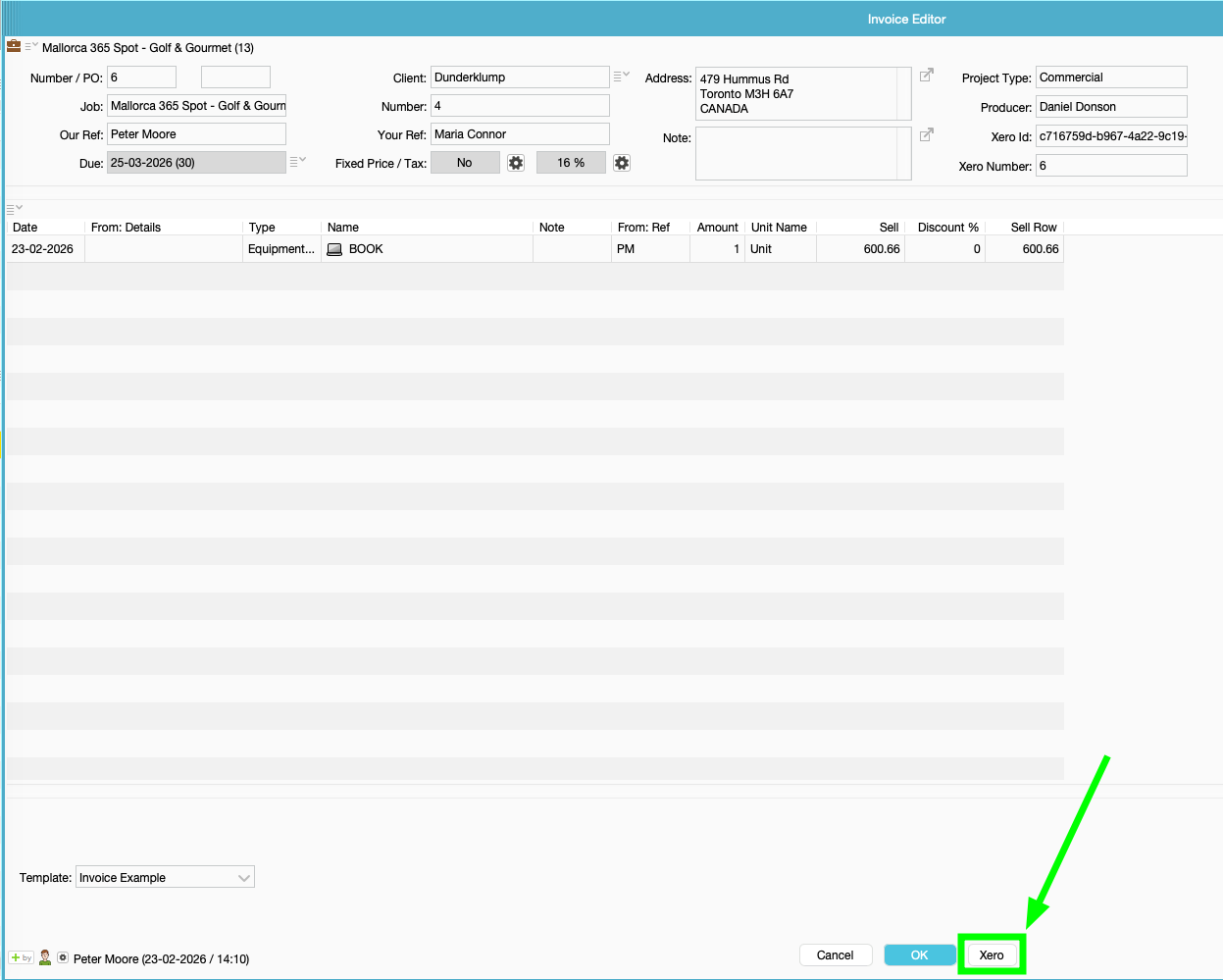
When an invoice already has a Xero ID, the Invoice Editor window shows a Xero button that launches the corresponding invoice in Xero, using sandbox or production URLs as configured.
Display and filter transferred Invoices
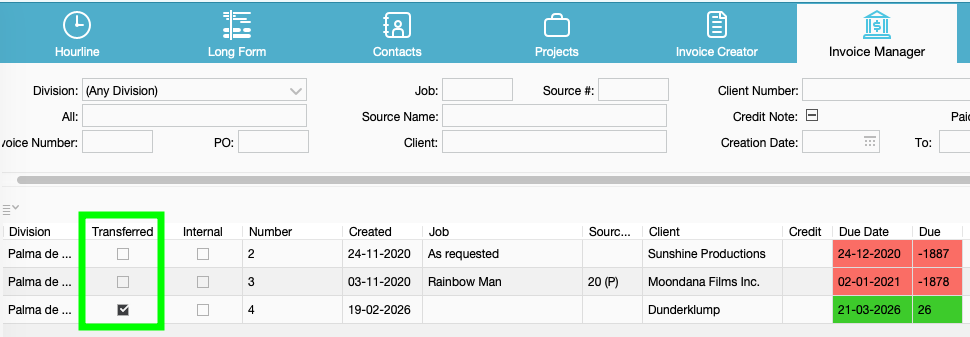
In Invoice Manager, Search results > click the Menu icon > Edit View to add the "Transferred" column to your Invoice View.
Questions & Answers (FAQ)
There's a "Xero Developer" site and the normal "Xero" site. Are they the same thing or different?
They are two different websites, but you can use the same Xero login for both.
Normal Xero: (the site you or your accountant use every day, at login.xero.com) is where your accounting lives, your invoices, contacts, bank feeds, reports, and so on.
Xero Developer: (developer.xero.com) is a separate area where you register "apps" outside programs that are allowed to connect to Xero. farmerswife is one of those apps.
You don't need a separate, special account you can log in to the Developer site with your existing Xero credentials.
Why do I have to create an "app" in Xero Developer at all? Can't I just connect?
Xero requires every outside program that wants to read or write your accounting data to be registered first as an app. When you register it, Xero gives the app a unique identity (the Client ID and Client Secret).
This exists for your security. It means:
- Xero always knows exactly who is asking for access.
- You can see farmerswife in your list of connected apps.
- You can switch off that access at any time, instantly.
The app you create is just an ID card for the connection. On its own it can't see any of your data, it only gets access after you separately approve it in the "Connect to Xero" step.
Can I create the app under a different Xero account / email than the one my accounting is in?
Yes. The Developer account that creates the app does not have to be the same account that owns your accounting organisation.
That's because the app and your accounting data are linked later, during the Connect to Xero step. At that moment, a Xero login screen appears and asks which organisation you want to give access to that's where the actual connection to your accounting data is decided.
So you could, for example, have an IT person or administrator create the app under their own Xero login, and still connect it to your company's accounting organisation. For a single company, the simplest path is just to use your own Xero login for both.
I read that the farmerswife integration is "Non-certified." What does that mean? Is it a problem?
It's not a problem for normal use.** Here's what it means.
"Certification" is an optional review program Xero offers for apps that are going to be published in the Xero App Store and used by many different companies. Going through it lets an app remove certain limits.
The farmerswife integration described here is a private app that you register yourself for your own company. It isn't published in the App Store, so it stays "uncertified." The only practical effects of being uncertified are these limits:
- An uncertified app can connect to a maximum of 25 Xero organisations.
- Each Xero organisation can have a maximum of 2 uncertified apps connected to it.
For a normal company connecting its own organisation(s), you'll be using one organisation (or just a few), which is far below 25 so these limits will never affect you. Uncertified does not reduce security, features, speed, or reliability for your own use.
So is "Non-certified" the thing where I have to reconnect every 30 days and do the login flow again?
No, that's a common mix-up. Being uncertified has nothing to do with reconnecting. The two things are unrelated.
Here's what actually controls the connection staying alive (and these numbers are the same for all apps, certified or not):
- The short-lived access "pass" refreshes itself automatically about every 30 minutes. This happens silently in the background you never see it and never do anything.
- The longer "keep-alive" pass is valid for 60 days of inactivity. Every time farmerswife syncs with Xero, that 60-day clock resets to zero.
In plain terms: as long as you use the integration at least once every 60 days, the connection stays alive indefinitely and you never have to reconnect.
You would only need to redo the Connect to Xero step if:
- the connection sat completely unused for more than 60 days, or
- someone removed farmerswife's access inside Xero, or
- the Client ID / Secret was changed or regenerated.
So there is no 30-day rule, and in normal day-to-day use you simply won't have to reconnect.
How is farmerswife actually connected to Xero? Is it safe? Does farmerswife get my Xero password?
It's connected using OAuth 2.0, the same secure "Allow this app to access your account" method used by services like Google and Microsoft.
The key safety points:
- farmerswife never receives your Xero password. You type your password only on Xero's own website, never into farmerswife.
- During connection, Xero shows you exactly what permissions farmerswife is requesting (such as viewing and managing your invoices and contacts). You approve them with a click.
- Xero then issues farmerswife a secure token (a digital pass) instead of your password. That token is what farmerswife uses to send invoices and read paid status.
- You can revoke that access at any time from within Xero, and the connection stops immediately.
What are the "permissions" Xero asks me to approve, and why?
They're the specific things farmerswife needs to be able to do in your Xero, essentially creating/updating invoices and reading contact and invoice information (including paid status). Without granting them, farmerswife wouldn't be able to send your invoices across. You approve them once, on Xero's screen, during the Connect to Xero step.
What is the Webhook / Webhooks Key for? Do I need it?
It's optional. A "webhook" is just a way for Xero to automatically notify farmerswife the moment an invoice is marked Paid, so farmerswife can update itself without you doing anything. If you don't set it up, everything else still works, you just won't get the automatic paid-status updates. The Webhooks Key is a code Xero gives you when you set this up, which you paste into farmerswife.
I'm stuck or something doesn't match. What do I do?
Email support@farmerswife.com. If you tell us whether you're self-hosted or Clouded, we can help you get through it.
How to Create a Xero Developer Account
Go to https://www.xero.com/signup/developers/ to sign-up for your free Xero Developer account. Then follow the steps in the Xero Documentation: https://developer.xero.com/documentation/getting-started-guide/
Was this article helpful?
That’s Great!
Thank you for your feedback
Sorry! We couldn't be helpful
Thank you for your feedback
Feedback sent
We appreciate your effort and will try to fix the article