This guide walks you through the steps to export invoices in different XML Formats.
Current supported formats are:
- EN-16931 → UBL 1.3.15 → Peppol BIS Billing 3.0 compliant XML format.
- Facturae (Spain)
- Factur-X/ZUGFeRD EN 16931
Before you begin
- Make sure you are running farmerswife version 7.3 or later.
- You must have a license with the XML Invoice flag enabled. Contact support@farmerswife.com for more information, or if you are unsure you have this.
Step-by-step instructions
Step 1: Configure necessary Invoice Custom Fields (Server Side)
If you are a cloud hosted client please inform support@farmerswife.com to add the necessary fields.
As a minimum you must have the following field under your Invoice Customs on the Financial tab of the Server:
- Type: Entry
- Label: E-Invoice Currency
(This field should have exactly the same name as the Contact Custom field, configured below)
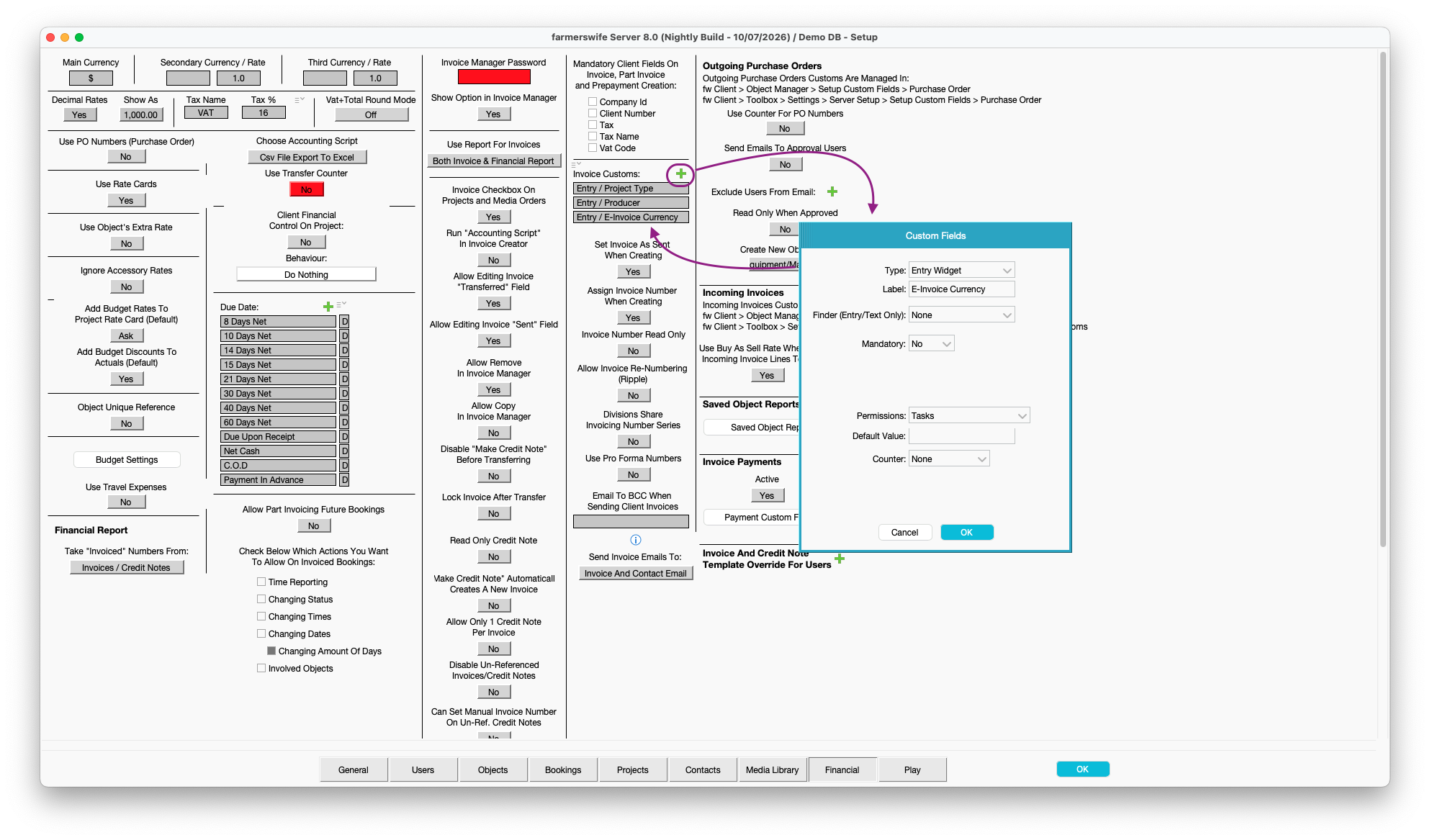
Step 2: Prepare your Invoice Contacts with the necessary Contact Custom fields.
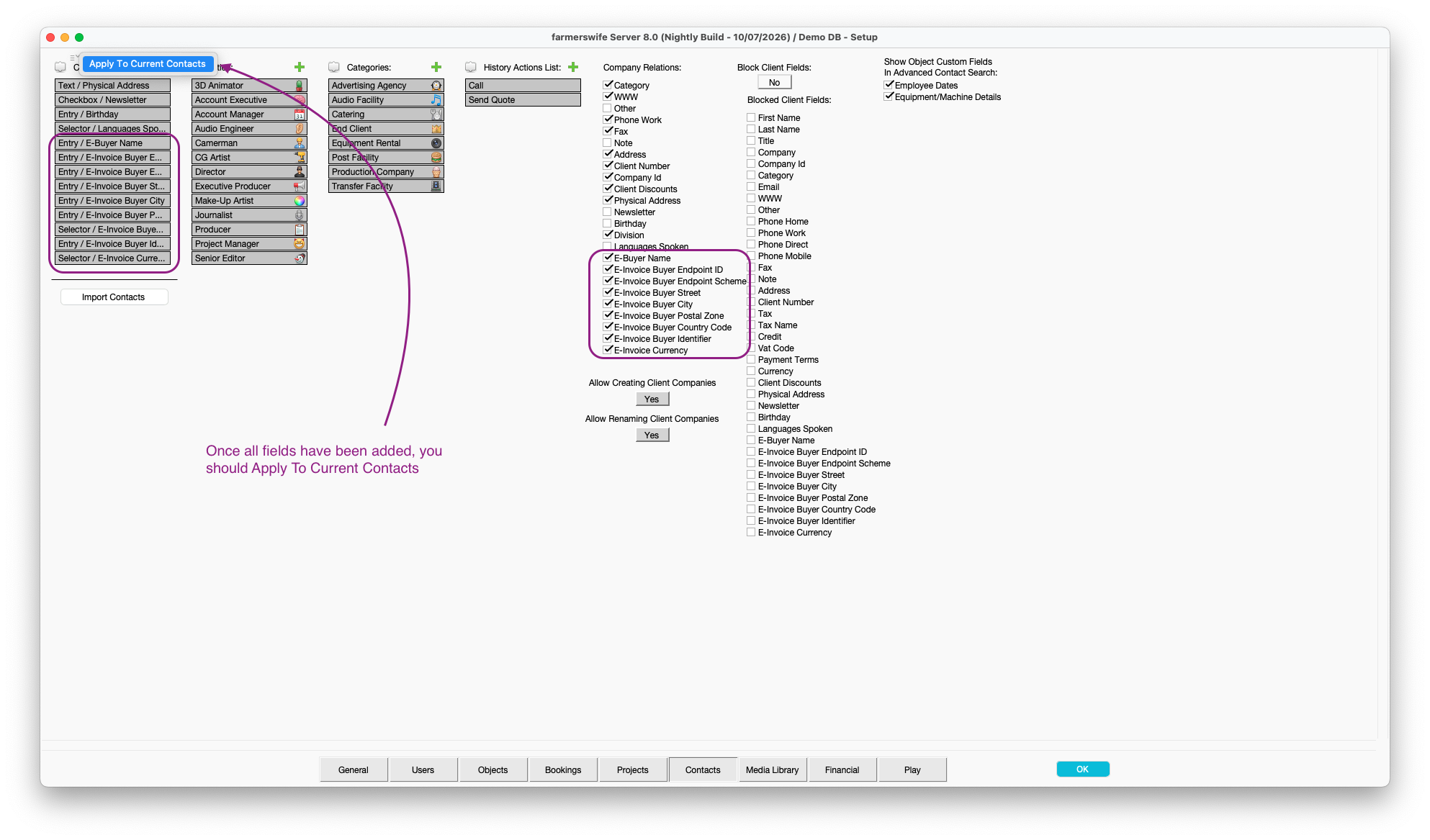
Configure the below Contact Custom fields. Enable the "Company Relation" for these fields, so all contacts belonging to a Company have the fields applied:
| FIELD LABEL | FIELD TYPE | DESCRIPTION |
| E-Invoice Buyer Name | Entry | This is the legal name of the buyer company |
| E-Invoice Buyer Endpoint ID | Entry | A unique electronic address identifying the buyer in an e-invoicing network |
| E-Invoice Buyer Endpoint Scheme | Entry | Defines which identification system is used for the Endpoint ID. For German e-invoicing (XRechnung or ZUGFeRD/Factur-X), the “Endpoint Scheme ID” identifies which electronic address system your customer uses. It is usually required in the XML under the buyer electronic address field.) Ask you client to "Please provide your electronic invoice endpoint ID and scheme ID for XRechnung/Peppol.” |
E-Invoice Buyer Street | Entry | Part of the Buyer's address |
E-Invoice Buyer City | Entry | Part of the Buyer's address |
E-Invoice Buyer Postal Zone | Entry | Part of the Buyer's address |
E-Invoice Buyer Country Code | Selector | Country codes in an invoice MUST be coded using ISO code list 3166-1. There is an attachment to this article listing them (as of July 2026) |
E-Invoice Buyer Identifier | Entry | NIF/NIE/CIF/VAT ID |
| E-Invoice Currency | Selector | Values must follow the three letter ISO-4217 currency codes. There is a CSV attached to this article listing them (as per July 2026). This field should have exactly the same name as the Invoice Custom Field. |
Once you have added the above fields, you should consider applying the fields to all of your current contacts. This will mean any contacts you have on your system will then inherit the above fields (should they need to use E-Invoicing).
Please Note: Applying to all Current Contacts could risk removing data if you have Contact Custom fields that have since been renamed, or removed. If this is the case, when applying to current contacts, you will be prompted about any removed data, and it will be stored on the server in a text file. In most cases, this should not be an issue.
Step 3: Enable E-Invoice (Desktop Side)
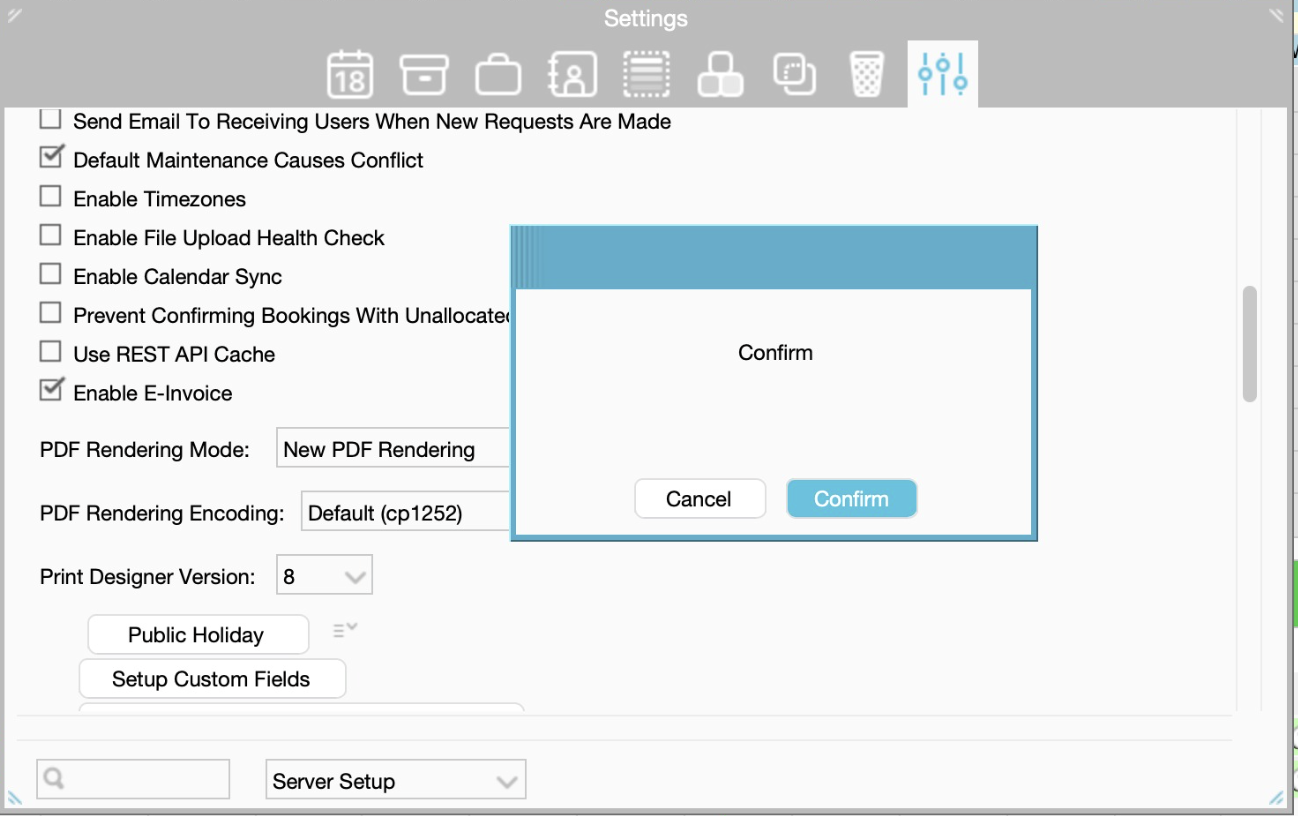
- As Admin User go to Toolbox > Settings > Server Setup > "Enable E-Invoice" checkbox
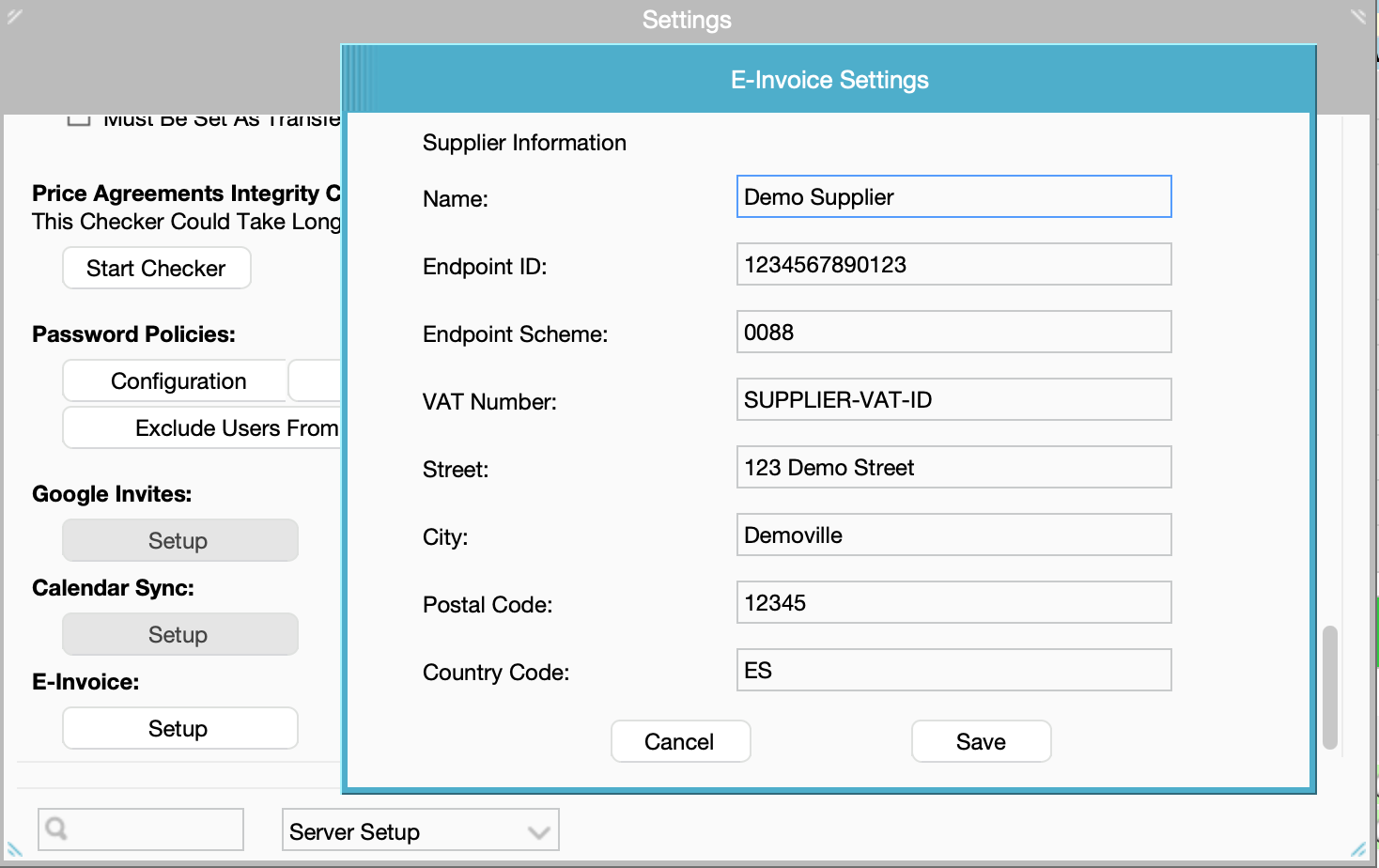
- Configure your/the company's XML Invoice Supplier data:
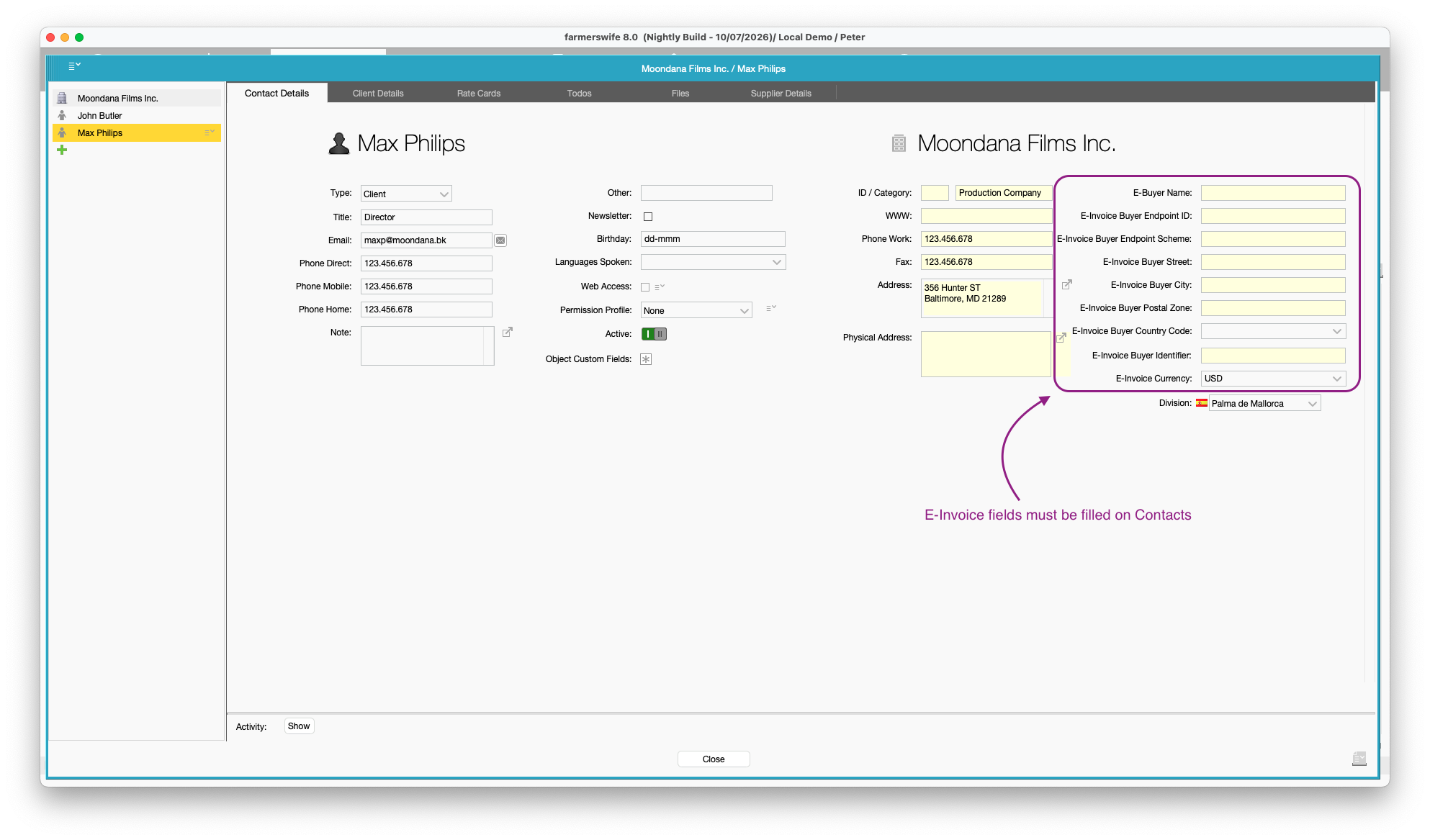
Step 4: Fill Contact Custom Fields On Contacts
With the Contact Custom fields added to the server, you should fill the fields on the relevant contacts. As they have been set up as Company Relation fields, only one contact per company needs to be edited.
Step 5: Prepare the Invoice
Open Invoice Creator.
Create or open an invoice.
Select a Contact in the Your Ref field
(this will automatically be pulled from the contact associated to the project. Only select a new contact if it needs to differ from the Project's Client contact)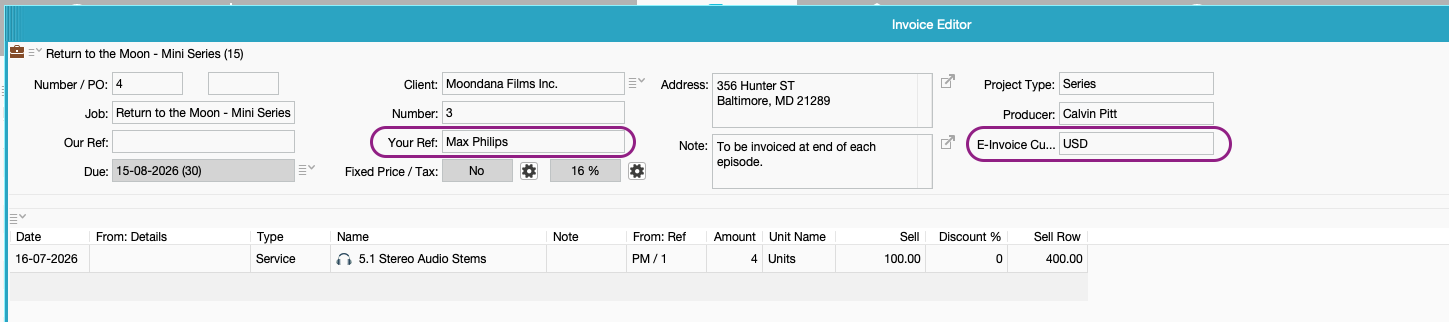
- If Contact Custom Fields have been configured correctly (in Step 4 above), the corresponding Invoice Custom Field for currency will be automatically populated with the buyer/customer information.
Click OK to save the invoice.
Step 6: Export the Invoice
Open Invoice Creator or Invoice Manager.
Select one or multiple invoices.
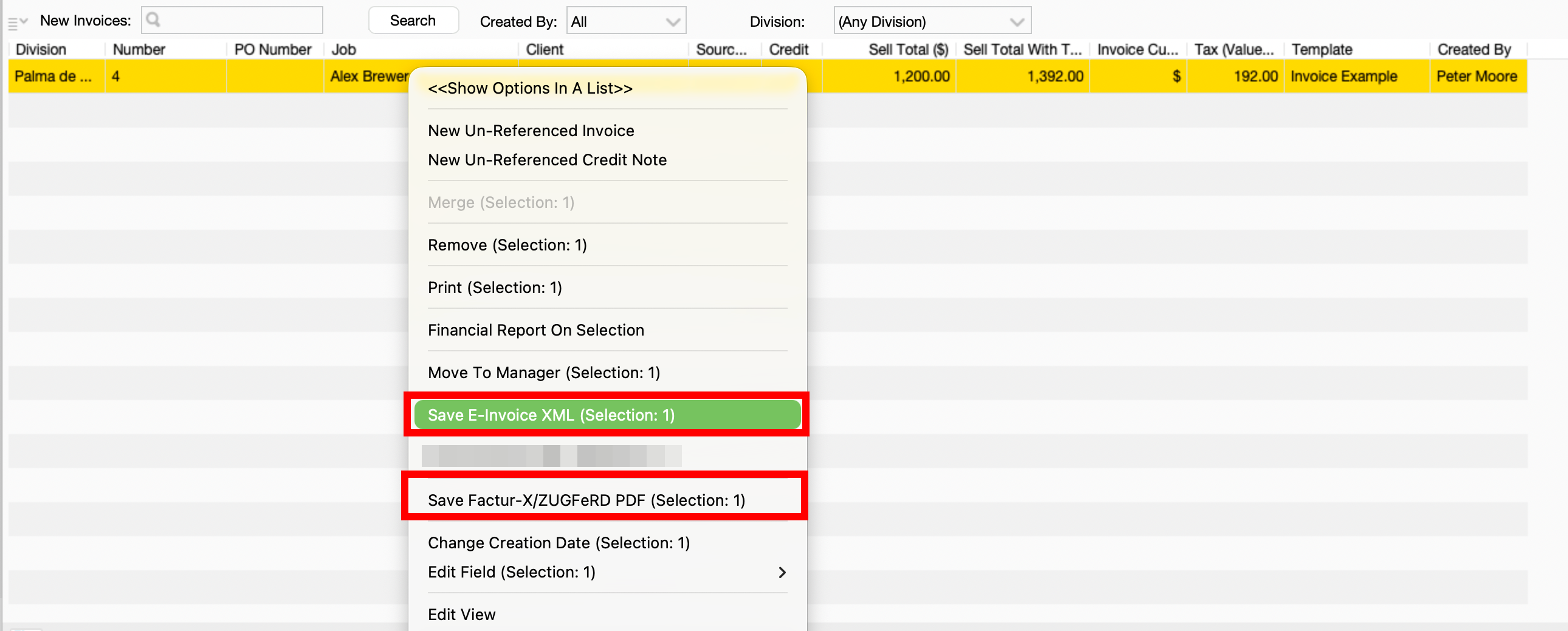
Right-click on the invoice column.
Choose one of the following options:
Save E-Invoice XML
Save Factur-X / ZUGFeRD PDF
Supports credit notes by using the "InvoiceTypeCode" 381 + the farmerswife credited invoice number as the E-Invoice BillingReference data.
- For the Factur-X/ZUGFeRD EN 16931 PDF visual layout the default template selected bottom left corner in the invoice is applied.
Step 7: Save the File
After selecting an export option:
A Save File dialog appears.
Choose the destination folder.
Save the file.
Troubleshooting
Custom Fields Mapping Behaviour
Make sure all required Contact Custom Fields are properly configured.
The XML exporter always uses the Contact Custom Fields as the source of buyer/customer data.
Invoice Custom Fields are not required for the export, with the exception of Currency, which must be present at invoice level.
Any values shown in the Invoice UI are for display purposes only.
What Happens If the Field Names Do Not Match
If an Invoice Custom Field is added and its name does not exactly match the corresponding Contact Custom Field (for example, a typo such as Buyer Name → Buyer Names):
The value will not be displayed in the Invoice UI.
This is expected behavior.
The XML export will still work correctly, as all buyer/customer data is read directly from the Contact Custom Fields, not from the Invoice Custom Fields.
Best Practices
Treat Contact Custom Fields as the single source of truth for E-Invoice exports.
Use Invoice Custom Fields only for visual reference, not as mandatory export data (except for Currency).
Useful links:
- Download list of 3-digit ISO Country Codes here.
- https://www.itb.ec.europa.eu/invoice/upload [Invoice Validator (EU DIGIT) (by the European Commission) — validates against the European standard EN 16931 and supported syntaxes]
- https://www.b2brouter.net/global/peppol-validator/ [Peppol Validator validates structured e-invoices using the Peppol BIS 3.0 format]
- https://app.b2brouter.net/fr/validation [Factur-X/ZUGFeRD EN 16931 PDF Validator]
- Documentation to understand Peppol codes and details: https://docs.peppol.eu/poacc/billing/3.0/
Was this article helpful?
That’s Great!
Thank you for your feedback
Sorry! We couldn't be helpful
Thank you for your feedback
Feedback sent
We appreciate your effort and will try to fix the article