In the Timeline you can now print the selected view to PDF. This can be from a single project or e.g. a week schedule of your operators.
Before you begin
- Make sure you have the Toolbox > Settings > Timeline > Classic Mode turned OFF.
Step-by-step instructions
- Add one or multiple projects or objects to the Timeline.
Drag and drop objects or projects to the Timeline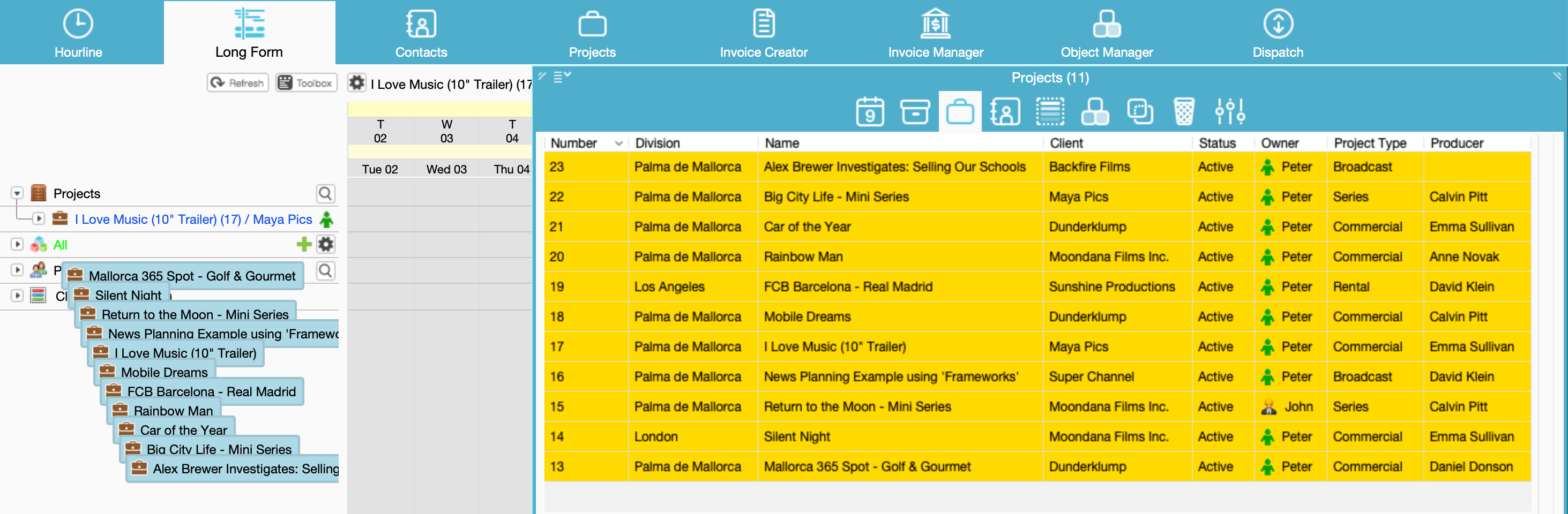
For Projects > Select/Shift select for multiple + right click > Add To Timeline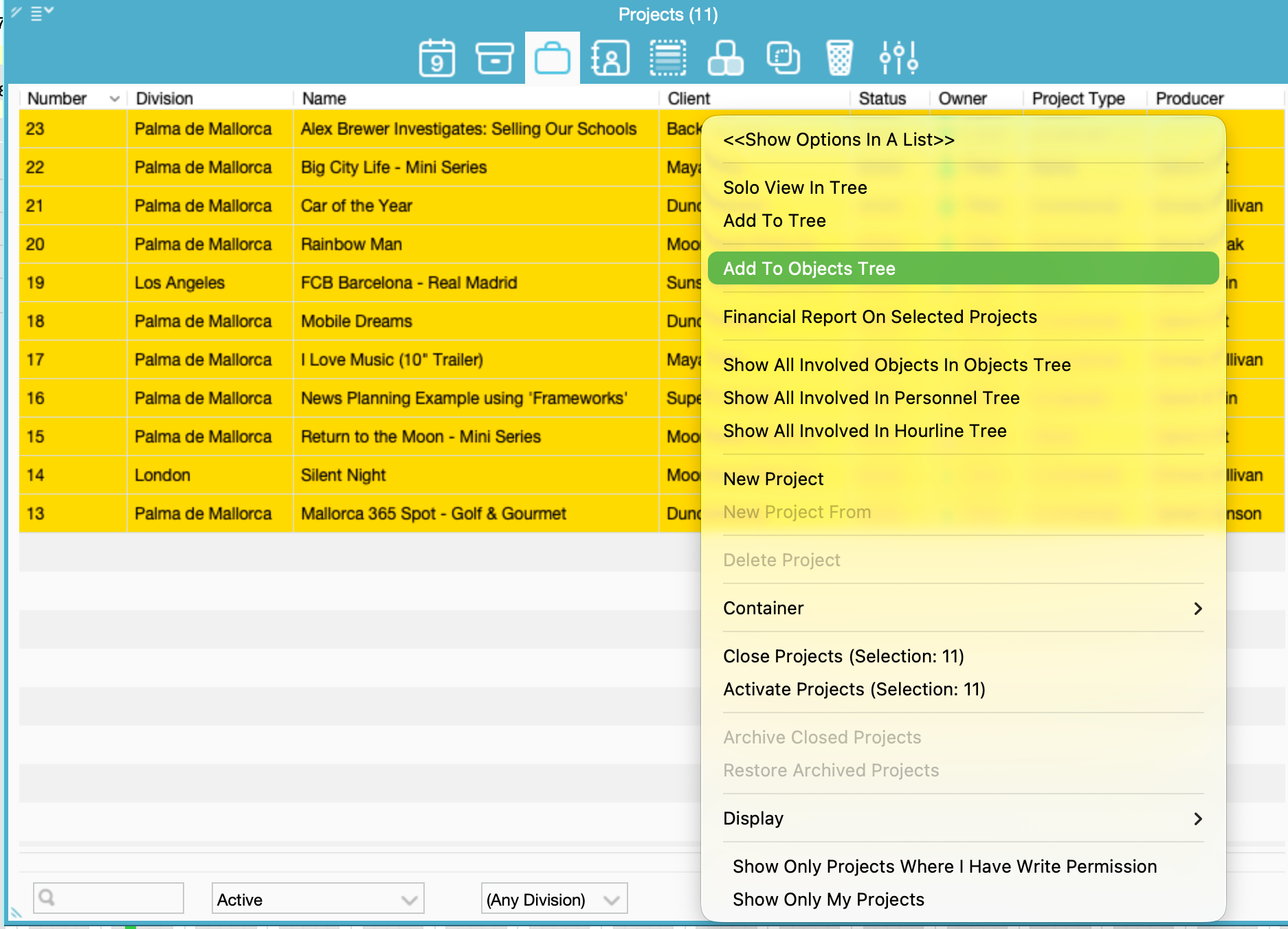
For Objects > Select/Shift select for multiple + right click > Add To Tree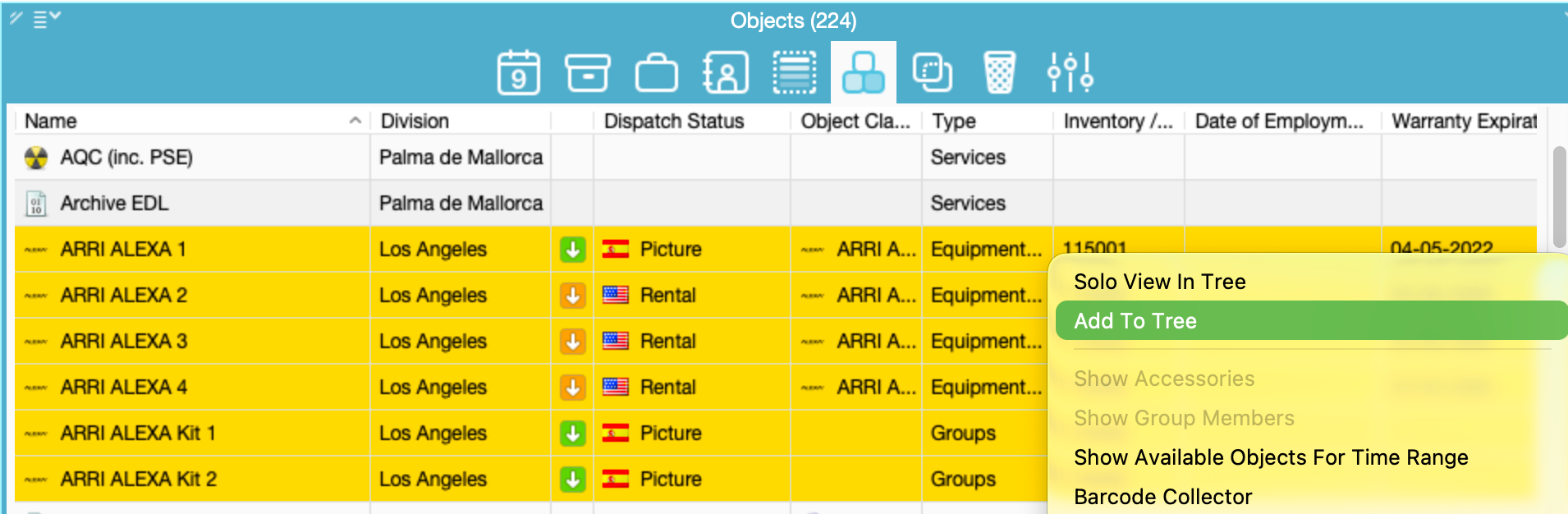
- Click the gear icon to the right of the tree/viewer.
Choose "Save As PDF" from the menu.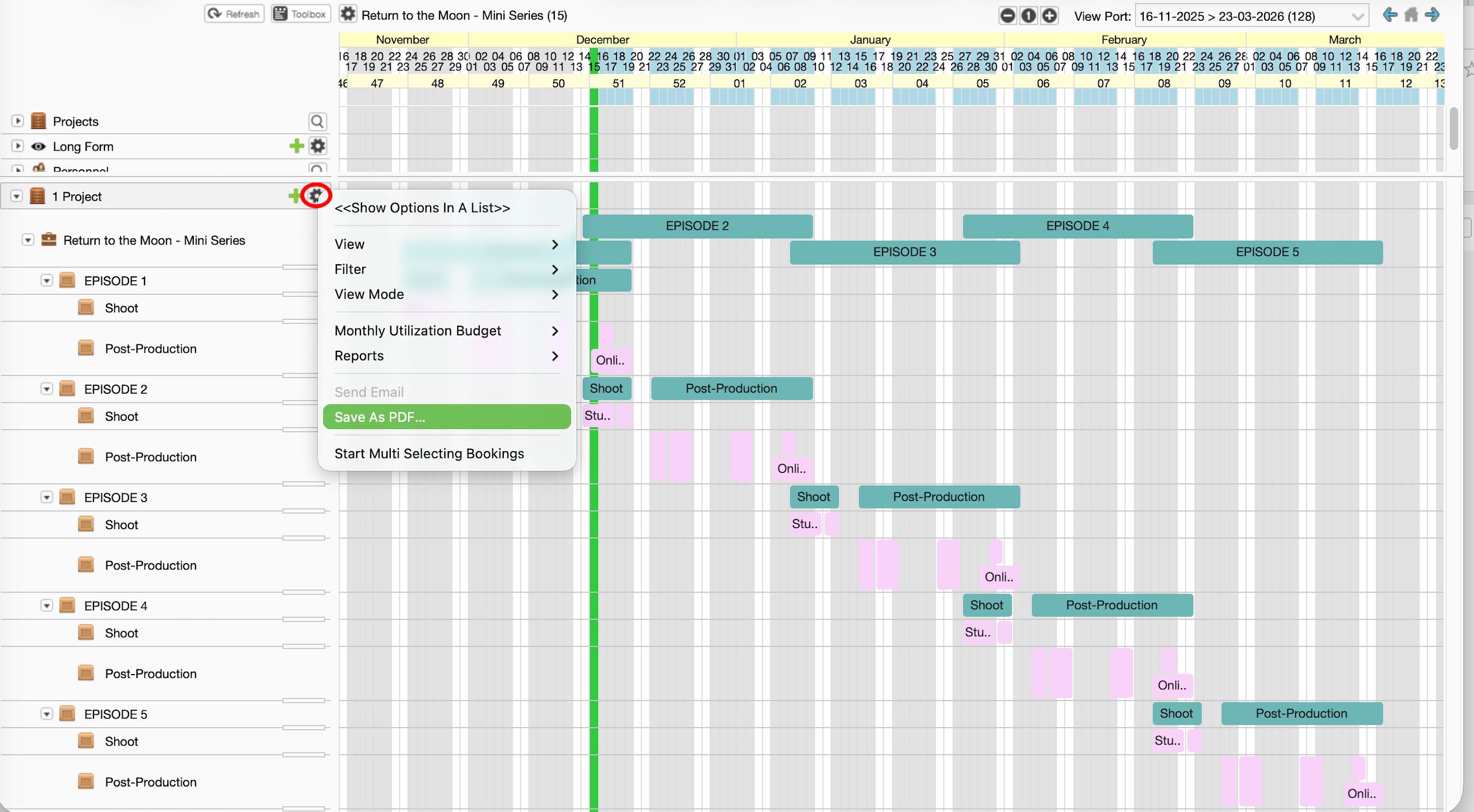
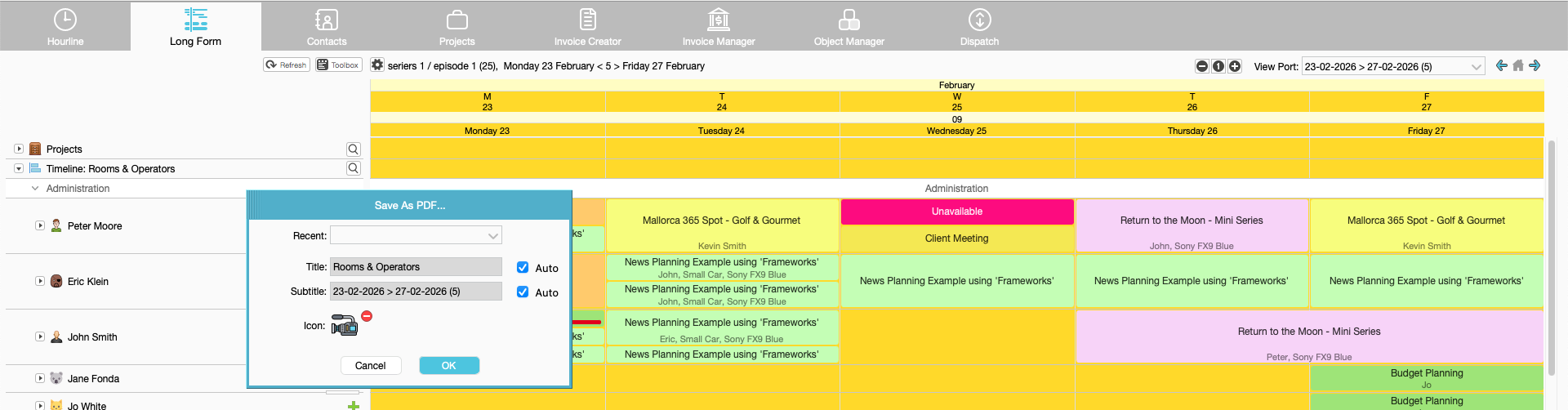
- The "Save as PDF" dialogue opens. The Title and Subtitle for the PDF can be pulled from the view and date range in view port (AUTO) or you can untick the box and enter some individual text.
- The selection in the view is opened as PDF in the default PDF viewer.
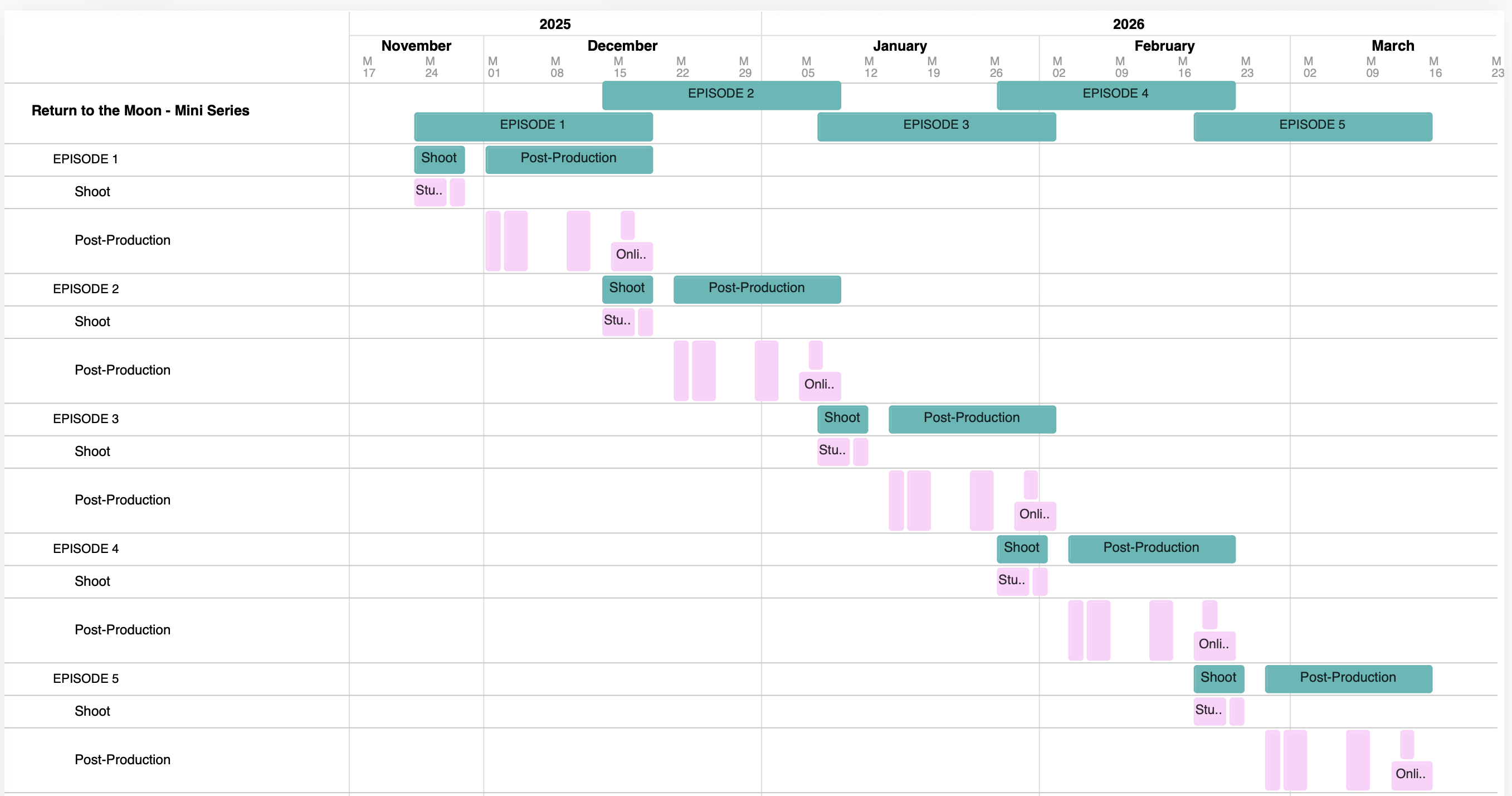
Resource Schedule PDF Example: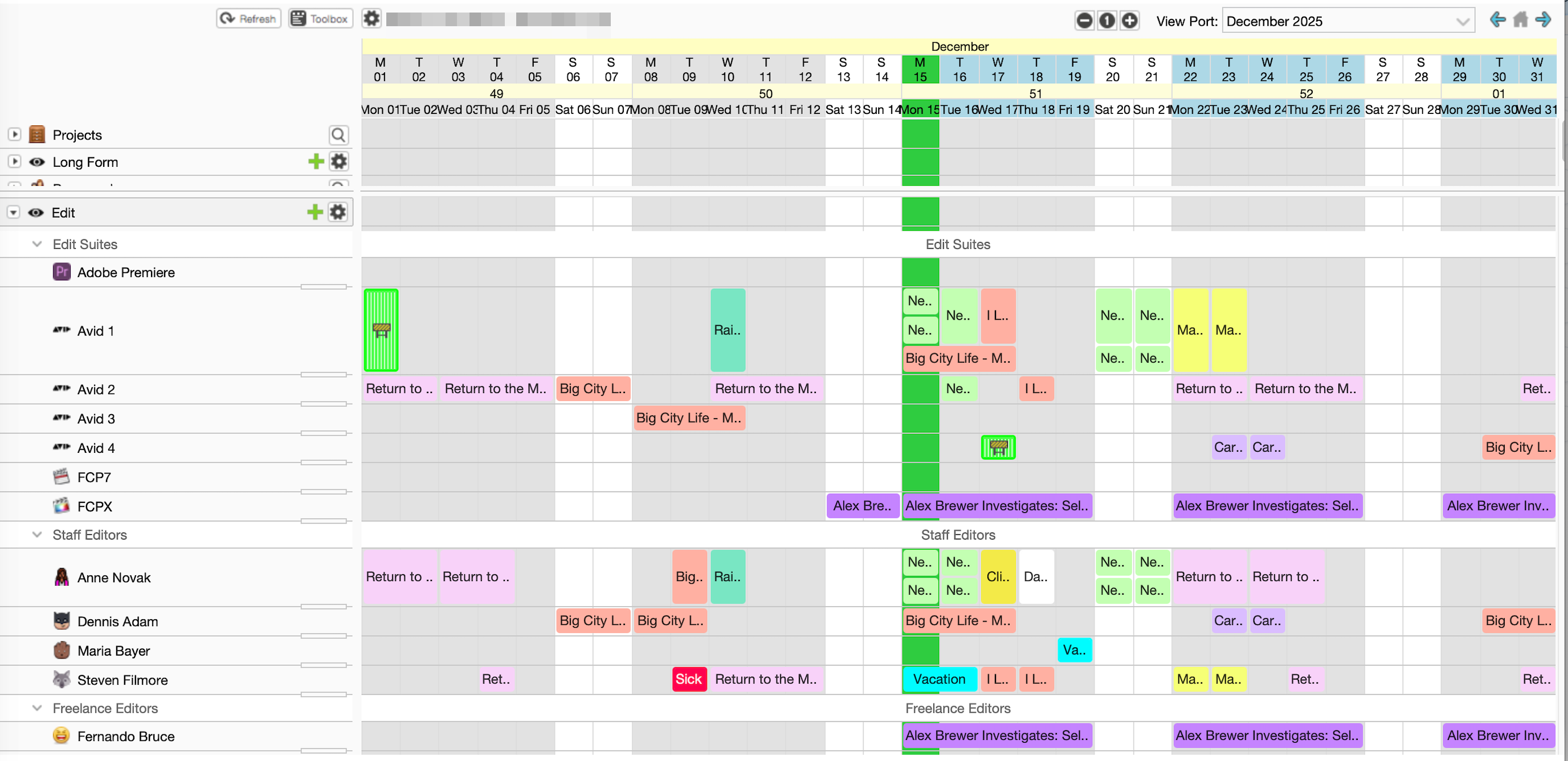
PDF Viewer: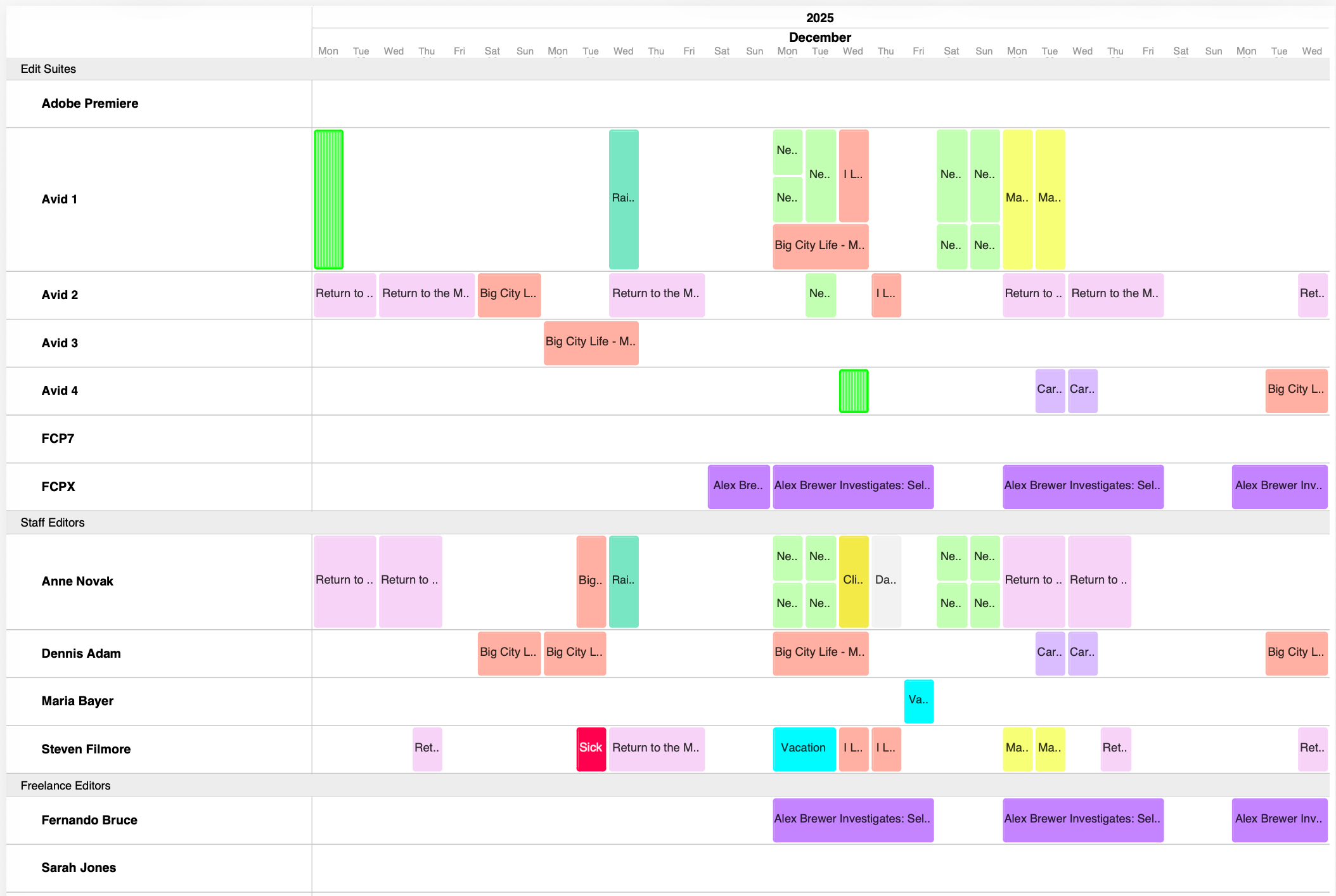
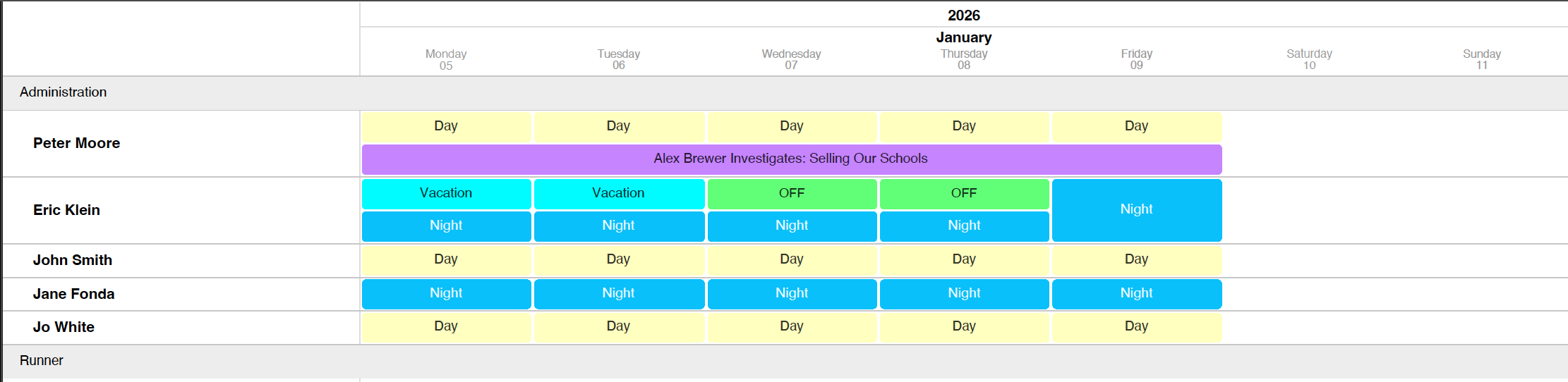
Utilization Numbers
Utilization numbers displayed in the Timeline are not included in the PDF output.
Dark Mode
The Save as PDF function supports Dark Mode.
The Timeline is exported using a darker color scheme.
Event colors may appear slightly darker compared to Light Mode.
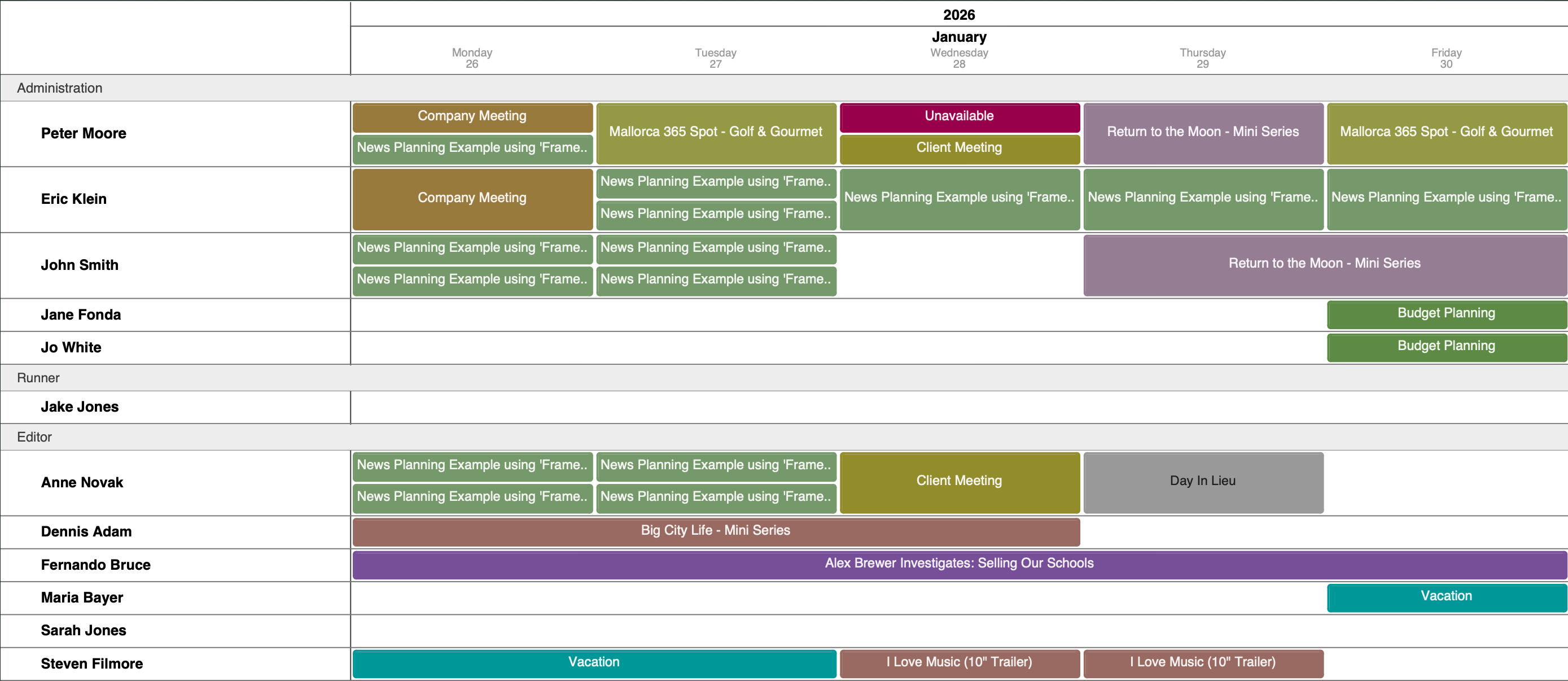
Tip 1: Consult and change the Display Settings for the Timeline to define what is exported.
Tip 2: You can now also save a selection of projects to the tree.
Related articles
Was this article helpful?
That’s Great!
Thank you for your feedback
Sorry! We couldn't be helpful
Thank you for your feedback
Feedback sent
We appreciate your effort and will try to fix the article