This article walks you through the configuration and use of the new Dashboards feature introduced in 7.3.
TABLE OF CONTENTS
- Pre-cursors
- Setting up a Dashboard
- Groups
- Graphs
- User Permissions to access Dashboards
- Viewing Dashboards on Web Client
Pre-cursors
In order to use the Dashboards feature it needs to be enabled on your license. Please contact support@farmerswife.com to do so. Once added, this will enable Dashboards in the Toolbox on the next startup of the server.
Setting up a Dashboard
Once logged in to farmerswife client app, open the Toolbox and select the Dashboards option from the categories list on the Settings tab.
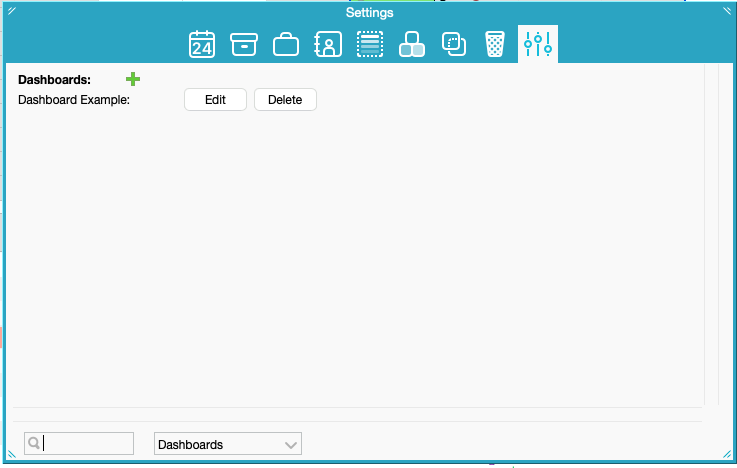
To create a new Dashboard, click the green + icon, and you will be presented a new window to set up your new dashboard.
Groups
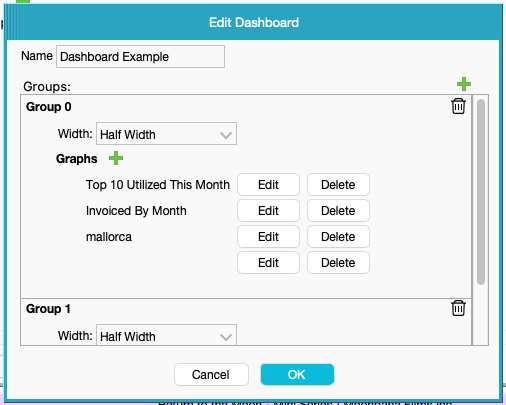
In the Dashboard window, you have the option of setting a name, and then adding Groups to it. A Dashboard can have multiple Groups, with different Graphs. To add a Group click the green + icon. Groups can be removed by clicking the trashcan icon on the top right of a Group.
Width
Within the Dashboard Group, you can set width (Half Width / Full Width) to determine how big the graphs appear on the Dashboard. Different Groups can be different widths.
Renaming Dashboards
Once the Dashboards have been created, you may wish to rename them at a later stage by re-entering the Edit Dashboard window.
Please Note: Renaming a Dashboard can break the link between the Dashboard and the Web Profile it has been assigned to via the Web Profile Manager (see below). After renaming you should check the Web Profile Manager to ensure renamed Dashboards are assigned to the correct Web Profiles.
Graphs
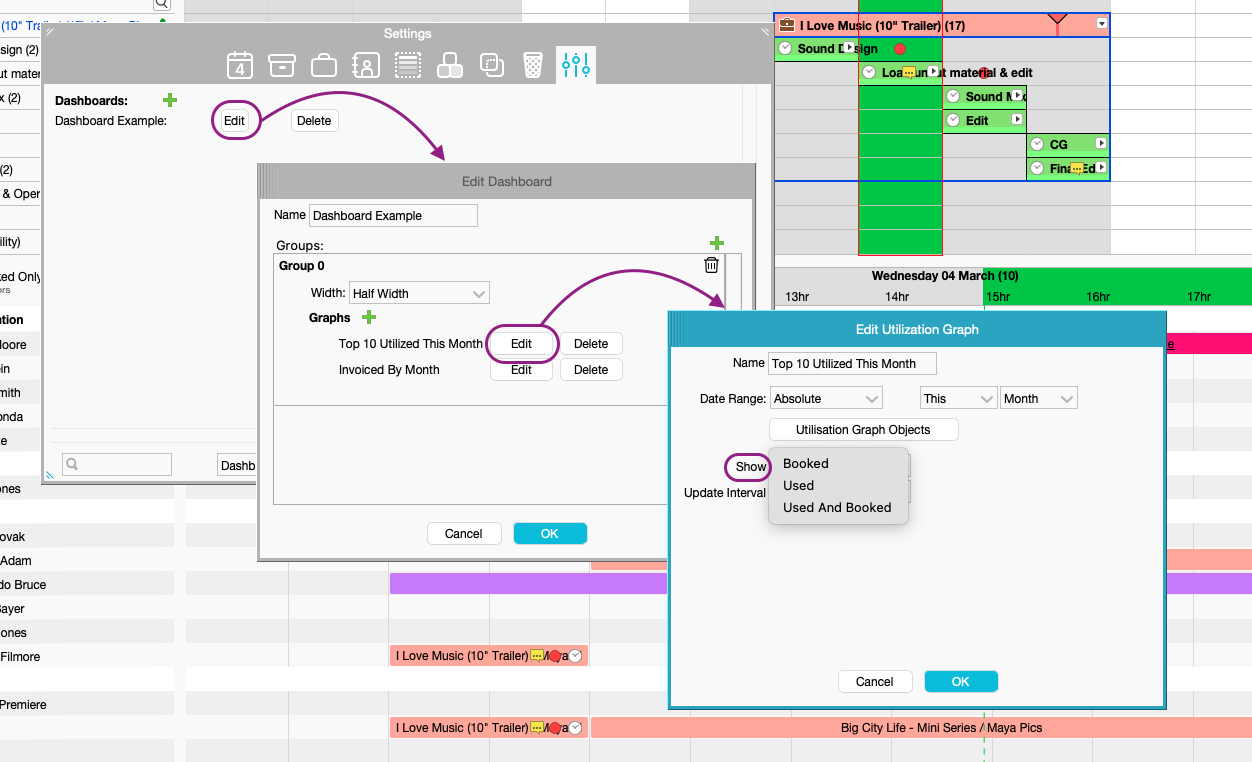
To add a new graph, click the green + icon. Groups can have multiple graphs in them. There are multiple types of graphs you can add. Graphs can be edited or deleted with the respective buttons (or removed by removing the group as a whole).
NEW FROM 7.4
Since 7.4, you can now choose to show a different set of figures on the graph. You can choose between:
- Booked
- Used
- Used And Booked
Utilization
This allows you to create a graph based on the how much objects have been booked. Once selected, you can set multiple parameters:
- Name
- Date Range
- Absolute - to set a specific timeframe that updates based on the calendar dates
- Fixed - to set a date-range to collect data from for displaying on the graphs
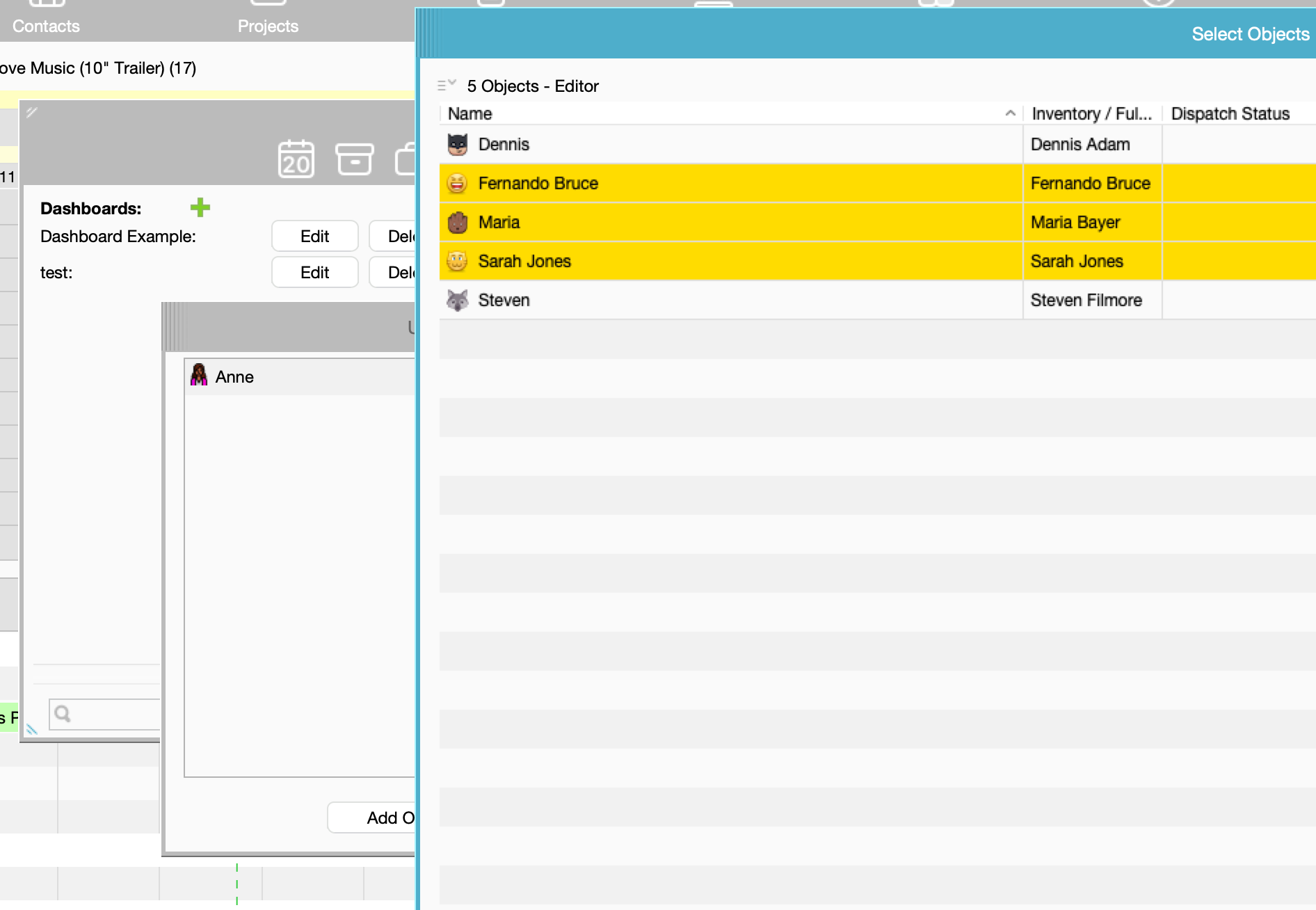
- Utilization Graph Objects - for selecting the objects to display data from
- You can multi-select objects using:
- CMD + Click
- SHIFT + Click
- Mouse scroll selection
- Selected objects are automatically excluded from the object chooser list, ensuring users cannot accidentally select the same object twice.
- You can multi-select objects using:
- Show - choose from seeing different sets of figures (as seen above)
- Update Interval - to set how often the graph's data updates
Invoice
This allows you to create a graph based on invoicing numbers. Once selected, you can set multiple parameters:
- Name
- Date Range
- Absolute - to set a specific timeframe that updates based on the calendar dates
- Fixed - to set a date-range to collect data from for displaying on the graphs
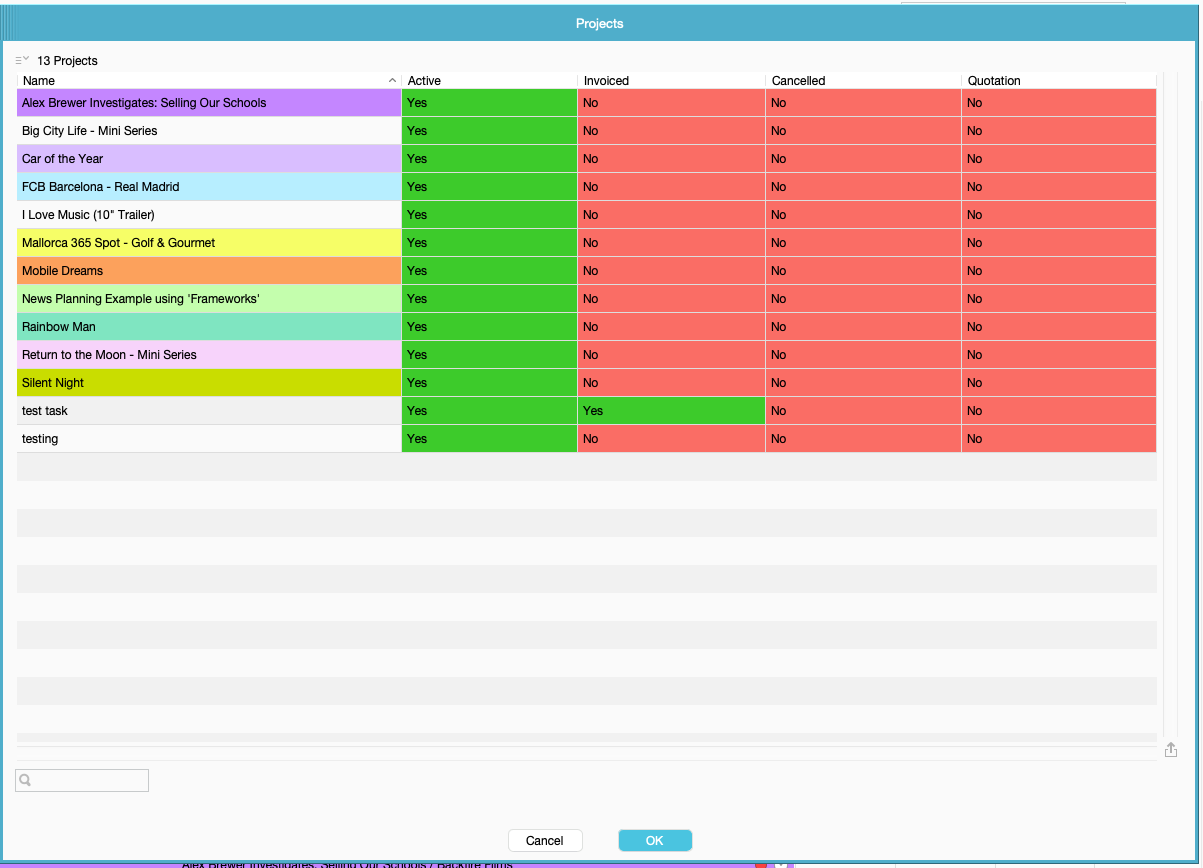
- Projects - clicking “Add Project” opens the project-selection window.
- From there you can:
Select projects using multi-selection
Drag-select with the mouse
Shift-click to select a range
Cmd-click to pick multiple individual projects
Selected projects no longer appear in the list, preventing duplicate selections.
You can remove selected projects by clicking the trash/bin icon.
- Show - choose from seeing different sets of figures (as seen above)
Update Interval - to set how often the graph's data updates
User Permissions to access Dashboards
In order to see Dashboards on the Web Client, users need to be given access via the Web Profile Manager
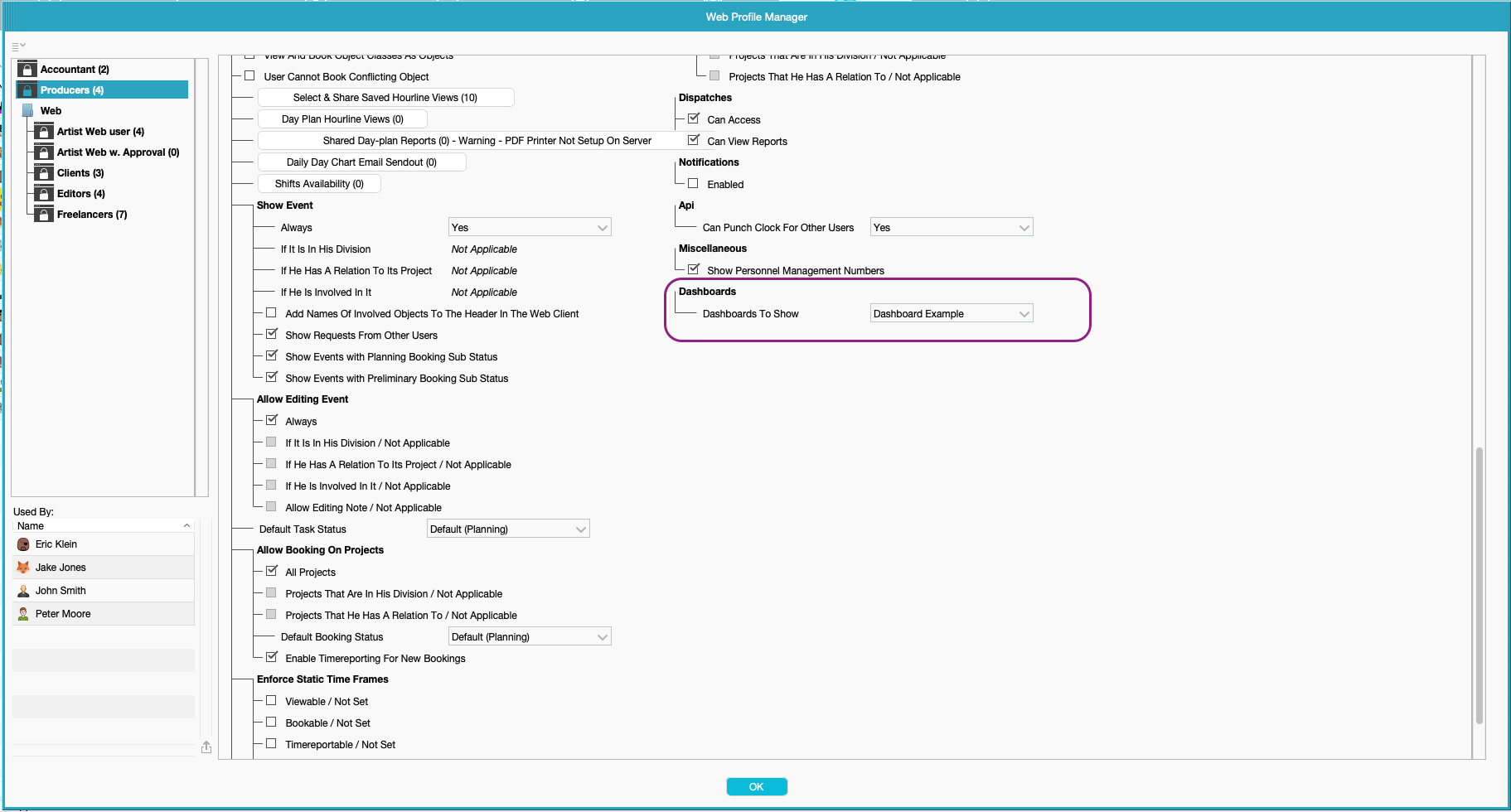
The permission is granted to the Web Profile that the user is a part of. So you may want to consider creating separate profiles for users that need the same permissions, but don't need to see the Dashboards, or different profiles if users need to see different Dashboards. Access can only be granted to one Dashboard at at time. See our article on the Web Profile Manager, for more information on how to do this.
Please Note: Dashboards are only viewable on the desktop Web Client, and cannot be viewed via the Mobile Web Client.
Viewing Dashboards on Web Client
If users have access to Dashboards via their Web Profile, they will see an additional button on their Web Client user interface.
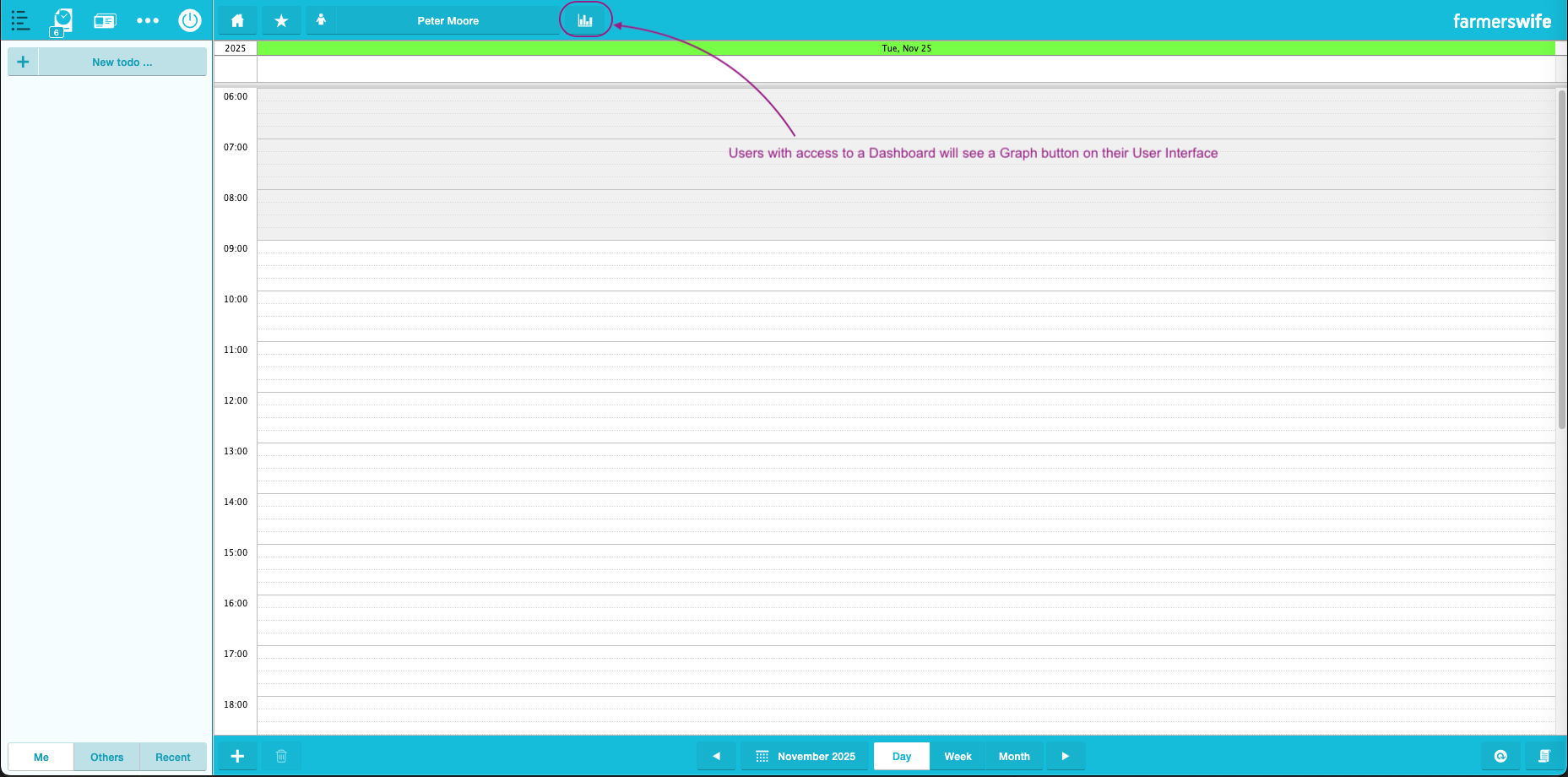
Once users click this button, it will show them the Dashboard they have access to.
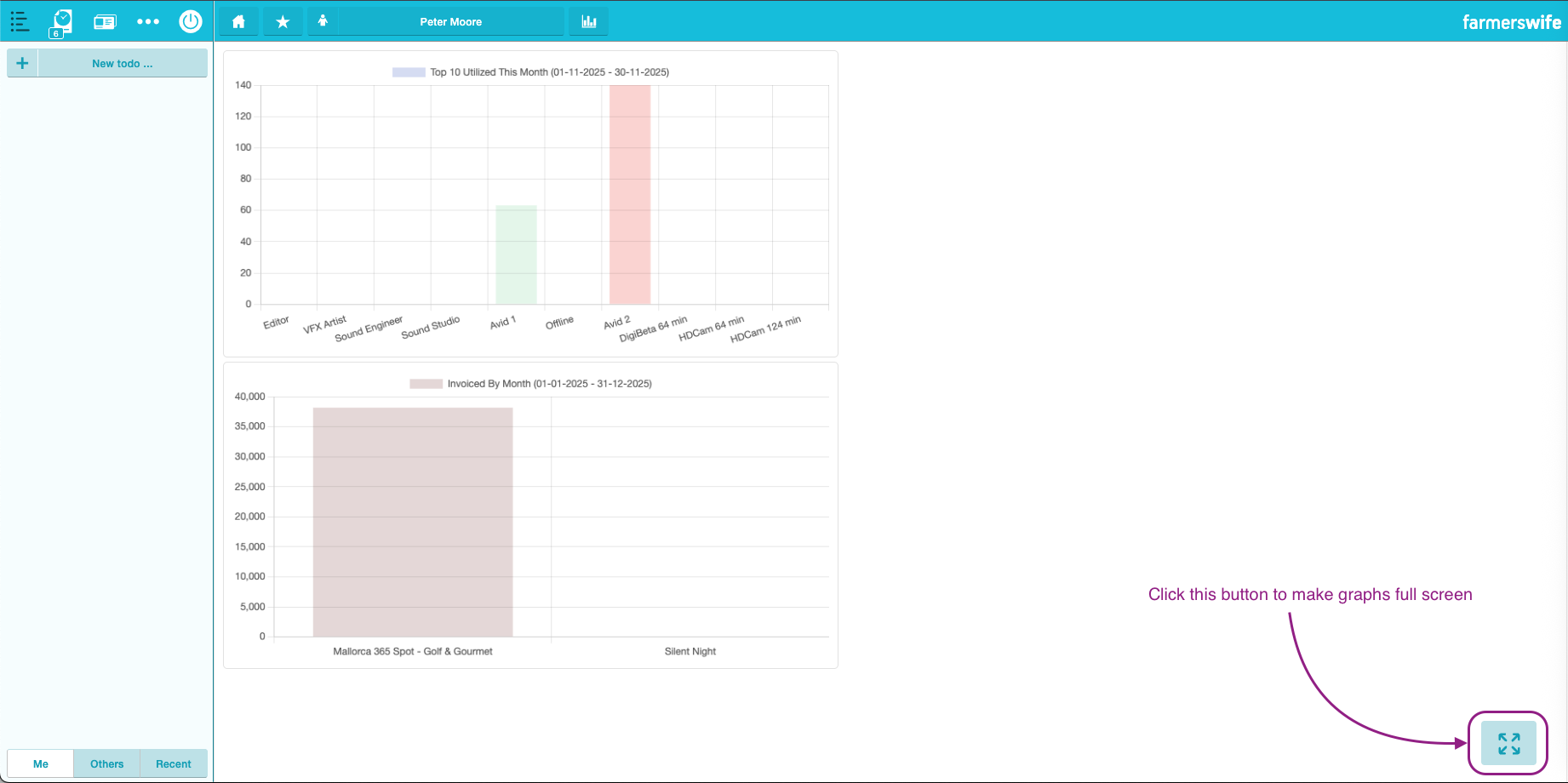
Within the Dashboard screen, on the bottom right is a button that when clicked, will expand the graphs to the whole screen. When in full screen, the button will exit full screen mode.
Was this article helpful?
That’s Great!
Thank you for your feedback
Sorry! We couldn't be helpful
Thank you for your feedback
Feedback sent
We appreciate your effort and will try to fix the article