Groups can be used in different ways. A simple way is to create a Group that later can be booked for a Meeting. Or you can load the Group Members into a Tree.
Creating a group
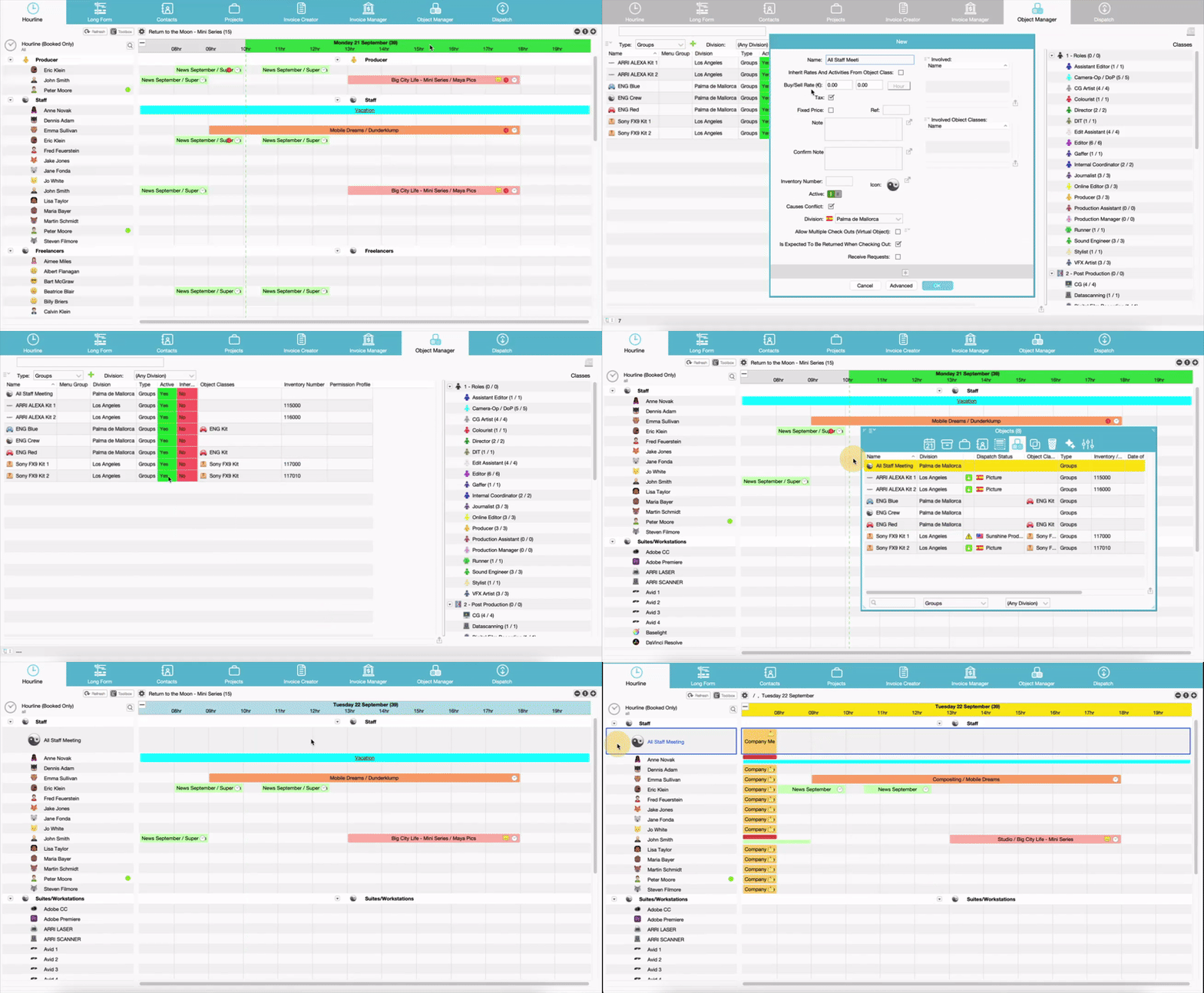
Go to Object Manager > Type > Groups > Press green + to create new group. Add a Name and then in the "Involved" add the People, Objects or other that you want to add.
Note: Objects can't be multi-selected, you've to add them 1-by-1.
Classes can be added multiple times so later members are allocated multiple times.

Booking a Group
Add the group to your views, then create a booking on the group object and all it's members will be booked.
Loading a group
You can load a group into the Hourline, Timeline or Personnel Tree. It's members will be added to the timeline.
From here you can select a time range and e.g. run a Financial Report on the group members.

The Financial Report Designer window will then show the selected Objects from the Tree and the previous selected Financial Lines in Range.

Show Group Members
You can also show the Group Members in the Toolbox > Objects > select the Group > right mouse click > Show Group Members.
Was this article helpful?
That’s Great!
Thank you for your feedback
Sorry! We couldn't be helpful
Thank you for your feedback
Feedback sent
We appreciate your effort and will try to fix the article