The Personnel Management Types (Sick, Vacation, Day in Lieu, Free Day, etc.) are hard-coded in farmerswife, yet they can be modified to comply with company types and language. There are various ways in which this can be done.
- Add new custom Personnel Management Types to the list.
- Rename Personnel Event Types using the Language String Operator found in the farmerswife Server.
- Hide Personnel Event Types in Pop Up when making a Personnel Management Booking (does not apply to the Web Client or iOS interface).
Add Custom Personnel Management Type
In the Long Form, click on the Personnel Tree icon and navigate to Custom Type Setup > Edit Personnel Event Types.
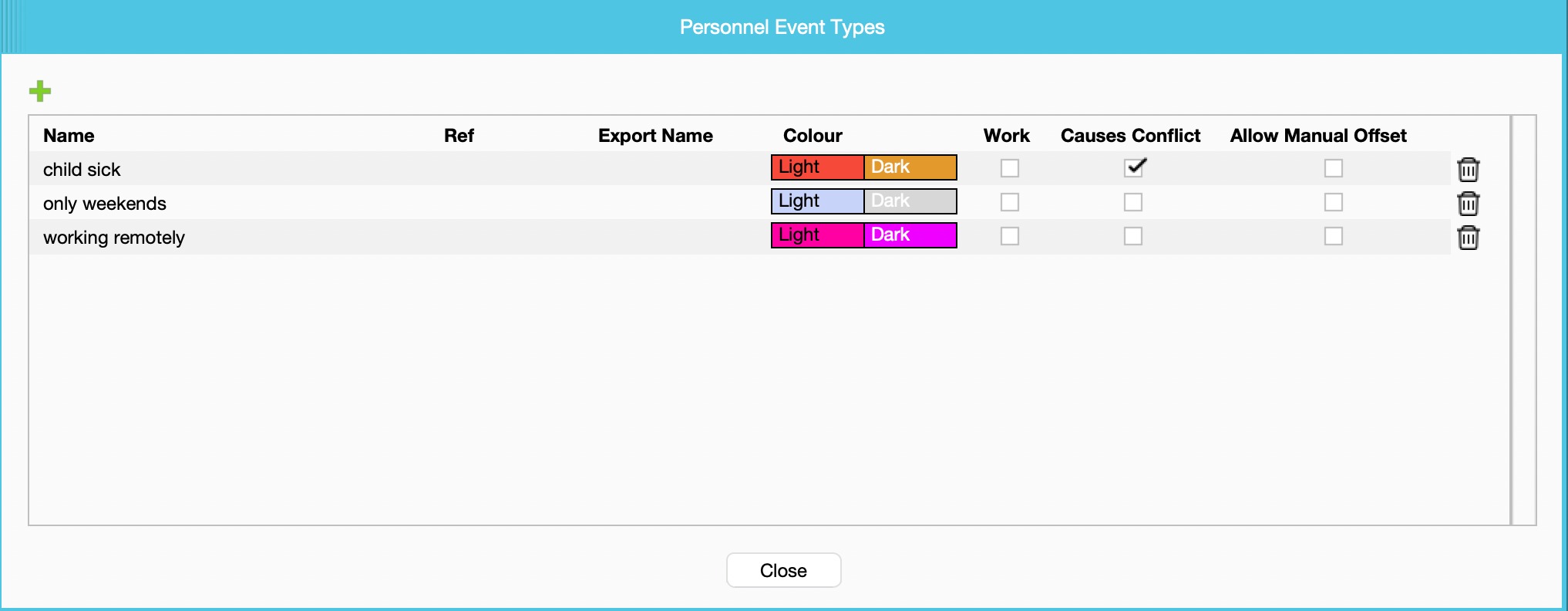
Click the green + to add a new custom type. Fill in the fields:
- Name - Name of the Personnel Type to appear in the Schedule and Reports
- Ref - Used in specific customer integration
- Export Name - linked to Labour Rules export functionality
- Colour - Choose a Colour
- Work - define if the Custom Type counts as "work"
- Causes Conflict (7.1) - define if the types should cause conflict with other bookings. It will allow you to book this Custom Personnel Type on top of any other Project Booking. It will also allow you to add a Custom Personnel Type to a specific day, and for that day the User still appears as available if you need to replace an Object Class with a member.
- Allow Manual Offset - if a manual configured Offset amount of days can be set. Read morehere.
- Overtime Compensation (7.3 SP2) - enable if OT comp should be given (linked to Labour Rules)
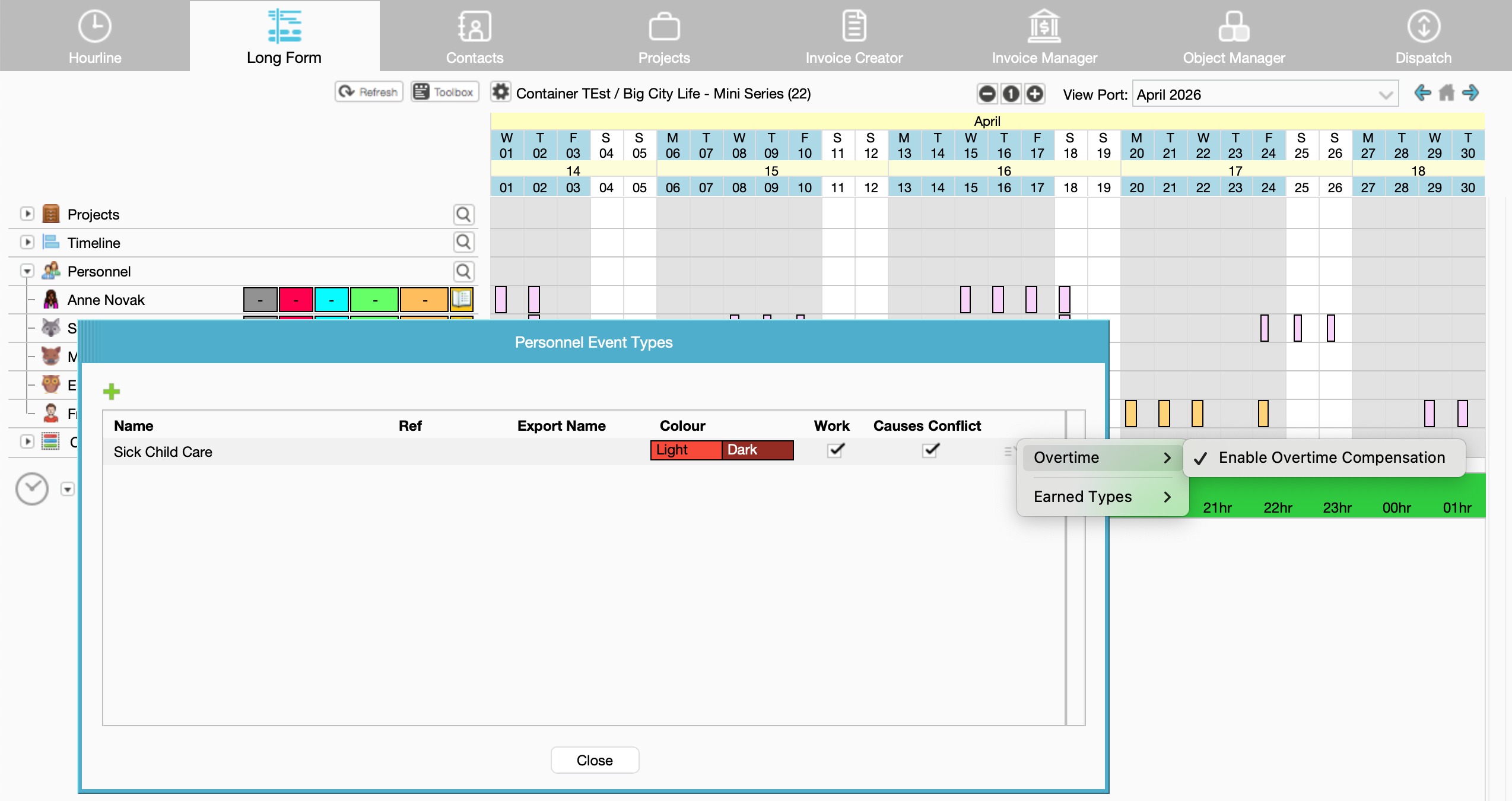
The new Type will now be displayed at the bottom of the standard Types when making a Personnel Management Booking. The standard Types can also be renamed or hidden (explained in the following sections).
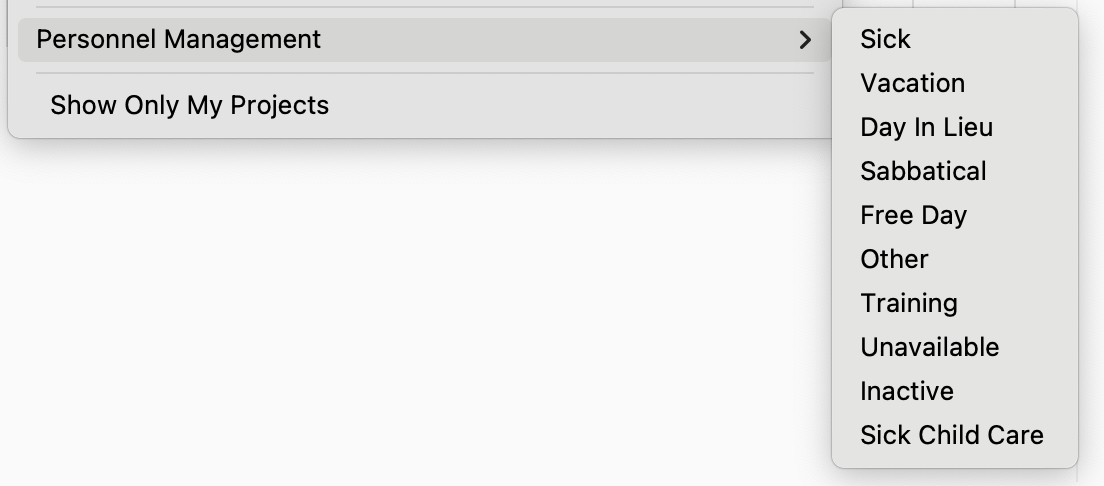
To display the total day count for the new custom Personnel Management Type in the Personnel Tree, go into the Toolbox under the Settings tab > Personnel Tree filter > tick the box next to the new Type under section Display Total For Custom Types. If you do not want to display any of the standard Types, deselect them above.
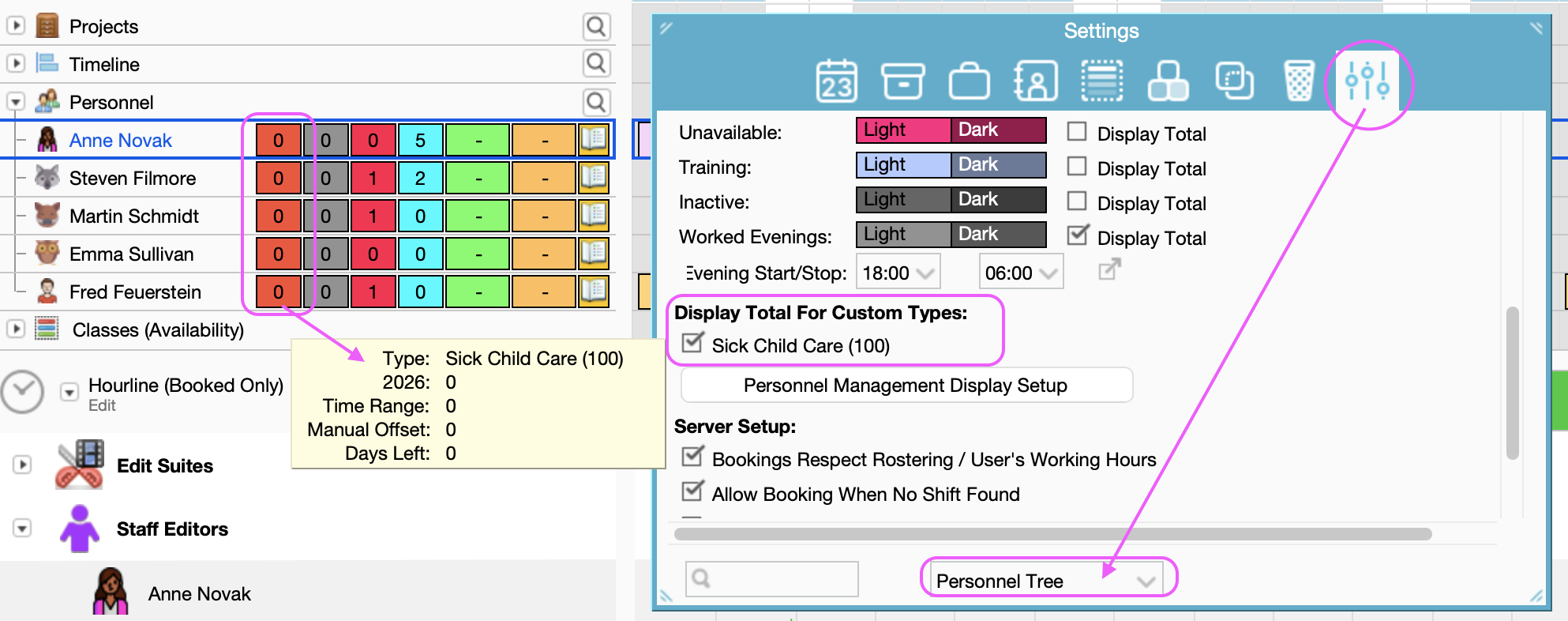
Mouse over the Booking to show what Type of Personnel Management Booking it is.
Was this article helpful?
That’s Great!
Thank you for your feedback
Sorry! We couldn't be helpful
Thank you for your feedback
Feedback sent
We appreciate your effort and will try to fix the article