When you start the farmerswife Server for the first time, it checks for a license file and a database. This article explains the choices you'll see, how to install your license, how Demo Mode works, and how to log in for the first time.
Key Points to Note
- If the Server can't find a license file, it asks whether to run the Demo Version. Click No to install your license, or Yes to try farmerswife in Demo Mode.
- You'll then choose the Empty Database or the Demo Database.
- Demo Mode is limited: the Server quits after 60 minutes, and can be started 40 times.
- The default login for both databases is User Peter, Password 1.
- To request a license, email support@farmerswife.com. See Requesting a License.
Step 1: Start the Server
When the Server starts without a license file, it shows No License File. Run Demo Version?
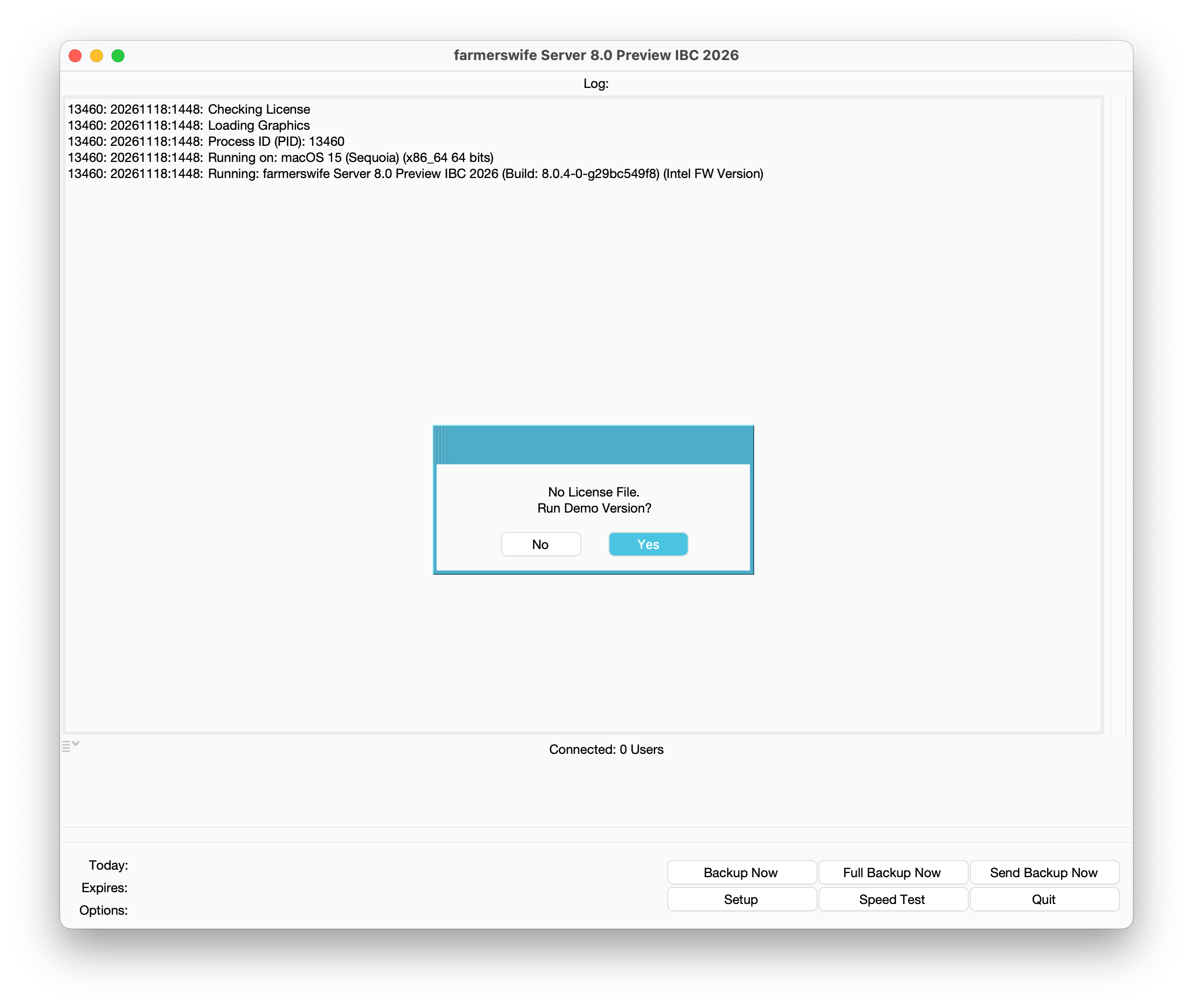
- If you have your license file: click No and follow Install Your License.
- To try farmerswife first: click Yes and follow Run in Demo Mode.
Install Your License
- Click No when asked to run the Demo Version.
- Browse to where you saved your license files, select license.dat and confirm.
- The Server shows License Installed. Please Re-Start farmerswife. Click OK.
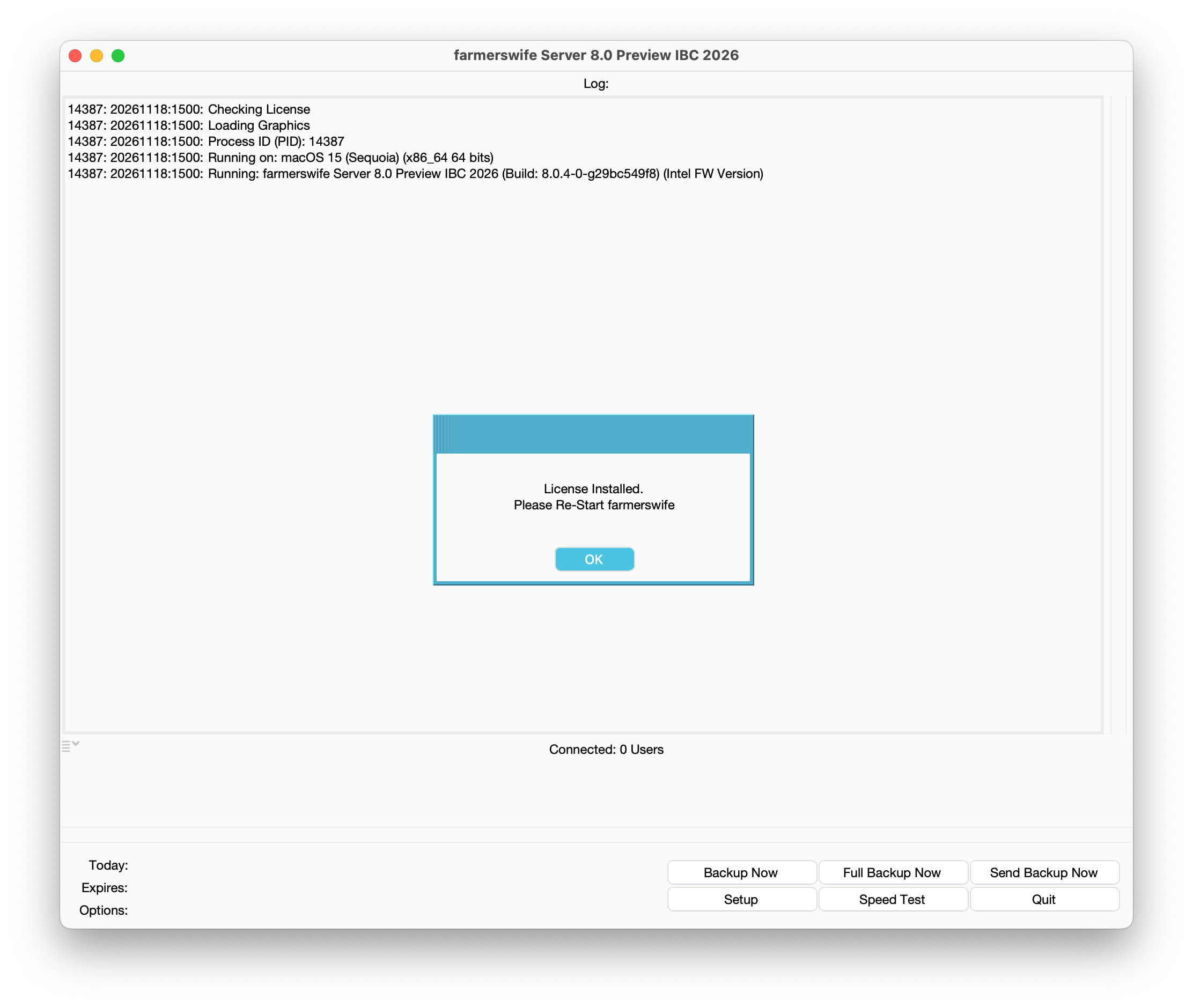
- Quit and restart the farmerswife Server.
- When asked, choose a database. See Choosing a Database.
Run in Demo Mode
- Click Yes when asked to run the Demo Version.
- Choose a database. See Choosing a Database.
- The Server shows a reminder that it's running in Demo Mode, that it will quit after 60 minutes, and how many startups are left (counting down from 40). Click Confirm to continue.
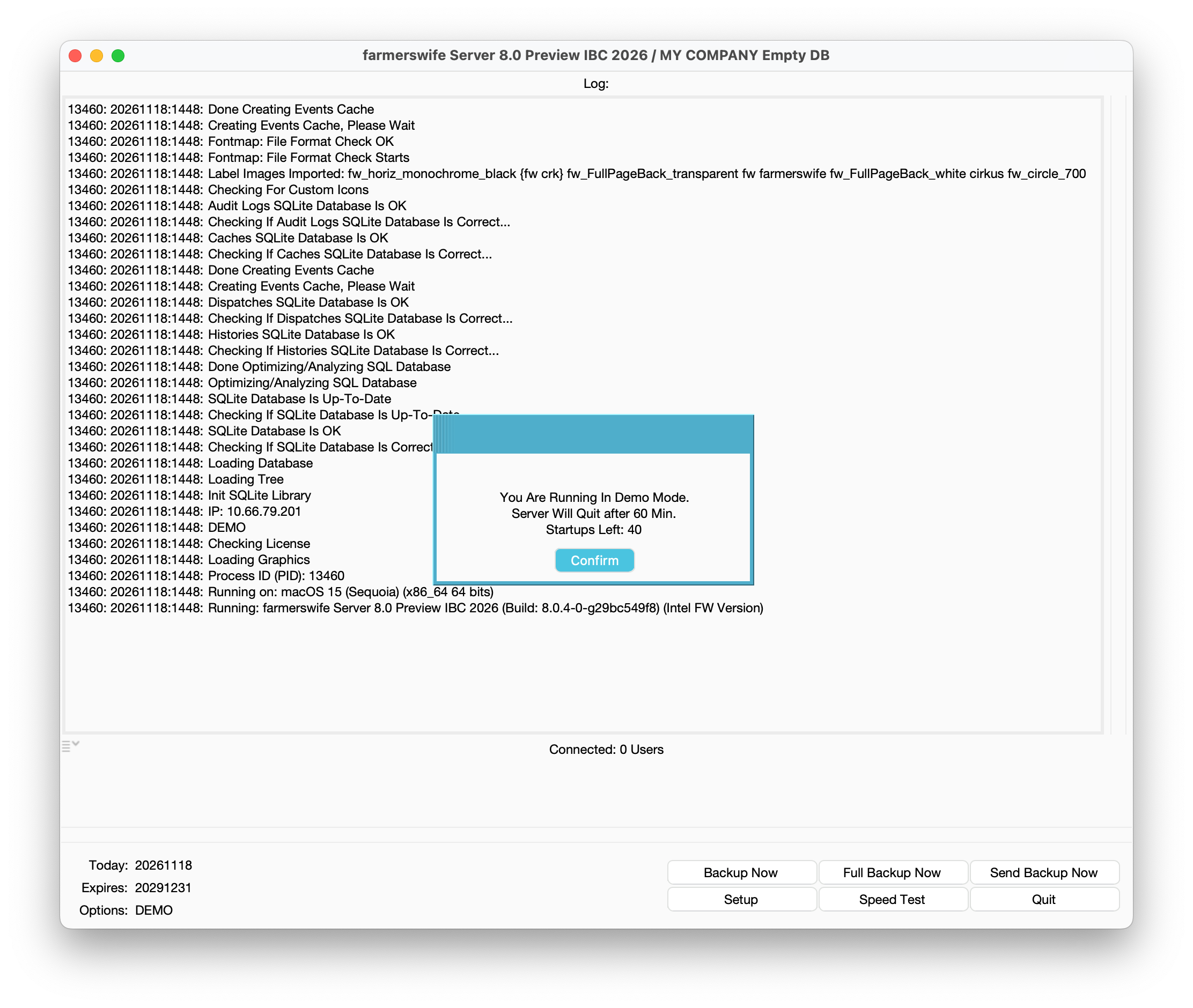
When the Server's log shows Server Ready, Clients can connect to it.
Choosing a Database
The Server shows No Database Found. Select Which Database To Use. Choose a database from the list and click OK.
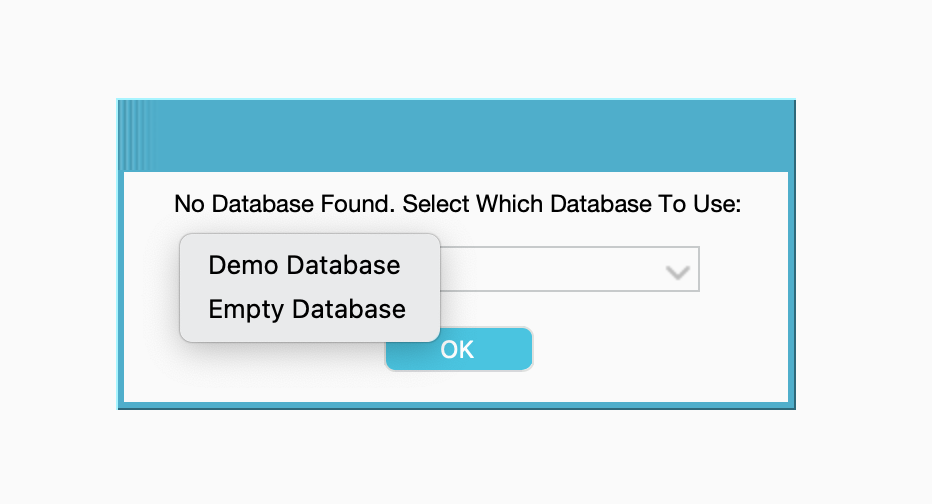
Empty Database (recommended)
A basic database with one example object in each category. When you first log in, you'll see:
- Peter: an Advanced User with all permissions
- Martin: a Web User
- Two Suites
Rename these to match the people and resources in your company. You can rename Users and Objects in the Object Manager. Users can also be updated in the Server's Setup > Users tab.
Demo Database
A fuller database with more users, objects, services, projects and bookings, which you can use as examples.
Copy of a Production Database
To run tests with a copy of your live database, follow the steps in Install a separate TEST farmerswife Server system.
Log In for the First Time
Open the farmerswife Client and log in with:
- User: Peter
- Password: 1
- With your license installed: secure the system straight away. Either change Peter's password, or log in as Peter, create a new user with your own username and a strong password, and later deactivate Peter in the Object Manager, or the Server's Setup > Users tab.
- In Demo Mode: if you're only trying out farmerswife, you don't need to change these. If you're going to enter real or sensitive data, we recommend changing the password.
For help connecting the Client to the Server, see Configure your Server-Client Connection.
Requesting a License
For an extended test period, or if you've already purchased farmerswife, please email support@farmerswife.com with your company name and the local static IP address of the machine that will host the Server. Your license determines which product version, additional modules and users are available.
Adding a License to a Server Already Running in Demo Mode
- Click Quit in the Server window to stop the Server.
- Copy the license.dat and license.txt files from the license email into the Server's system folder:
- macOS: inside the Server application. Control-click the farmerswife Server, select Show Package Contents and open the system folder.
- Windows: in the folder where the Server is installed.
- Linux: in the Server's installation folder.
- Start the Server again.
Follow any further instructions in the license email.
Troubleshooting
"Too Many Active Users" or "Too Many Active Administrators"
If you used the Demo Database with your license, the Server may warn that there are Too Many Active Users or Too Many Active Administrators, and that it will shut down within 5 minutes. This happens when the Demo Database has more active users than your license allows.
To fix it, deactivate some users:
- In the Server window, click Setup and open the Users tab.
- Click a user's name, set Active to No and click OK.
- Repeat until the number of active users is within your license.
If you have any questions, please contact support@farmerswife.com.
Was this article helpful?
That’s Great!
Thank you for your feedback
Sorry! We couldn't be helpful
Thank you for your feedback
Feedback sent
We appreciate your effort and will try to fix the article