Installing the farmerswife Client takes just a few minutes: download it, drag it into Applications, then open it and connect to your Server.
Current version: 7.4 SP3
Before you start:
- You'll need macOS 10.14 Mojave or later. See Supported macOS Versions.
- The Client must run the same version as your Server. If you're not sure which version your Server runs, check with your farmerswife admin.
Step 1: Download the Client
Download farmerswife for Mac (fw_client_v704-SP3.dmg).
Need the Non-Retina version? See Retina or Non-Retina.
Step 2: Install
- Double-click the downloaded .dmg file to open it.
- Drag farmerswife onto the Applications folder.
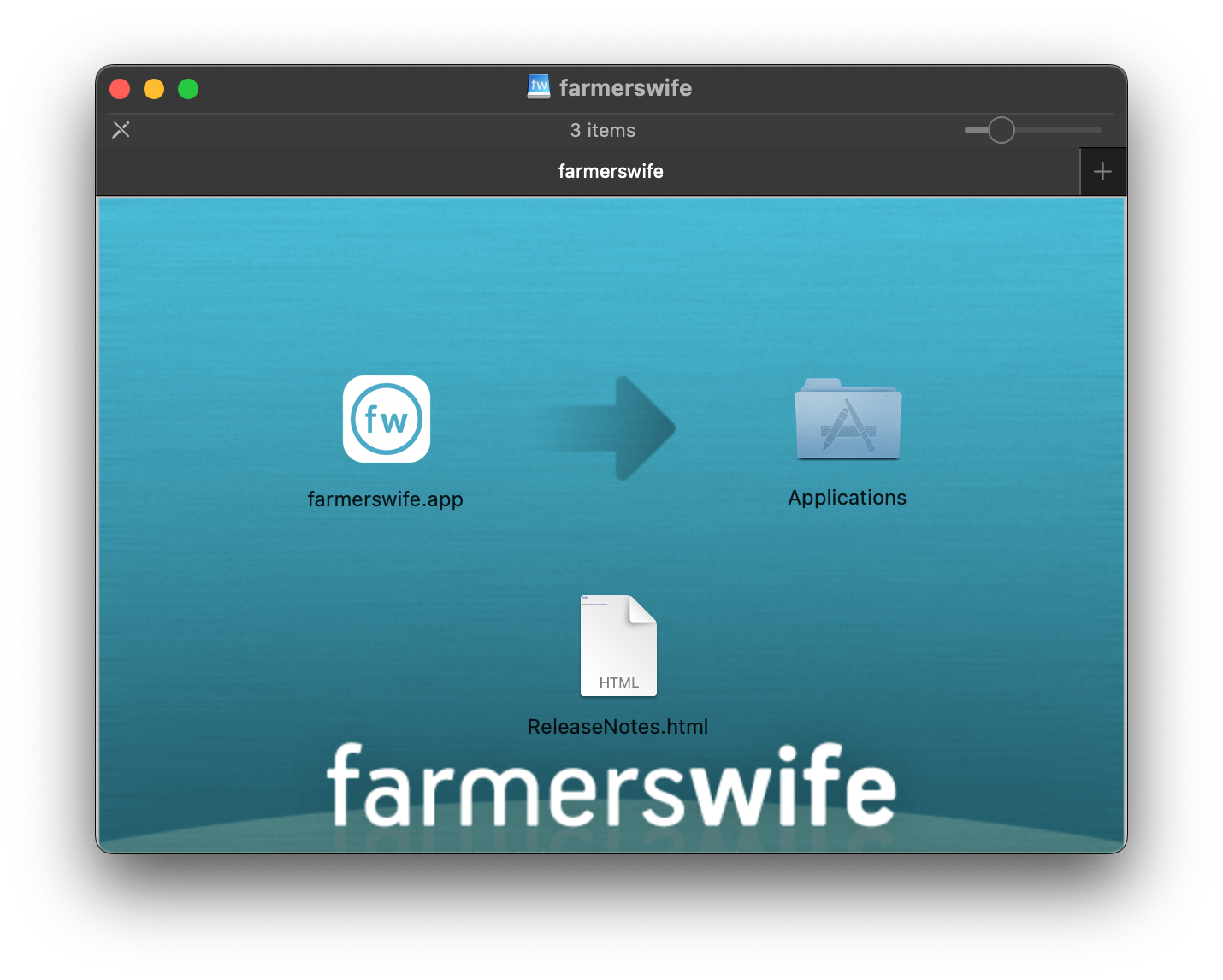
- Close the window and eject the farmerswife installer.
Step 3: Open farmerswife
Open farmerswife from your Applications folder. The first time you open it, macOS may ask you to confirm:
- macOS 15 Sequoia and later: if macOS says the app can't be opened, click Done. Then go to System Settings > Privacy & Security, click Open Anyway, and confirm with Open.
- macOS 11 Big Sur to 14 Sonoma: right-click the app, select Open, then click Open again.
- Apple Silicon Macs: if asked to install Rosetta, click Install.
You only need to do this once.
Step 4: Connect to Your Server
If you've used farmerswife on your Mac before, your connection details are usually kept and you can log in straight away. Otherwise:
- Click the cog button at the top right of the Login window.
- Click the green + to add your Server's address, then click OK.
- Log in with your username and password.
Don't know your Server's address? Ask your IT administrator or farmerswife admin. If your Server is hosted by farmerswife, contact support@farmerswife.com. For more detail, see Configure your Server-Client Connection.
Something not working? See Installation and Upgrade Troubleshooting.
More Information
Supported macOS Versions
To check your version, open the Apple menu and select About This Mac.
| macOS Version | Version Number | Supported on 7.4 SP3 |
|---|---|---|
| macOS Golden Gate* | 27.x | ✔ |
| macOS Tahoe* | 26.x | ✔ |
| macOS Sequoia | 15.x | ✔ |
| macOS Sonoma | 14.x | ✔ |
| macOS Ventura | 13.x | ✔ |
| macOS Monterey | 12.x | ✔ |
| macOS Big Sur | 11.x | ✔ |
| macOS Catalina | 10.15.x | ✔ |
| macOS Mojave | 10.14.x | ✔ |
| macOS High Sierra and earlier | 10.13.x and earlier | ✘ |
* macOS 26 Tahoe and 27 Golden Gate need farmerswife 7.2 SP2 or later. If you're planning to upgrade macOS, check with your farmerswife admin that your Server is up to date first.
Apple Silicon Macs (M1 and Later)
farmerswife currently runs on Apple Silicon using Apple's Rosetta, which macOS installs the first time you open the app. A native Apple Silicon version is planned for early 2027. If you'd like to join the beta programme, please contact support@farmerswife.com.
Retina or Non-Retina
Most users should use the standard (Retina) Client, which gives the sharpest display. If the Client feels slow on a very large display, or text looks blurry, you can use the Non-Retina Client instead, which is faster with slightly less sharp text:
For other ways to fix blurry text, see Fonts look blurry in the Retina Client.
If you have any questions, please contact support@farmerswife.com.
Was this article helpful?
That’s Great!
Thank you for your feedback
Sorry! We couldn't be helpful
Thank you for your feedback
Feedback sent
We appreciate your effort and will try to fix the article