This article guides you through upgrading your farmerswife Server and Clients to 7.4 SP3.
Current version: 7.4 SP3
Contents
- Key Points to Note
- Before You Begin
- Upgrade the Server on macOS
- Upgrade the Server on Windows / Linux
- Upgrade the Clients
- Mandatory Upgrade Path
- Changes in Earlier Versions
- Related Articles
Key Points to Note
- To upgrade directly to 7.4 SP3, your Server must be running 7.3 SP3 or later. If it's older, follow the Mandatory Upgrade Path below.
- 7.4 SP3 uses your existing 7.4 license.
- farmerswife 7.4 requires Java / OpenJDK 17 to be installed on the Server machine.
- Run a Full Backup immediately before upgrading.
- All users must be disconnected during the Server upgrade.
- Server and Client applications must both run the same version.
- The Release installers page is password protected. If you don't have the password yet, please email support@farmerswife.com.
Before You Begin
1. License
7.4 SP3 runs on a 7.4 license. If you're upgrading from 7.3, request your 7.4 license from support@farmerswife.com. To be eligible for a 7.4 license, you need a current support subscription.
2. Check Your Running Version
Every farmerswife version contains specific upgrade code, so you may need to upgrade in several steps to keep your data intact. Check that your Server is running 7.3 SP3 or later. If not, see the Mandatory Upgrade Path.
3. Download the Installers
Go to the Release installers page and open the 7.4 SP3 folder. Download the Server installer for your operating system and, if needed, the Client installers for the platforms your users have. You can also share the direct Client download links below with your users.
4. Notify Your Team
Let your colleagues know about the upgrade before you start. All users will need to be disconnected while the Server is upgraded.
Upgrade the Server on macOS
- Check Java / OpenJDK
- If Java / OpenJDK isn't installed on the Server Mac yet, install it first. See Installing OpenJDK for farmerswife to see which version to use.
- Run a Full Backup
- In the running farmerswife Server, click Full Backup Now immediately before starting the upgrade.
- Download and Prepare the New Server
- Download the .zip installer from the 7.4 SP3 > Server Installers > macOS folder into your Downloads folder.
- Unzip it, then rename the application to include NEW (for example, farmerswife Server NEW).
- Move it into the Applications folder.
- Note: since version 7.4, the applications have been renamed. The Server is now farmerswife Server (previously farmerswife Server64) and the Client is farmerswife (previously farmerswife64).
- Stop the Current Server
- Quit the running farmerswife Server.
- Rename the existing Server application to include OLD.
- Copy Your Data from OLD to NEW
- On both applications, Control-click and select Show Package Contents.
- From the OLD package, copy the system folder and the files folder (if present), and paste them into the NEW package.
- Note: the files folder may be stored on a mounted network volume instead. If so, make sure that volume is mounted.
- Migrate Customised Files (if applicable)
- HTML templates (
html_templates): compare with the new templates and copy over only the files you've customised. - SSL configuration: if you previously enabled SSL, migrate your SSL files as per your internal notes (for example,
server.pem,skey.pem,keystore). Since v6.8,jetty.xmlis no longer used for local SSL. - Third-party integration scripts: copy only the script files into the matching folder in the NEW package (
Contents > lib > scripts).
- HTML templates (
- Check Your License Files
- If you're upgrading from 7.3, copy your new 7.4 license files (license.dat and license.txt) into the system folder inside the NEW package. If you're already on 7.4, your license files are copied across with the system folder.
- Start the Upgrade
- The first time you open the NEW Server, macOS may block it:
- macOS 15 Sequoia and later (including 26.x Tahoe and 27.x Golden Gate): double-click the Server, click Done, then open System Settings > Privacy & Security, click Open Anyway in the Security section, and confirm with Open.
- macOS 11 Big Sur to macOS 14 Sonoma: right-click (or Control-click) the Server, select Open, then click Open again.
- Apple Silicon Macs: if macOS asks you to install Rosetta, click Install.
- Let the Server run through the upgrade. It may need to shut down and restart a few times, depending on your system.
- The first time you open the NEW Server, macOS may block it:
- After the Upgrade
- Start the farmerswife Server as usual by double-clicking it.
- Update or remove any old Dock or Desktop shortcuts.
- Once everything is confirmed working, you can delete the OLD Server application.
- You can also rename the new server application by removing the 'NEW' suffix (only do this when the server is not running).
- Confirm with Support
- If you have any issues, contact support@farmerswife.com.
- Once the upgrade is successful, please send Support a short confirmation email noting the version you are now running. This helps us give you the best support.
Upgrade the Server on Windows / Linux
- Log in as Administrator
- Sign in to the Server machine with the same administrator account used for the original Server installation.
- Check Java / OpenJDK
- If Java / OpenJDK isn't installed on the Server machine yet, install it first. See Installing OpenJDK for farmerswife to see which version to use.
- Run a Full Backup
- In the running farmerswife Server, click Full Backup Now immediately before upgrading.
- Copy the New Installer to the Server Machine
- Download the installer from the 7.4 SP3 > Server Installersfolder and copy it to the machine hosting the Server:
- Windows:
.exeinstaller - Linux:
.bininstaller. Make it executable in Terminal withchmod +x Linux64_...
- Windows:
- Download the installer from the 7.4 SP3 > Server Installersfolder and copy it to the machine hosting the Server:
- Stop the Current Server
- Quit the running farmerswife Server before installing.
- Protect Customised Files (Important)
- Set any customised files to read-only so they aren't overwritten during the upgrade (for example, files in
html_templatesor/lib/scripts). - SSL configuration: if you previously enabled SSL, migrate or protect your SSL files as per your internal notes (for example,
server.pem,skey.pem,keystore). Since v6.8,jetty.xmlis no longer used for local SSL.
- Set any customised files to read-only so they aren't overwritten during the upgrade (for example, files in
- Check Your License Files
- If you're upgrading from 7.3, copy your new 7.4 license files (license.dat and license.txt) into the Server's system folder. If you're already on 7.4, your existing license files stay in place.
- Run the Installer
- Launch the installer the same way as the original installation. On Windows, use Run as administrator if you did so before.
- If Windows shows Windows protected your PC, click More info, then Run anyway.
- In the Installer Wizard:
- Make sure the install location matches your existing Server location.
- Choose a Full Installation, including HTML Templates.
- If the wizard asks to change files you've set to read-only, choose Ignore.
- After the Upgrade
- Start the farmerswife Server as usual.
- Confirm with Support
- If you have any issues, contact support@farmerswife.com.
- Once the upgrade is successful, please send Support a short confirmation email noting which version you are now running. This helps us give you the best support.
Upgrade the Clients
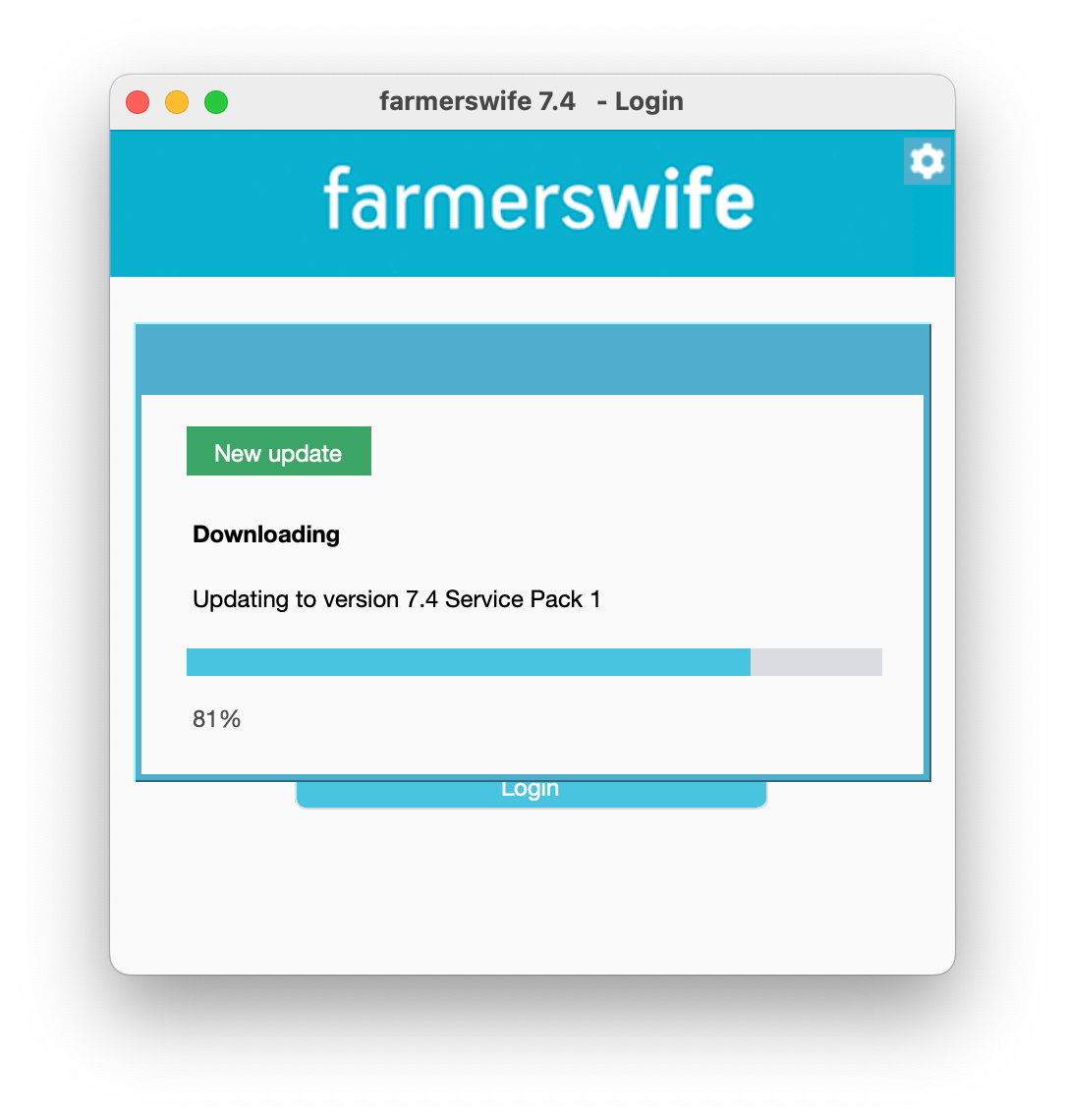
The Server's Client auto-upgrade is supported if you're upgrading from version 7.4 Release. For full installs, the user needs operating system admin permissions (Read, Write and Execute).
- Windows: the Client upgrades itself automatically the first time it connects to the upgraded Server.
- macOS: the Client downloads the full .dmg installer the first time it connects to the upgraded Server.
Macs with Standard (Non-Admin) Users
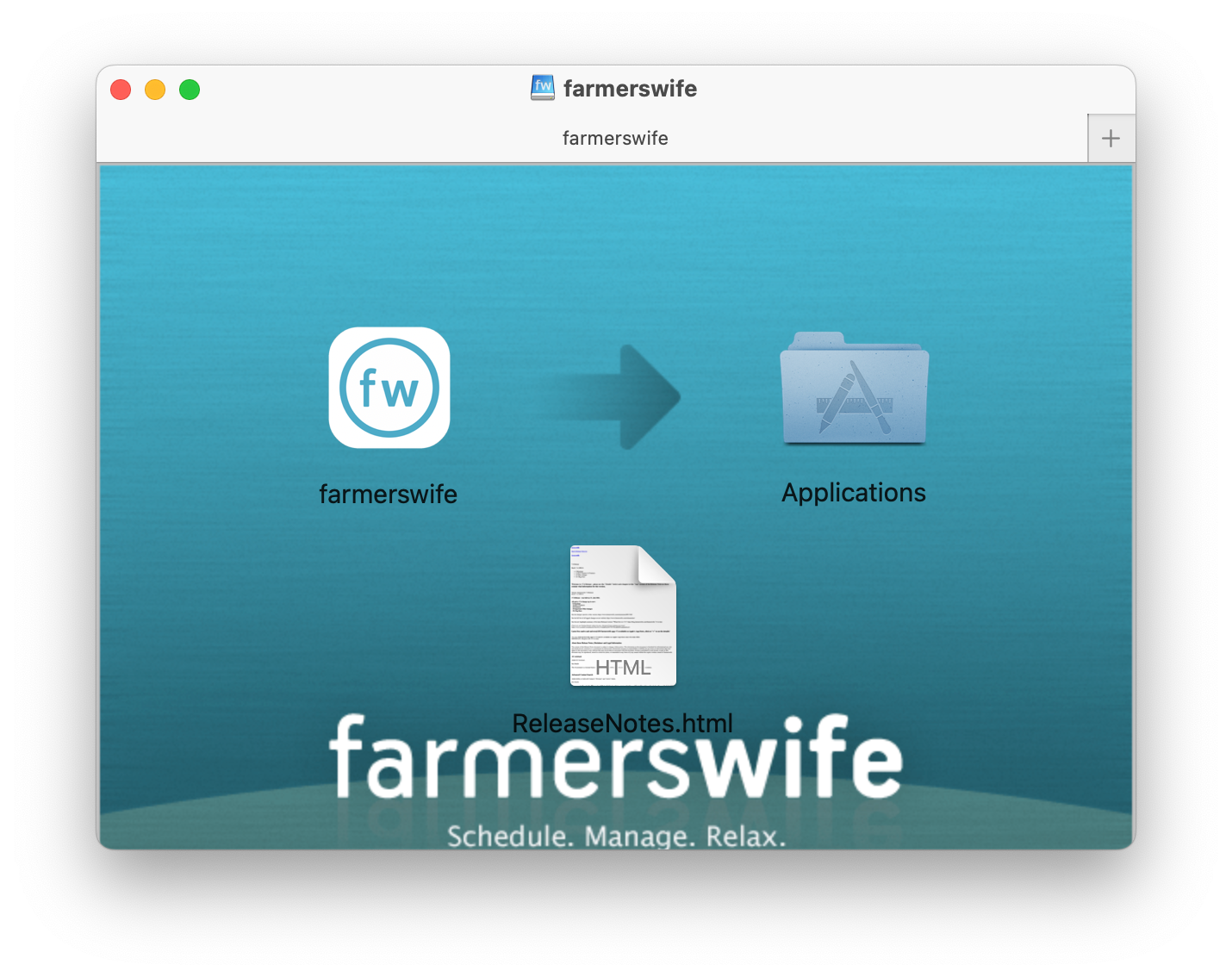
Install the Client while logged in as the Standard user who will use it. Open the .dmg file, drag farmerswife into the Applications folder, and enter an administrator's name and password when macOS asks. If you install the Client while logged in as the administrator, it won't work for the Standard user.
 |  |
Silent Install on Windows
farmerswife doesn't provide .msi files. For Windows, we only provide .exe installers, which support the /SILENT and /VERYSILENT options for package distribution.
Running fw_client_v704-SP3.exe /SILENT or fw_client_v704-SP3.exe /VERYSILENT installs the Client to the legacy default location, C:\Program Files (x86)\farmerswife Client. To install to C:\Program Files instead, use:
C:\_fw_installer>fw_client_v704-SP3.exe /VERYSILENT /DIR="C:\Program Files\farmerswife Client"
For more options, see the Inno Setup command-line documentation.
Direct Client Download Links
- macOS 10.14 Mojave or later, Retina Client (default): fw_client_v704-SP3.dmg
- macOS 10.14 Mojave or later, Non-Retina Client: fw_client_v704-SP3-nonretina.dmg
- Windows (64-bit): fw_client_v704-SP3.exe
For full Client installation steps, see Client Installation on Mac and Client Installation on Windows.
Mandatory Upgrade Path
Each Server version must be upgraded in order. Find your current version below and follow each step in turn.
From 6.8 SP3 or Later
- From v6.8 SP3 rev. 20627 to v7.0 SP4
- From v7.0 SP4 to v7.1 SP5
- From v7.1 SP5 to v7.2 SP3
- From v7.2 SP3 to v7.3 SP3
- From v7.3 SP3 to v7.4 SP3
Versions Below 6.8: Please Contact Support First
If your Server is running a version below 6.8, please contact support@farmerswife.com before upgrading. Our Support team will guide you through these steps:
- From v6.1 SP1 rev. 16195 to v6.2 SP1 rev. 16524
- From v6.2 SP1 rev. 16524 to v6.3 SP1 rev. 17162
- From v6.3 SP1 rev. 17162 to v6.4 SP2 rev. 17824
- From v6.4 SP2 rev. 17824 to v6.5 Release rev. 18623
- From v6.5 Release rev. 18623 to v6.6 SP2 rev. 19691
- From v6.6 SP2 rev. 19691 to v6.7 SP1 rev. 20130
- From v6.7 SP1 rev. 20130 to v6.8 SP3 rev. 20627
Changes in Earlier Versions
These changes from earlier releases may still affect your upgrade.
Java / OpenJDK 17 (since 7.4)
farmerswife 7.4 requires Java / OpenJDK 17. See Installing OpenJDK for farmerswife.
Password-Protected Installers Page (since 7.4)
The Release installers page is password protected. You'll receive the password with your 7.4 license email, or you can request it from support@farmerswife.com.
Secure Cookies (since 7.2)
Since 7.2, farmerswife uses secure cookies to log in to the Web Client and Mobile Web Client. If your Server runs on an older operating system, login can fail, even for users with valid credentials. To fix this, either:
- Upgrade the Server machine to the latest version of macOS or Windows, or
- Add the Secure Cookies patch, which sets the
HTTP_XML_AUTH_MODE keyvariable in server.cfg:- Download the patch (Attached at the bottom of this article): server_http_xml_auth_mode-key.cfg
- Quit the farmerswife Server.
- Rename the downloaded file to server.cfg and move it into the Server's system folder. If asked, replace the existing server.cfg.
- Start the Server, then log in to the Web Client and Mobile Web Client.
Your Own SSL Certificates (since 7.1)
The way you use your own SSL certificates changed in 7.1. If you think this affects you, see our SSL certificates article.
64-bit Only (since 7.0)
farmerswife Server and Client no longer support 32-bit systems on any operating system. On Mac, farmerswife requires macOS 10.14 Mojave or later.
Related Articles
- Server Installation on Mac
- Server Installation on Windows
- Client Installation on Mac
- Client Installation on Windows
- Server and Client Installation on Linux
- Installing OpenJDK for farmerswife
- System Requirements
If you have any questions about upgrading farmerswife, please contact support@farmerswife.com.
Was this article helpful?
That’s Great!
Thank you for your feedback
Sorry! We couldn't be helpful
Thank you for your feedback
Feedback sent
We appreciate your effort and will try to fix the article