How to Configure Your farmerswife Server-Client Connection
To use the farmerswife system, your Desktop Client must be connected to your Server so it can communicate with your database and allow users to work effectively. The setup differs slightly depending on whether your Server is self-hosted or cloud-hosted.
1. Client Access Tiers
farmerswife supports multiple client types, each designed for different user needs:
Desktop Client – Full access to licensed modules such as project and resource management, scheduling, budgeting, reporting, invoicing, and more.
Web Client – Browser-based access for schedules, time reports, and bookings (permissions depend on user role).
iOS & Mobile Web Clients – Mobile apps for schedules, time reporting, bookings, and other actions based on permissions.
2. Setting Up the Connection for Desktop client
Open the app and go to Settings > Connection to enter the connection details.
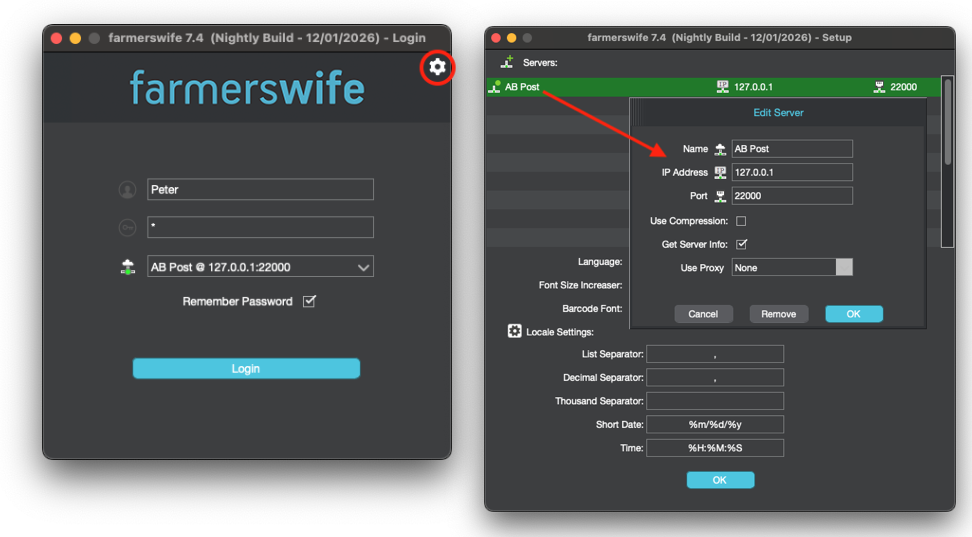
For a Cloud-Hosted Server:
Name: Your company name
IP Address: As provided by support
Port:
22000(standard) / As provided by supportUsername & Password: Your farmerswife credentials
For a Self-Hosted Server:
Name: Your company name
IP Address: IP of the Server machine
Port:
22000(standard)Username & Password: Your farmerswife credentials
a. Same machine setup: If both the server and client are installed on the same computer, choose the local IP from the dropdown.
b. Local network setup: If the Server is on another machine in your local network, enter the IP address of that machine. Confirm the address with your IT or whoever installed the server.
Web Client
Ask your system administrator for the correct URL or support if your server is cloud hosted.
Usually it should look like: https://mycompany.farmerswife.com or https://mycompany.cloud.farmerswife.com
3. Server Ports
The farmerswife Server uses a set of network ports to enable connections from the Desktop Client, Web Client, iOS app, and Mobile Web Client. The main communication port for the Desktop Client is 22000; additional ports support the web access and APIs. Ask your IT team or contact support to ensure the correct ports are accessible if connecting from outside your local network.
4. Languages & Localization
The farmerswife clients support multiple languages:
Desktop Client: English, German, Spanish, Italian, French, Danish, Polish.
Web Client: English, German, Danish, Polish, Swedish.
iOS App: English, German, Spanish, Polish.
If you need more help — or need connection details for your cloud environment — contact support.
Was this article helpful?
That’s Great!
Thank you for your feedback
Sorry! We couldn't be helpful
Thank you for your feedback
Feedback sent
We appreciate your effort and will try to fix the article